Microsoft doesn’t charge per machine for consumer ESU, which is one of the few genuinely generous things about the whole Windows 10 wind-down. One ESU license covers 10 devices, and how you actually apply it across a household comes down to a button most people never notice sitting in Windows Update.
The catch is that nothing happens automatically. Enrolling your main PC doesn’t magically cover the laptop in the bedroom or the old desktop your brother uses. You have to walk to each machine and enrol it by hand, and there’s an account issue in the middle of this that nobody warns you about until you’re already halfway through.
The button that does all the work
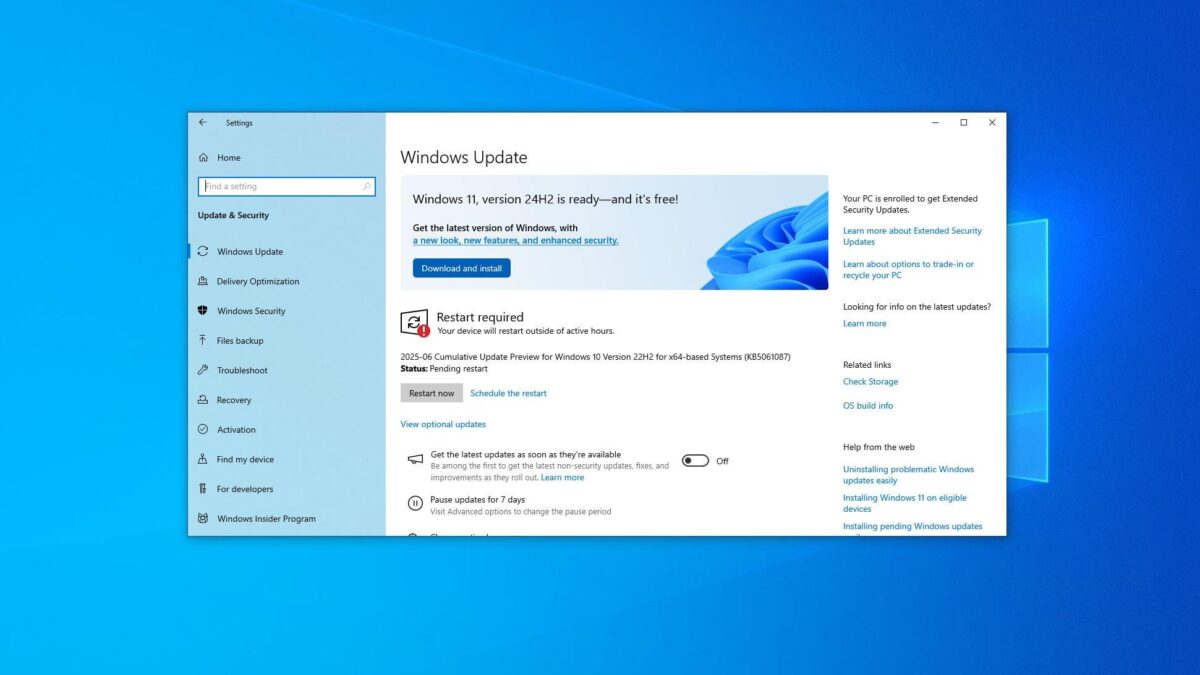
Enrol your first PC normally through Settings, Update & Security, Windows Update, picking whichever of the three options suits you. Windows Backup and 1,000 Rewards points are both free, and the $30 payment is there if you don’t want either.
Now go to the second machine and open the same Windows Update screen. If that PC is already signed in with the same Microsoft account you used the first time, you’ll see Add device rather than the full enrollment wizard. Click it and you’re done, no second payment, no second thousand points, nothing else to choose. If the PC isn’t signed in with that account yet, you’ll get the ordinary Enroll now link and Windows will ask you to sign in first.
Repeat that on every machine up to ten. The license sits on your Microsoft account, and each device you add draws from the same one.
One thing that confuses people: if you search Microsoft’s community forums you’ll find support answers claiming each device needs its own separate license and that ESU can’t be shared. That advice is wrong, and Microsoft’s own ESU page contradicts it in plain language. Trust the official page.
Sort every machine out before you start clicking
Half the frustration with this comes from doing the enrollment first and discovering the requirements afterwards. Go round the house and check all of these before you enrol anything.
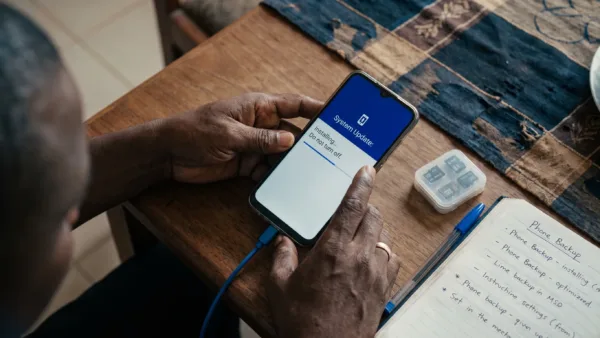
- Every PC needs Windows 10 version 22H2 with the latest updates installed. Machines that have been left alone for a year or two are often stuck on something older, and they simply won’t be offered the option until you bring them up to date.
- The edition matters. Consumer ESU covers Home, Pro, Pro Education and Workstations. Enterprise and Education editions are not included, which catches out anyone running a hand-me-down machine from an old job.
- The Microsoft account you use has to have administrator rights on that particular PC. Being an admin on your own machine doesn’t make you one on somebody else’s.
- It can’t be a child account. If the kids’ laptops are set up under child accounts in Family Safety, you’ll need to sign in with the adult account to enrol them.
- Anything in kiosk mode, joined to a work domain or Microsoft Entra, or managed through MDM is excluded outright. Those belong to the paid business programme instead.
Getting all of them onto 22H2 first is the single biggest time-saver here, because it’s the requirement that trips up the most machines and there’s no way round it.
The awkward part nobody mentions
Here’s what makes this messier than the ten device headline suggests. To enrol somebody else’s PC on your license, your Microsoft account has to be signed into that PC. Which means your email, your OneDrive, your browser sync and your account details all turn up on a machine belonging to your sister, your father or your flatmate.
Most people don’t want that and shouldn’t accept it. The workaround is to sign in, complete the enrollment, and then go into your account settings on that PC and choose the option to stop signing in to all Microsoft apps automatically. That breaks the link between your account and everything else on the machine while leaving the ESU license in place. It’s fiddly and it’s clearly not what Microsoft designed for, but it works.
Do think about this properly before spreading one account across five machines, though. If that account is ever compromised, you’ve just given somebody a route into every PC in the house. Reused and leaked credentials are exactly how this goes wrong, and plenty of Nigerian email passwords are already circulating in breach dumps. Turn on two-factor authentication for that Microsoft account before you use it as a household master key.
If some of these are shop or office machines
Worth being straight about this one, because a lot of small Nigerian businesses run five or six Windows 10 PCs that aren’t joined to any domain and would technically enrol without complaint.
Consumer ESU isn’t meant for commercial devices. The business route costs $61 per device for the first year and roughly doubles each year after that, which is a serious bill for a cybercafé or a small office. Microsoft’s enforcement of this is essentially the domain and MDM check, so an unmanaged shop PC won’t be blocked. That’s a decision for whoever owns the business rather than something I’d tell you to do, but you should at least know the programme’s terms rather than discovering them later.
Why this is worth an afternoon
All ten devices get the same thing: critical and important security patches through 12 October 2027, after Microsoft quietly pushed the deadline back a year in June. No new features, no bug fixes, no technical support, just the patches that stop known holes being exploited.
That matters more in a household than on a single machine, because the weakest PC in the house is the one that gets you. Somebody’s old laptop that only gets used for Facebook and film downloads is precisely the sort of unpatched target attackers look for, and more than three billion people were scammed or hacked last year. Covering nine machines and leaving one out defeats a good chunk of the point.
There’s a straightforward money argument too. Replacing four or five ageing laptops at once was never realistic, and it’s got worse, with RAM prices up 328 per cent in a single year pushing the cost of every new machine higher before the exchange rate even enters the picture. An extra year of patches across the whole house, for nothing, buys you time to replace them one at a time instead of all together.
A sensible order to do it in
Update every Windows 10 machine in the house to 22H2 first and let them all restart. Check the edition on each one while you’re there so you know in advance which ones won’t qualify.
Then enrol your own PC, and work through the rest one at a time, using Add device where the account is already signed in and the full wizard where it isn’t. Turn off the automatic app sign-in on any machine that isn’t yours before you walk away from it.
Keep a note somewhere of which machines you’ve enrolled, because there’s no dashboard listing them and ten is easier to lose track of than it sounds once you’re counting an old desktop, two laptops, somebody’s work-from-home machine and the one in the shop.