
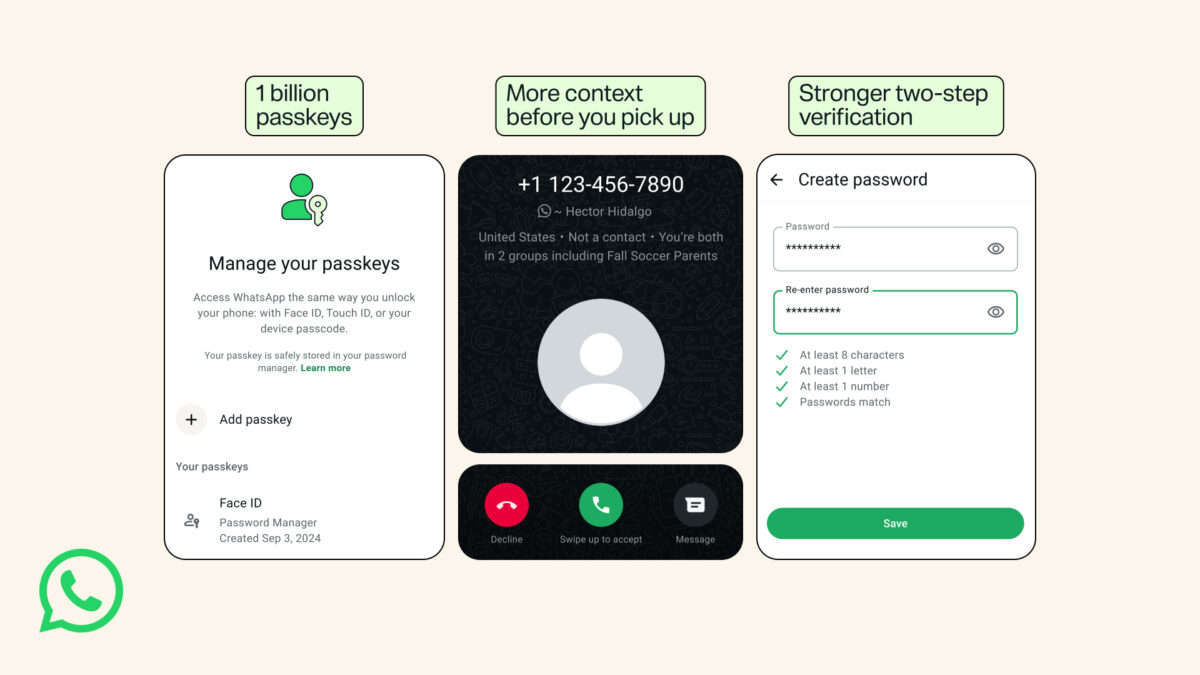
WhatsApp two-step verification no longer has to be a six-digit PIN. WhatsApp has upgraded the feature so you can set a longer alphanumeric password that includes letters, numbers and special characters, and it’s telling users to replace weak PINs like 123456. The same update, announced by Meta in August 2026, added support for more than one passkey per account, which lets you log back in with your fingerprint, face or screen lock code, and WhatsApp says more than 1 billion people now use a passkey.
For anyone in Nigeria who runs a business, a church group or a family chat on WhatsApp, these two settings decide how hard it is for someone else to take over your number. Two-step verification is the layer WhatsApp describes as protecting your account even if someone gets hold of your one-time passcode, so a stronger password there closes the gap a short PIN leaves open.
Swap your WhatsApp two-step verification PIN for a real password
Open the two-step verification option in WhatsApp’s settings and change your existing PIN to a password. Pick something long that isn’t your birthday, your phone number or a word anyone in your contacts could guess, and mix in at least one special character now that the feature accepts them. Don’t reuse your bank app password or your email password, because a leak from one service shouldn’t open another.
Store the new password somewhere safe, such as a password manager, rather than in a note inside WhatsApp or a screenshot in your gallery. Anyone who picks up your phone and finds it there gets the very thing the password is meant to keep from them.
Add a passkey so your fingerprint does the logging in
Go to Settings > Account > Passkeys and follow the prompts to create one. Once it’s set up, logging back into WhatsApp uses the same fingerprint, face unlock or screen lock code you already use on your phone, with no code to type in. If you use WhatsApp on both an Android phone and an iPhone, WhatsApp says you can now add more than one passkey, so set one up on each device rather than relying on a single phone.
Since a passkey leans on your phone’s screen lock, it’s worth tightening that lock too. A short pattern or an easy PIN on the phone itself weakens everything stored behind it, WhatsApp included.
Android users now see more about calls from unknown numbers
The third change in the same update is aimed at calls from numbers you haven’t saved. On Android, WhatsApp now shows more information before you answer a non-contact, including whether the number is from a different country and whether you share any groups with the caller. A call that claims to be from your bank, your network or a relative but shows a foreign number and no shared groups is a good reason to let it ring out.
These settings work best alongside habits that stop scams earlier, like checking a suspicious message with Circle to Search before you tap the link and staying away from modified clients, which TechSocial covered in its look at whether GBWhatsApp Pro is safe. WhatsApp’s official blog post and Meta’s newsroom announcement list all three features.
If you only have five minutes, spend them on the two-step password first, since it guards the account even when a code slips out, then add the passkey on the phone you use every day.