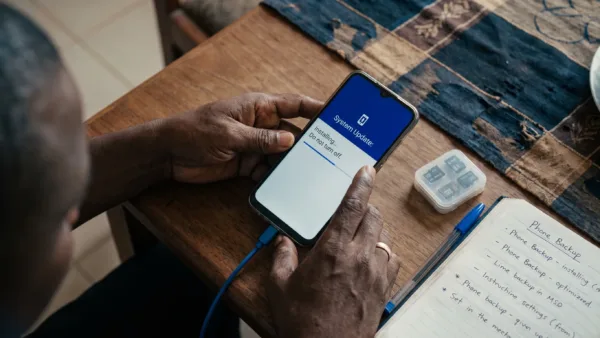
USB file transfer on Android normally stays in charging mode until you unlock the phone and choose the right USB option. That single step is why android file transfer to a Windows PC often looks broken even when the cable, phone and laptop are all fine.
This guide focuses on Windows 10 and Windows 11 PCs because that’s what most people mean by “PC” in Nigeria. The steps also fit everyday TECNO, Infinix and itel phones running recent HiOS, XOS and itel OS builds, with notes for older Android versions where the wording changes.
Why android file transfer fails even when the cable is connected
Android doesn’t automatically expose your phone storage to a computer just because you plugged in a USB cable. For privacy and security, the phone usually starts with charging only. Google’s own Android help says you must unlock the phone, connect with USB and choose the file transfer option before browsing files on the computer through Google’s Android file transfer guide.
On Android 12 to Android 15, the USB notification usually appears as Charging this device via USB or Android System. When you tap it, you should see Use USB for with options such as File transfer, USB tethering, MIDI, PTP and No data transfer. On older Android 8 and Android 9 phones, the same option may appear as MTP or Media device (MTP).
| What you see on the PC | Likely cause | What to try first |
|---|---|---|
| Phone charges but does not appear | USB mode is still on No data transfer or charging only | Unlock the phone and select File transfer |
| Phone appears but folders are empty | Phone screen is locked or permission expired | Unlock again and reselect File transfer |
| Connection keeps dropping | Weak cable, loose USB port or unstable hub | Use a data cable and connect directly to the PC |
| Windows shows an error | Driver did not load correctly | Reconnect, restart and check Device Manager |
Set up android file transfer on Android 12 to Android 15
Start with the simple USB method before installing anything. It works for most TECNO, Infinix and itel phones, including models on HiOS, XOS and itel OS where the notification shade controls USB mode.
- Unlock your phone with your PIN, pattern, fingerprint or face unlock.
- Plug the phone into the PC with a USB data cable.
- Pull down the notification shade and tap Charging this device via USB or the Android System USB notification.
- Under Use USB for, choose File transfer.
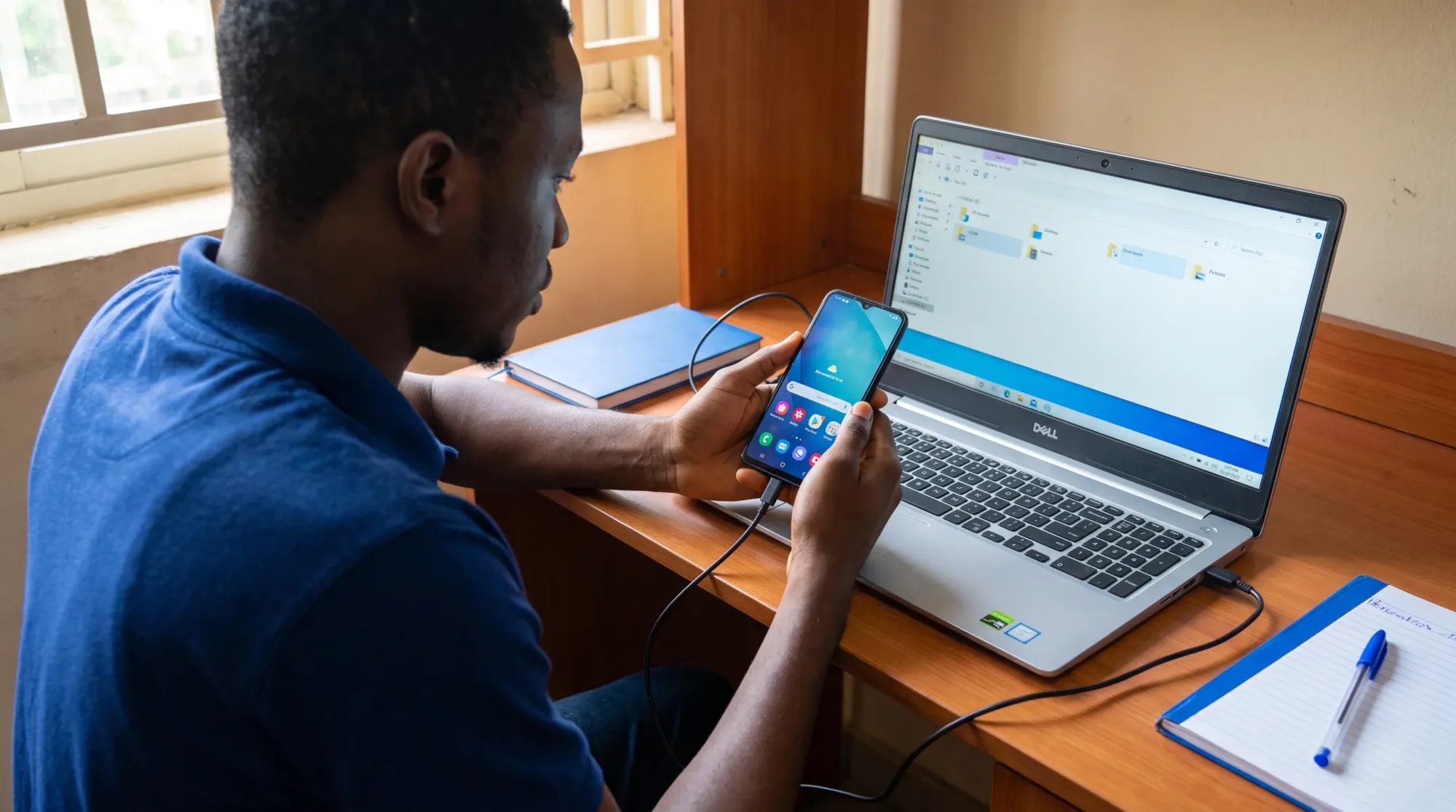
- On the PC, open File Explorer, then open This PC and select your phone name.
- Open Internal shared storage or your microSD card if your phone has one.
On many TECNO phones with HiOS and Infinix phones with XOS, the wording is usually close to stock Android. On some itel OS phones, you may see Transferring files after choosing the mode. The exact model name does not usually change the rule. If the option is still called MTP, choose it because that is the file transfer mode Windows understands.
If nothing happens after step 4, don’t start deleting apps or resetting the phone. Android file transfer depends on the cable, the USB port, Windows drivers and the phone staying unlocked long enough for the connection to finish.
The cable matters more than it looks
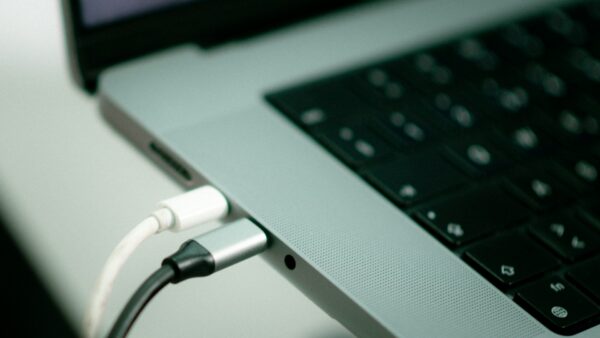
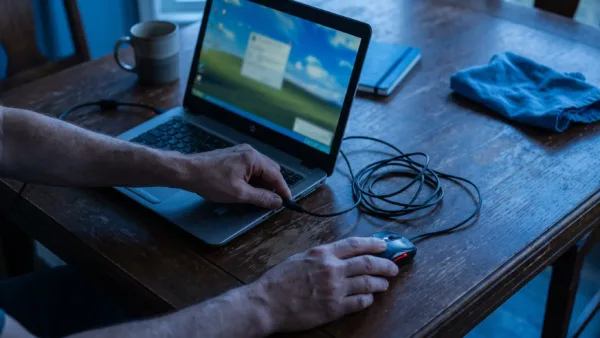
A lot of USB-C and micro-USB cables sold with power banks, lamps, earphones and small gadgets are charge-only cables. They can power your phone but cannot carry data, so Windows will never see your files. Use the cable that came with the phone if you still have it, or test with a cable you’ve used successfully for file transfer before.
Plug directly into the laptop or desktop, not through a keyboard, monitor USB port or cheap hub. If you’re using a desktop tower, try a rear USB port because it is usually connected directly to the motherboard. If the phone vibrates or keeps reconnecting, clean around the charging port carefully and check that the cable sits firmly.
For phones with a microSD card, remove and reinsert the card only after shutting down the phone or using Settings > Storage > Eject. If the card itself is failing, Windows may detect the phone but struggle to open storage.
When android file transfer fails at this stage, changing the cable fixes more cases than installing random PC tools. A cable can look perfect outside and still have broken data pins inside, especially if it has been bent near the connector.
Make Windows recognise your TECNO, Infinix or itel phone
If your phone is already on File transfer but Windows does not show it in This PC, reconnect the cable and check Device Manager. On Windows, right-click the Start button, open Device Manager, then look under Portable Devices and Universal Serial Bus controllers. Your phone may appear by model name, as MTP USB Device or as an unknown device.
Right-click the device, choose Update driver, then allow Windows to search automatically. If that doesn’t work, choose Uninstall device, unplug the phone, restart the PC and connect again. You can also open Settings > Windows Update > Advanced options > Optional updates and check whether Windows offers a related driver update.
Don’t install USB drivers from random download sites just because they mention TECNO, Infinix, itel or Android. If the USB port on your Transsion phone is loose, corroded or no longer holds the cable firmly, use Carlcare Nigeria for official service support instead of forcing the connector.
Copy photos, videos and documents without losing folders
Once the phone appears in File Explorer, open Internal shared storage and copy the files you need. For camera pictures and videos, check DCIM > Camera. For screenshots, check Pictures > Screenshots. Downloads are usually in Download. Bluetooth files may be in Bluetooth, depending on the phone.
WhatsApp media moved around on newer Android versions because of storage privacy changes. On Android 11 and newer, check Android > media > com.whatsapp > WhatsApp > Media. On older phones, you may find it directly under WhatsApp > Media. If your PC does not show some app folders, open the file manager on the phone first and confirm where the files are stored.
Copy first, then delete later if you’re freeing space. Cutting files directly from the phone to the PC can create problems if the cable disconnects halfway. After copying, open a few photos or videos on the PC to confirm they work before deleting anything from the phone.
This is also a good time to move large videos off budget phones with 32 GB or 64 GB storage. If your phone is slow even after moving files, our guide to making an old Android phone faster in 3 simple steps covers the storage and restart habits that help older Android devices feel less stuck.
When USB refuses, use a wireless option that still keeps control in your hands
USB is usually fastest, but it’s not the only practical route. If the charging port is faulty or you don’t have a working data cable, wireless transfer can save you without compressing everything through messaging apps.
Google’s Quick Share for Windows is the cleanest option for many users because it is made for moving files between Android devices and Windows PCs. Install it on the PC from Google’s official page, turn on Bluetooth and Wi-Fi, then use your phone’s share menu to send selected files. On your phone, the sharing option may appear as Quick Share depending on your Android version and manufacturer skin.
You can also use cloud storage such as Google Drive for documents and smaller batches of photos. Open the Google Drive app, upload the files over Wi-Fi if possible, then download them on the PC. This uses data if you’re on mobile internet, so check that you’re not uploading a large video folder on a limited bundle.
Wireless android file transfer is useful when the PC keeps rejecting the USB connection, but it may be slower for full backups. For a whole DCIM folder with many videos, a stable USB cable is still the better choice when the port works.
Make file transfer the default only if you understand the trade-off
You can tell some Android phones to prefer file transfer when USB is connected, but the setting is hidden inside Developer options. Use it only on your personal phone and personal PC because it makes file access easier whenever the phone is unlocked and plugged in.
To enable it on many Android 10 and newer phones, open Settings > About phone or Settings > My phone, then tap Build number seven times until the phone says developer mode is enabled. Go back and open Settings > System > Developer options if your phone shows that path. On some HiOS, XOS and itel OS builds, Developer options may appear under Settings > System or inside an additional settings area after it is enabled.
Inside Developer options, look for Default USB configuration. Choose File transfer or MTP. Do not change other developer settings you don’t understand. In particular, don’t turn on USB debugging unless you know why you need it, because that setting is for app development and advanced troubleshooting, not normal file copying.
If your phone does not show Default USB configuration, leave it. You can still use android file transfer normally from the notification shade every time you connect the cable.
Fix the errors that appear after the phone finally shows up
If Windows shows the phone but the folder is empty, unlock the phone again. Android can hide storage when the screen locks during connection. After unlocking, pull down the notification shade and confirm File transfer is still selected.
If copying stops halfway, copy in smaller batches. Start with one folder such as DCIM > Camera, then copy Download separately. Very large 4K videos, long screen recordings and WhatsApp video folders can take time, especially on older phones using slower storage.
If Windows asks you to format a drive after connecting the phone, Don’t tap Format. That warning is more common with a damaged microSD card than with internal phone storage. Cancel the prompt, disconnect safely, then check the card inside Settings > Storage on the phone. Formatting can erase files.
If you can copy photos but not app folders, that may be normal on Android 11 and newer because app-private areas are restricted. Don’t fight the Android > data folder for normal backups. Use the app’s own export, backup or download option when the files are managed inside a specific app.
Remove the cable only after Windows has finished copying
Before unplugging, wait for the Windows copy window to close. Open one or two copied files on the PC and check that the file sizes look reasonable. A video file that shows 0 KB or refuses to open probably did not transfer properly.
If you transferred from a microSD card inside the phone, give Windows a few seconds after the copy completes before disconnecting. For external drives you normally use Safely Remove Hardware, but for a phone connection the safest habit is simple enough. Stop copying, close open phone folders in File Explorer, then unplug the cable.
The reliable pattern is not complicated. Unlock the phone, choose File transfer, use a real data cable, check Windows drivers only when needed and copy before deleting. For more practical Android, Windows and phone fixes written in the same step-by-step style, browse our How-To Guides.