StatCounter’s July 2026 figures for Nigeria put Android 13 at the top of the pile with 17.85% of devices, and once you add Android 12, 11 and 10, close to 57% of the Android phones browsing from Nigeria are running software that first shipped in 2022 or earlier. That is a lot of handsets bought years ago and still expected to run WhatsApp, open a bank app, hold a video call and take pictures at owambe. So if yours has started stuttering on the home screen or taking five seconds to launch the camera, you are in very normal company. The useful question is which of the popular fixes are actually worth your time, because a good number of them either stopped working years ago or quietly make the phone worse.
You don’t need a new phone for this, and you definitely don’t need a cleaner app from the Play Store. Three changes carry almost all of the benefit, and every one of them is already built into Android. We’ll take them in order of how much difference they make, and along the way we’ll point out the one widely shared setting that you should leave exactly where it is.
Step 1: Free up real storage, because clearing cache is not the fix people think it is
Almost every “speed up your phone” guide tells you to open Settings, tap Storage and then tap Cached Data to wipe everything at once. That button hasn’t existed since Android 8 Oreo, when Google removed the system wide cache clear and started letting Android evict cached files automatically whenever storage runs low. If you are on anything newer than a 2017 phone, you can stop hunting for it. Cache is also not really your enemy, since those files are the images and data your apps keep so they don’t have to pull them down again, and wiping them all means every app re-downloads the same content the next time you open it. On a metered Nigerian data plan, that is a real cost for a change that usually buys you nothing.
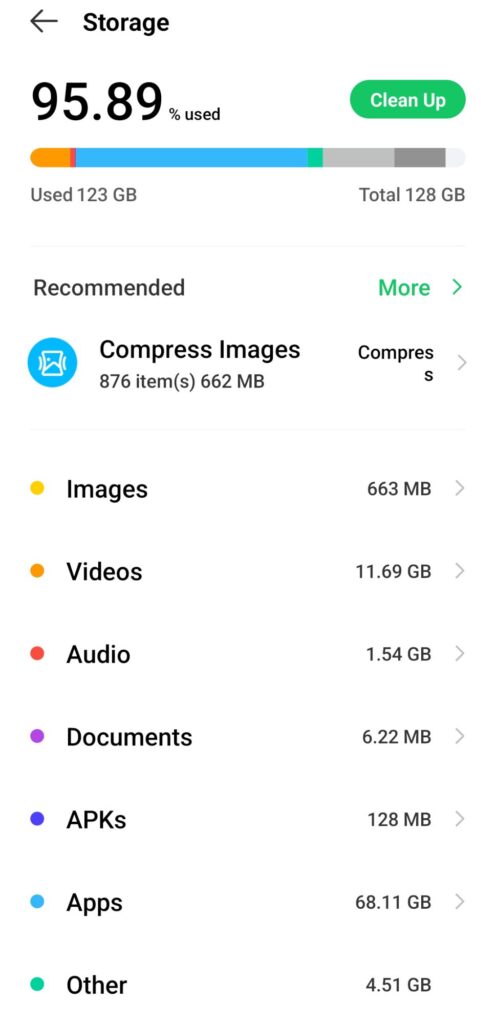
What genuinely helps is free space, not clean cache. Flash storage needs empty blocks to write into, and when a phone is sitting at 95% full it has to shuffle existing data around before it can save anything new, rather like a car park where every arriving car needs three others to reverse out first. Aim to keep at least 15% to 20% of your internal storage free and you’ll feel the difference in app launches, camera saves and app updates. Photos and videos are almost always the real culprit, and if yours refills within days of you clearing it, we’ve explained why phone storage keeps filling up even after you delete files separately.
Here is where to actually look:
- Open Settings > Storage to see what is eating the space, then sort your apps by size.
- For a single bloated app such as Facebook, Chrome or TikTok, go to Settings > Apps > [app] > Storage and cache > Clear cache. Avoid Clear storage, which signs you out and wipes the app’s data.
- Uninstall anything you haven’t opened in the last month, and for pre-installed apps you cannot remove, tap Disable so they stop updating and running.
- Move your WhatsApp media and camera roll to Google Photos or a memory card, since that is usually where several gigabytes are hiding.
If the camera roll is where you are stuck and deleting pictures is not an option, there is a longer walkthrough on freeing up space without deleting your photos. Once you have breathing room on the storage side, the next change is the one you will notice within seconds of making it.
Step 2: Cutting the animation speed is the change you will feel instantly, but skip the setting right below it
Every time you open an app, swipe home or pull down the notification shade, Android plays a short animation, and by default those animations run at 1x. On a phone with a modern chip you barely register them, but on an older Tecno Spark, Infinix Hot or Galaxy A series device with 3GB or 4GB of RAM, that quarter second of animation stacks on top of an already slow app launch and makes the whole system feel sluggish. Halving the animation speed doesn’t make the hardware faster, though it does cut the waiting you actually perceive, which for most people amounts to the same thing. It is easily the highest return per minute of any change on this list.
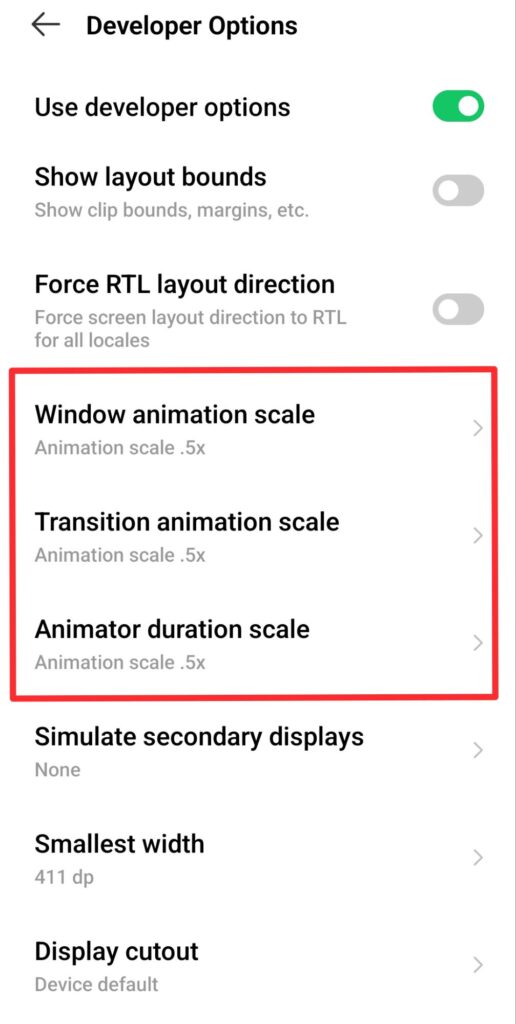
To get at the setting, go to Settings > About phone and tap Build number seven times until the phone tells you that you are now a developer. On Samsung devices you’ll find Build number under Settings > About phone > Software information instead. Then head to Settings > System > Developer options and set Window animation scale, Transition animation scale and Animator duration scale to 0.5x. That same menu holds several other useful toggles, and we’ve covered the hidden Android settings every Nigerian should activate if you want to look around while you are in there. If you prefer to keep Developer options switched off entirely, most Samsung phones offer Settings > Accessibility > Visibility enhancements > Remove animations, which kills animations completely rather than just speeding them up.
One warning that matters a lot in Nigeria: some banking and government apps refuse to run while Developer options is enabled, and users have reported exactly this on Samsung Galaxy devices. If your bank app suddenly starts complaining about an unsafe device, that is almost certainly why. Turning Developer options off usually resets your animation scales back to 1x, so you may need to choose between the speed tweak and the app, or use the Accessibility route instead.
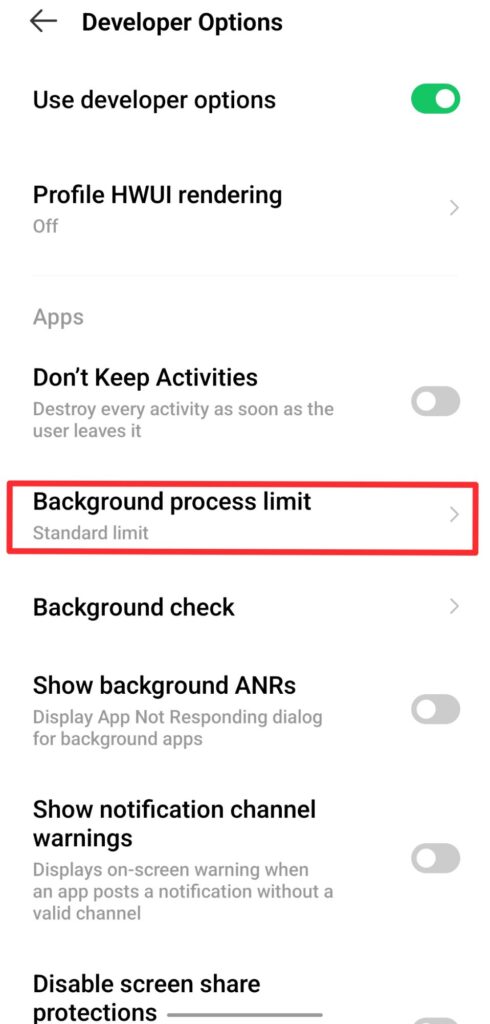
Now for the setting sitting a little further down that same Developer options screen. “Background process limit” gets recommended constantly, usually with an instruction to set it to two processes or none at all, and it is not a good idea. Android doesn’t only run apps in the background, it also runs sync adapters, notification listeners, widget updates and launcher processes, and squeezing that limit down starves all of them together. What you get in practice is delayed notifications, a home screen that reloads every time you return to it, and apps that cold start from scratch instead of resuming. Leave it on Standard limit, and if you really want to experiment on a 2GB or 3GB device, “At most 4 processes” is as far down as anyone should go.
That covers the two changes that move the needle most. The third one costs you nothing at all and takes about ten seconds a week.
Step 3: Restart the phone weekly, and be careful which launcher you install
Plenty of people go a month or more without ever powering their phone down, and over that stretch memory leaks build up, stuck services keep holding RAM and background tasks fail without ever clearing themselves. A restart flushes all of it and costs you nothing but the boot time. Once a week is plenty for most phones, and there is no need for the every-two-days routine some guides suggest, since modern Android manages memory far better than the Android 4 and 5 era that advice came from. If you find yourself needing to restart daily just to keep things usable, that is a symptom worth investigating rather than a habit worth keeping.
Launchers are the other half of this step, though the usual reasoning about them is out of date. Nova Launcher was never a heavy app and was actually one of the lightest and fastest options for years, so weight isn’t the issue. The problem is ownership. We reported when Nova Launcher was shutting down after original developer Kevin Barry left Branch in September 2025, and the story has moved on since: in January 2026 the launcher changed hands again to Swedish developer Instabridge, which has signalled it is considering ads inside the app. An under-maintained launcher that later starts serving ads is not what you want sitting between you and your home screen on a phone you are already trying to speed up.
For most people the launcher that shipped with the phone is the right choice, and we’ve made the case for sticking with your Android’s default launcher in more detail. If you do want something different, Niagara Launcher is genuinely lightweight and actively developed, and Smart Launcher is a reasonable alternative. Whichever one you use, strip the home screen back to a couple of pages, remove widgets you never look at, and swap any live wallpaper for a static image, because a live wallpaper redraws constantly and is one of the few home screen choices that measurably costs you battery and performance.
The smaller settings that quietly add up over a month
A few adjustments outside the main three are worth making while you are in there. In the Play Store, tap your profile picture and go to Settings > Network preferences > Auto-update apps and choose “Over Wi-Fi only” rather than switching updates off entirely, since app updates carry security fixes and you do not want to be running a two-year-old version of your bank app. Leave account sync alone as well, because turning off auto-sync stops your contacts, Gmail and photo backups from updating, and the battery you save rarely justifies losing all of that. If one specific app is the problem, restrict that app on its own from Settings > Apps > [app] > Battery, which is the approach we took when working out how to stop WhatsApp battery drain on Android.
Skip the cleaner and booster apps entirely. They sit in memory permanently, show ads, and the “RAM boost” they perform just force closes apps that Android was deliberately keeping cached for a fast resume, which means those apps then have to cold start when you open them next. You end up slower than before, with an extra app running. Android’s own storage tools do the useful part of the job without any of that overhead, and if you want to cut down what your apps pull over the network while you are at it, our roundup of apps that help you save data in Nigeria covers the ones actually worth installing.
When none of this works, the problem is not really software
There is a point where an old phone is slow for reasons no setting can fix. A battery that has lost most of its health will make the system throttle itself, and if yours is fading fast there are several ways to boost Android battery life without installing anything worth trying first. Storage chips genuinely degrade after years of writes, and 2GB of RAM simply cannot hold today’s version of WhatsApp, Chrome and your bank app open at the same time no matter how you configure it. If your phone got noticeably slower right after a system update rather than gradually over years, that is a different situation with different causes, and we’ve covered why Android phones get slow after updates and how to fix it separately. A factory reset is the last software option worth trying, and only after you have backed up your photos, WhatsApp chats and documents somewhere you can actually restore from.
For the vast majority of phones though, the three changes above are enough. Clear out real storage so the phone has room to work, halve the animation scales so you stop waiting on transitions, and restart weekly with a light home screen and a launcher you trust. Some phones are genuinely past saving and are better replaced than rescued, in which case our checks before buying a refurbished flagship in Nigeria will save you money, but most of the phones people write off as finished are just full, over-animated and never rebooted.