Google says the Play Store app comes pre-installed on Android devices that support Google Play, which means the safest way to install Google Play Store safely on Android is to first check whether your phone already supports it, whether the app was disabled or whether the phone never shipped with Google services at all. That one check can save you from fake “Play Store installer” APKs that ask for strange permissions, install extra apps or break your phone after the next update.
On many Nigerian Android phones, especially TECNO, Infinix and itel models, Play Store should already be there unless it was hidden, disabled, affected by a software issue or removed by an unofficial firmware flash. If you bought an imported phone, a used phone or a phone repaired with unofficial software, treat the missing Play Store as a warning sign, not just a missing app.
First check whether Play Store is only hidden or disabled
Before downloading anything, search your phone properly. Swipe up to open the app drawer and type “Play Store” in the search bar. If your launcher has a hidden apps feature, check there too. On some HiOS, XOS and itel OS builds, you may find this under Home screen settings > Hide apps or a similar launcher setting.
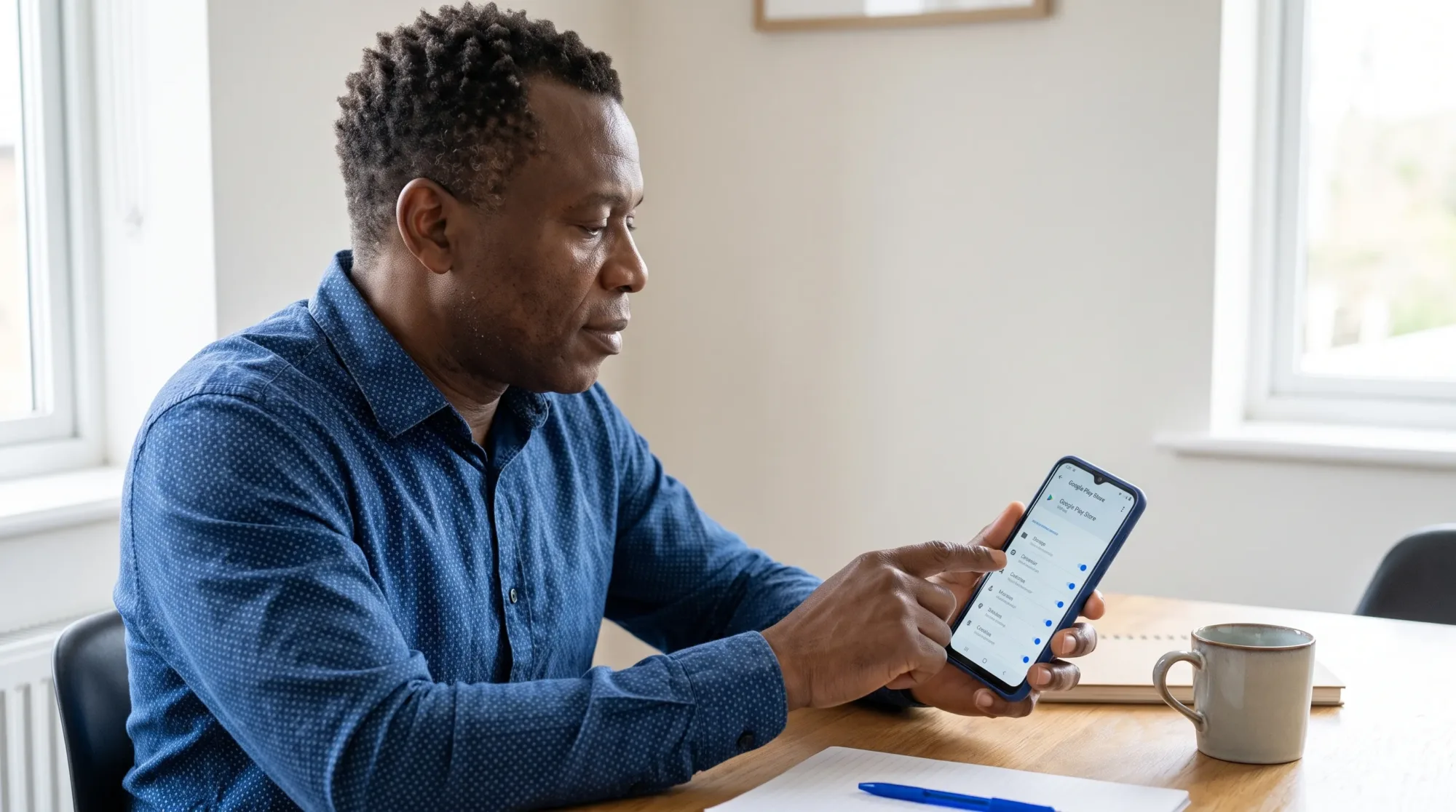
Next, check whether the app was disabled. On a TECNO Spark 10 Pro running HiOS 12.6 on Android 13, you can usually start from Settings > App management > App list. On an Infinix Hot 40 Pro running XOS 13.5 on Android 13, the route is also commonly Settings > App management > App list. On an itel A70 running Android 13 Go edition, look for Settings > Apps or Settings > App management, depending on the software build your phone received.
If you use a Pixel, Samsung or Nokia phone on Android 14 or Android 15, the more common route is Settings > Apps > See all apps. From there, search for Google Play Store. If you see it, open the app info page and tap Enable. Also check Google Play services, because Play Store depends on it.
| What you see on the phone | What it usually means | Safer next step |
|---|---|---|
| Play Store appears in app settings with an Enable button | The app was disabled, not deleted | Tap Enable, then restart the phone |
| Play Store appears but keeps closing | Cache, update or Google services problem | Clear cache and update the phone software |
| Play Store is missing from app settings | The firmware may not include Google apps | Check certification before sideloading anything |
| Play Store opens but says the device is not certified | Google does not recognise the software as certified | Avoid banking or sensitive logins until fixed |
| An installer asks for your NIN, bank details or SIM information | It is not a normal Play Store installation flow | Stop immediately and delete the file |
Google’s own help page on finding the Play Store app explains that supported Android devices normally come with Play Store already installed, so a missing icon is often not a reason to rush to a random APK site.
How to install Google Play Store safely on Android when it was disabled
If Play Store is listed in your Android settings, don’t download a fresh copy yet. Re-enabling the original app is safer because it keeps the version that came with your phone’s certified software.
Open the app info page for Google Play Store, tap Enable, then restart your phone. After the restart, open Play Store and sign in with your Google account if asked. If it opens but refuses to download apps, go back to Settings > Apps > Google Play Store > Storage & cache and tap Clear cache. Do the same for Google Play services if downloads still hang.
If you see Uninstall updates on the Play Store app info page, you can use it when the app opens and crashes immediately after an update. This rolls the app back to the factory version, and Play Store should update itself again later when the phone is online.
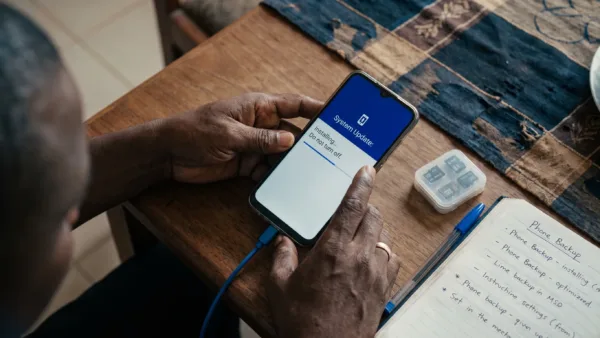
You should also check for a system update before sideloading anything. Google’s Android Help page on system updates recommends using the built-in update menu, not random firmware files from the internet. On many phones, you can search System update from Settings. If you’re using a TECNO Spark 10 Pro, there’s a separate walkthrough on how to update your Tecno Spark 10 Pro safely without using unofficial files.
If your phone never had Google Play, don’t treat every APK as a fix
Some Android phones are sold without Google Mobile Services. This can happen with certain China ROM imports, some custom ROMs and phones that were flashed with unofficial software after a repair. In that case, installing only the Play Store app may not work because Play Store depends on other Google components such as Google Play services and Google Services Framework.
If Play Store opens, check certification from Play Store > Profile icon > Settings > About > Play Protect certification. Google has a support page explaining what Play Protect certification means and why uncertified devices may not run Google apps correctly.
If the phone is not Play Protect certified, sideloading Play Store may not make it a safe or stable Google phone. You may still see crashes, login errors, missing notifications or problems with apps that rely on Google Play services. For banking apps, work email and password managers, it’s better to fix the firmware issue first than to force-install Google apps on a device Google does not recognise.
On TECNO, Infinix and itel phones, a missing Play Store after repair can point to the wrong firmware. If your phone is still under support, contact Carlcare through the official Carlcare Nigeria site or the Carlcare app instead of accepting another unofficial flash. For day-to-day app downloads while you sort it out, Palm Store can be a practical fallback on many Transsion phones, and our hands-on look at why Palm Store is surprisingly good explains where it helps and where you still need to be careful.
A safer APK route if you still need to sideload
There is no normal Google support page where you can download a universal Play Store APK for every Android phone. That’s why sideloading should be your last option, not your first move. If your phone originally supported Google Play and Play Store was accidentally removed or damaged, an APK may restore the app, but it won’t fix an uncertified phone or a bad ROM.
If you still want to proceed, use a reputable APK archive that identifies the package clearly, such as APKMirror’s Google Play Store listing. Avoid “Google installer,” “GMS activator,” “Play Store Pro,” “modded Play Store” or any file shared through WhatsApp, Telegram groups or pop-up ads.
Before installing, back up your photos, WhatsApp chats and important files. Also make sure you have enough free storage because a half-complete installation can create more problems. If your phone is already low on space, use the steps in our guide on how to free up storage space on Android without deleting photos before you install anything.
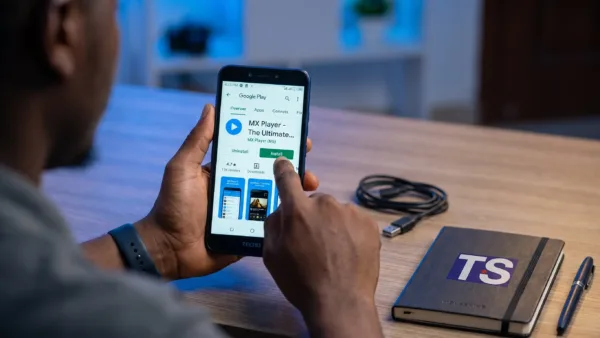
To sideload on Android 8 and newer, download the APK, then open it from your browser or file manager. Android should ask you to allow that app to install unknown apps. Go to Settings > Apps > Special app access > Install unknown apps, choose the browser or file manager you used, then turn on Allow from this source only for that installation. After Play Store installs, return to the same menu and turn Allow from this source off.
Don’t install a “Play Store installer” that asks for your banking PIN, card details, NIN, SIM details or accessibility permission. Play Store does not need those details to appear on your phone. If an APK tries to install extra cleaners, VPNs, launchers or “boosters” before Play Store, cancel it and delete the file.
After it opens, secure Play Store before downloading apps
Once Play Store opens, sign in with your Google account and give it a few minutes on Wi-Fi. Google Play services, Play Store and Play Protect may update quietly in the background. If apps stay on Pending, restart the phone, then open Settings > Apps > Google Play Store > Storage & cache > Clear cache.
Next, check Play Protect. Open Play Store > Profile icon > Play Protect, tap the settings icon and make sure Scan apps with Play Protect is on. Google’s Play Protect help page explains how it checks apps for harmful behaviour, including apps from outside Play Store.
You should also control updates if you’re using mobile data. Open Play Store > Profile icon > Settings > Network preferences > Auto-update apps and choose Over Wi-Fi only if you don’t want app updates eating into your MTN, Airtel, Glo or T2 data. If apps still update on mobile data after that, our guide on why Android keeps updating apps on mobile data walks through the other settings that can override Play Store.
Keep your phone security updates current too. Search for Security update and Google Play system update inside Settings, because the exact path varies across HiOS, XOS, itel OS, Samsung One UI and stock Android. If your phone has not received security updates for a long time, be more careful with APKs, especially apps that handle money, identity documents or work accounts.
Fix common problems after Play Store installation
If Play Store installs but refuses to open, the phone may be missing required Google components. This is common on phones that never shipped with Google Mobile Services. Installing more random APKs can make the problem worse, especially if the versions don’t match your Android version or processor type.
If you get “Authentication is required,” remove and add your Google account again from Settings > Passwords and accounts or Settings > Accounts, depending on your phone. Then restart the phone and reopen Play Store. If the problem started after changing your Google password, wait a short while and try again on Wi-Fi.
If downloads are stuck on “Pending,” check storage, date, time and network. Use Settings > System > Date and time and turn on Set time automatically. Then open Settings > Apps > Google Play Store > Storage & cache and clear the cache. You can also clear cache for Download Manager if it appears in your app list.
If you see “This device isn’t Play Protect certified,” don’t ignore it. Check whether the phone was imported, rooted, bootloader-unlocked or flashed after a repair. For a Transsion phone that should normally support Google Play, official firmware support through Carlcare is the safer route than installing several Google packages from unknown sources.
Keep unknown app installs switched off afterwards
After Play Store is working, go back to Settings > Apps > Special app access > Install unknown apps and switch off permission for your browser, file manager and messaging apps. This matters because the same permission that lets you install Play Store from an APK can also let a fake update or malicious app slip in later.
If you regularly download APKs for apps not available in Nigeria, create a stricter habit. Download only from the app developer’s official website or a reputable archive, scan with Play Protect and delete installer files after use. For everyday apps like WhatsApp, banking apps, ride-hailing apps, browsers and email, Play Store remains the safer route because updates, developer identity and Play Protect checks are handled in one place.
The safest way to install Google Play Store safely on Android is usually not a dramatic reinstall. It’s checking whether the original app is disabled, updating your phone, avoiding fake installers, turning off unknown app installs after use and fixing uncertified firmware properly when the problem is deeper than one missing app icon.