Google’s default setting for app updates is “Over Wi-Fi only”, and Google’s documentation goes further by saying updates are queued for moments when the phone is connected to Wi-Fi, charging, idle and not running the app in question. On paper, no app update should ever touch your bundle. Plenty of Nigerians still watch their data drop while the Play Store quietly works in the background, which means something on the phone is overriding that default.
Three things cause it, and only one of them is the Play Store setting everybody talks about. The other two get almost no attention and are the more likely culprits on a Tecno, Infinix or itel handset. Working out which one applies to you takes a couple of minutes and stops you disabling updates you actually need.
Check what your Play Store is actually set to before assuming anything
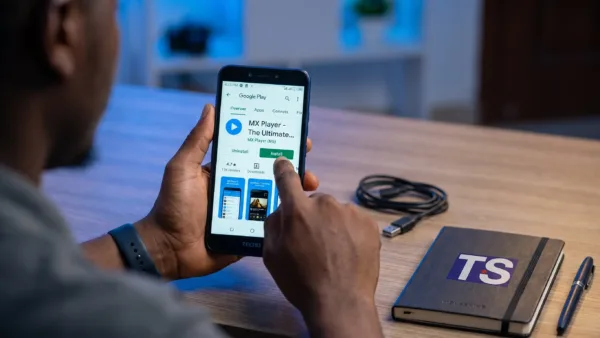
Someone may have changed this at some point, whether that was you months ago, the person who set up the phone for you, or a shop that configured it before sale. Open the Play Store, tap your profile picture, then go to Settings > Network preferences > Auto-update apps and see which of the three options is selected. If it reads “Over any network”, that is your answer, and switching it to “Over Wi-Fi only” fixes it immediately.
While you are in that menu, check App download preference as well, since it controls new installs rather than updates and is a separate setting people miss. Set that to “Over Wi-Fi only” too, or to “Ask me every time” if you want the choice each occasion. Neither of these stops updates happening, they only decide which network pays for them.
Avoid the third option, “Don’t auto-update apps”, tempting though it looks. App updates carry security patches, and a banking app two years out of date is a genuine risk rather than a theoretical one. The Wi-Fi only setting gives you the saving without the exposure.
Google Play Services updates over mobile data no matter what you choose
There is one exception written into how Android works, and Google states it plainly. The network constraint is relaxed for some system packages, specifically Google Play Services and Mainline modules, which are the components that handle security, permissions and core system functions. Those will download over mobile data regardless of your Play Store preference, because Google treats them as too important to sit waiting for Wi-Fi.
The saving grace is that these are usually small compared with a Facebook or TikTok update, and they are genuinely security infrastructure rather than features you can do without. You cannot turn this off through any normal setting, and you should not want to. If your data disappears in large chunks rather than small ones, this is not what is doing it.
The app store you did not install is often the real culprit
Most phones sold in Nigeria ship with a second app store alongside the Play Store, and that second store has its own update settings that nobody ever opens. Tecno, Infinix and itel devices carry Palm Store, Samsung phones have Galaxy Store, and Xiaomi handsets run GetApps. Each of them can update its own apps independently of anything you set in the Play Store, and each has its own Wi-Fi preference buried in its own settings menu.
Open whichever one your phone has, find its settings, and look for an auto-update or update over Wi-Fi option. On Galaxy Store the path runs through the menu icon then Settings > Auto update apps, where you want the Wi-Fi only choice. Palm Store and GetApps organise their settings differently across versions, so look for anything referring to automatic updates or network preferences. This single check accounts for a lot of the mystery data loss people blame on the Play Store.
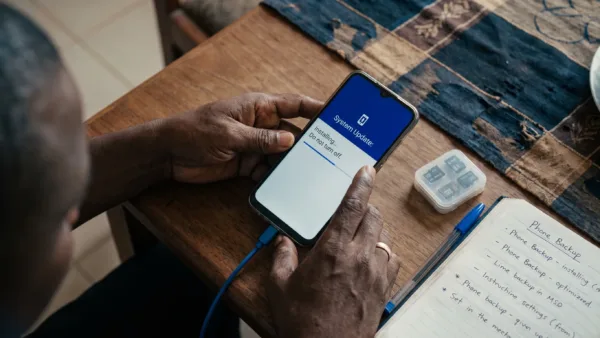
Manufacturer system updates are the other one worth knowing about, since a full firmware update runs to gigabytes and is a different thing entirely from an app update. Those normally ask before downloading, though it is worth confirming yours is set to Wi-Fi only under Settings > System > System update or your phone’s equivalent. A system update that lands on mobile data will do more damage to a bundle than every app on your phone combined.
Set the system-wide controls so nothing slips past
Android’s own Data Saver sits above all of this and stops apps using mobile data in the background across the whole phone. Switch it on under Settings > Network and internet > Data Saver, then use Unrestricted data in that same menu to exempt the few apps that genuinely need background access, which for most people means WhatsApp and a bank app. That gives you a floor underneath whatever individual apps and stores decide to do.
Setting a hard limit is the other half of it. Under Settings > Network and internet > SIMs > Data warning and limit, you can set a warning figure and a limit that switches mobile data off automatically when you hit it, with the cycle set to match the day your bundle renews. If you want to see exactly which apps have been spending your data before you change anything, Settings > Network and internet > SIMs > App data usage ranks them for the current cycle. Our fuller guide to saving data in Nigeria covers the in-app settings that matter beyond updates.
Updates get blamed for a lot of things they did not do, and slow phones after an update are usually the phone rebuilding itself rather than the update being bad, which we explained in why Android phones get slow after updates. Set the Play Store and your second app store to Wi-Fi only, leave Play Services alone, and switch on Data Saver, and app updates stop being something you have to think about. Keeping them running matters more than the data they cost, because the alternative is a phone full of software nobody is patching any more.