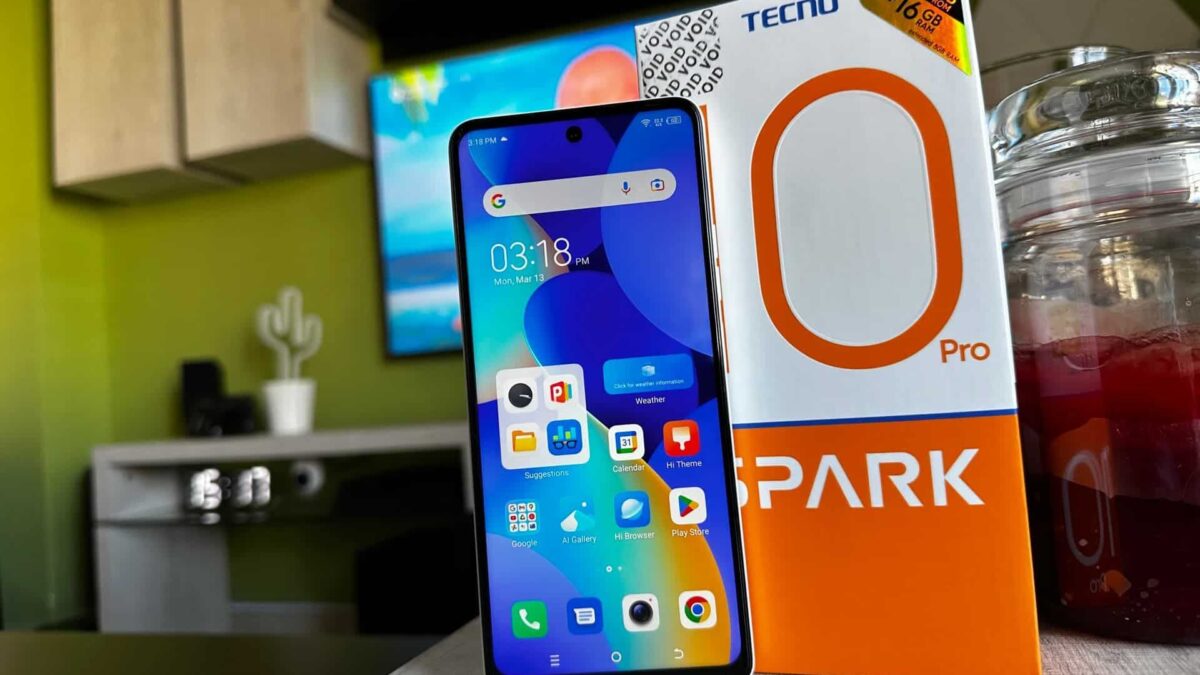
The Tecno Spark 10 Pro shipped in many markets with Android 13 and HiOS 12.6, and in 2026 the safest update route is still the built-in HiOS updater, not firmware shared through social media or file-hosting pages. This guide walks you through what to check before downloading, where to tap in HiOS and what to do if installation fails or the phone behaves strangely afterward.
The official TECNO Spark 10 Pro page is useful for confirming the model family, but update availability still depends on your exact build, region and rollout batch. Google’s Android update help also explains that updates can depend on the device, manufacturer and mobile operator, so two identical-looking phones may not receive the same package on the same day.
Before you update your Tecno Spark 10 Pro, make sure the basics are right
Start by confirming the phone you’re about to update. Open Settings > My Phone and check Model, Android version, HiOS version, Build number and Android security update. On many Spark 10 Pro units, you’ll see Android 13 and HiOS 12.6, but your own screen may show different numbers if the phone has already received an update or came from another market.
Don’t rush past this step if you bought the phone used. If the model name, IMEI label or warranty details look suspicious, pause the update and first confirm the device is genuine. There’s a separate guide that shows how to check whether a Tecno, Infinix or itel phone is original before you trust sensitive software changes.
Use this pre-update check as your practical minimum, not as a guarantee that every update will install perfectly.
| What to check | Safe target | Why it matters |
|---|---|---|
| Battery | At least 50 percent, with a charger nearby | Prevents shutdown while the system is installing |
| Storage | A few GB free, preferably 5 GB or more | Gives HiOS space to download and unpack the update |
| Network | Stable Wi-Fi where possible | Reduces failed downloads and repeated data use |
| Backup | Google backup and important files copied elsewhere | Protects your data if the phone needs a reset later |
| Update source | Built-in System Update only | Avoids wrong firmware for your region or model |
The update source matters more than the file size
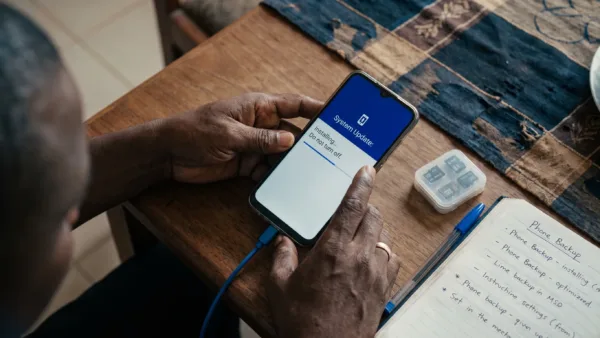
Use the update that appears inside Settings > System > System Update. If your build uses a different layout, check Settings > My Phone > System Update or search for System Update inside Settings. A genuine OTA update should appear inside the phone’s own updater with package details and an install prompt.
Do not install update files from Telegram, WhatsApp groups or random firmware websites. The wrong regional firmware can cause network problems, camera issues, boot loops or account lock trouble. If the phone has been rooted, manually flashed or repaired recently, it’s safer to ask Carlcare before installing a major system package.
Back up before the progress bar starts moving
Updating a Tecno Spark 10 Pro normally should not delete your photos, chats or apps, but “should not” is not the same as “cannot.” A failed install, corrupted storage or later factory reset can still put your data at risk. Google’s Android backup guide explains how Android backup works across apps, call history, settings and some device data.
On HiOS 12.6 with Android 13, start with Settings > System > Backup or Settings > Google > Backup, then turn on Backup by Google One if it’s available on your phone. After that, open Google Photos and confirm that Backup is enabled if you rely on it for pictures and videos.
For WhatsApp, open WhatsApp > Settings > Chats > Chat backup and run a fresh backup before updating. If you keep school documents, CAC files, business invoices or important downloads on the phone, copy them to a memory card, computer or cloud storage as well. Cloud backup is helpful, but having your most important files in two places is safer.
Give HiOS enough power, storage and a steady connection
For the Tecno Spark 10 Pro, treat 50 percent battery as the minimum before you tap Download or Install. If your phone already shuts down early, drains too fast or heats up during charging, plug it in and check the battery condition first. Our guide on how to check battery health on Tecno, Infinix and itel phones can help you separate normal battery ageing from a software issue.
Free storage matters too. Open Settings > Storage and remove large videos, duplicate downloads, offline movies and old APK files you no longer need. If the update file downloads but refuses to install, low storage is one of the first things to fix before blaming the update itself.
Use a stable Wi-Fi connection if you can. If you must use mobile data, make sure your data balance is enough and avoid moving between weak signal areas while the download is running. A broken download can waste data and force the phone to start again.
Install the update slowly, even if the download looks finished
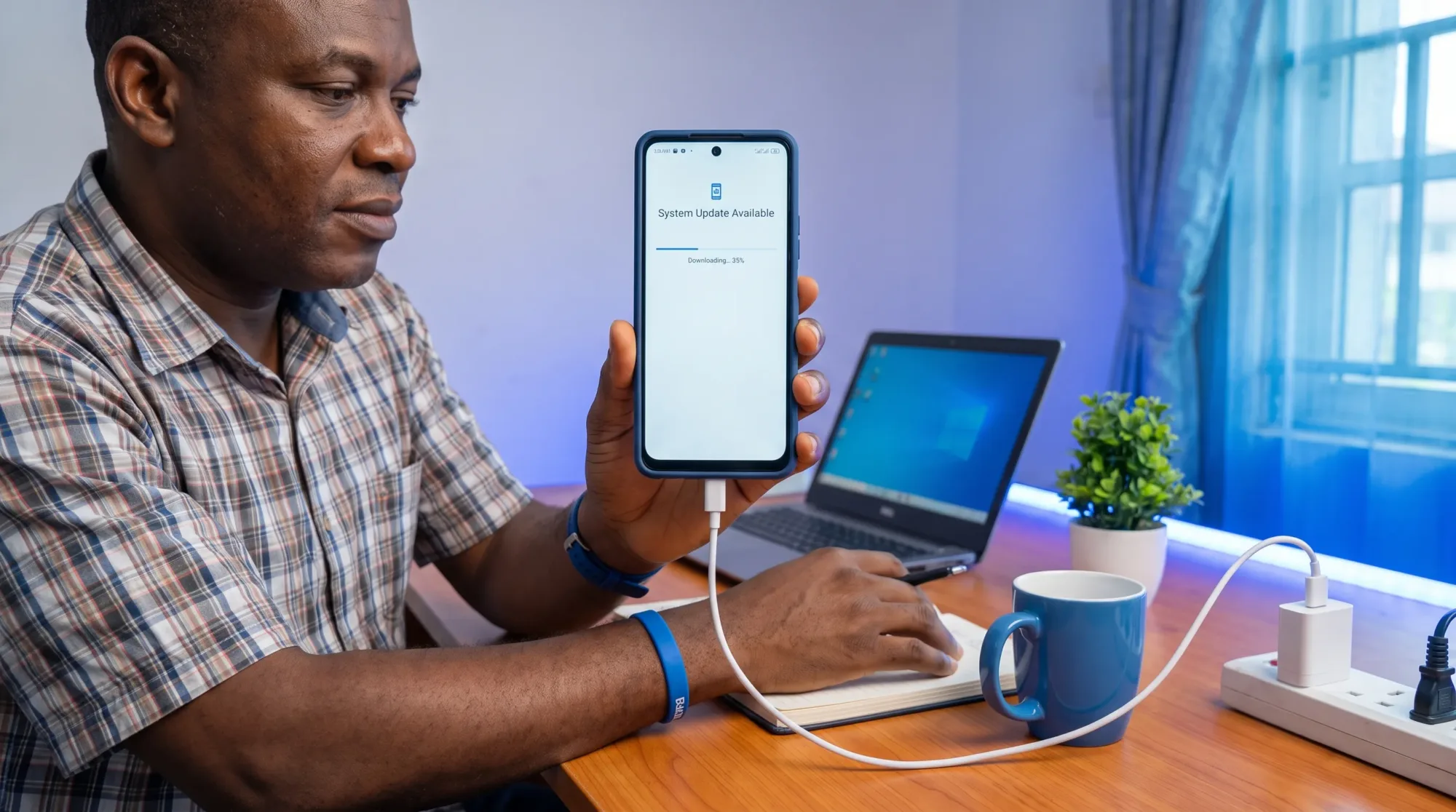
On a Tecno Spark 10 Pro running HiOS 12.6, the update menu is usually straightforward, but the phone may still need time to verify the package after download. Don’t restart the phone yourself once installation begins unless it has clearly frozen for a long time and you’ve exhausted safer options.
Follow the steps in this order.
- Connect to a stable Wi-Fi network and keep the battery above 50 percent.
- Open Settings and go to Settings > System > System Update.
- If that path is not available, try Settings > My Phone > System Update.
- Tap Check for updates and wait for the phone to finish checking.
- Read the update notes, package size and any warnings on the screen.
- Tap Download and leave the phone connected until the download finishes.
- Tap Install or Restart now only when you’re ready to leave the phone unused for a while.
- After the restart, enter your PIN and wait a few minutes before opening heavy apps.
After restart, let the phone settle before judging the update
A Tecno Spark 10 Pro may feel warm, drain faster or lag slightly just after a system update. Android can be optimizing apps, rebuilding caches and syncing accounts in the background. Give it some time on a charger and avoid heavy gaming immediately after the first boot.
After the phone settles, open Settings > My Phone again and check Android version, HiOS version, Build number and Android security update. If the update was mainly a security patch, you may not see a new Android version, but the patch date or build number may change. If you’re trying to understand why those dates matter, our explainer on how long phones receive security updates gives useful context for Nigerian users.
If apps begin updating aggressively after the restart, check the Play Store setting before blaming HiOS. Open Play Store > Settings > Network preferences > Auto-update apps and choose the option that matches your data budget. There’s also a dedicated guide on why Android keeps updating apps on mobile data if your data keeps disappearing after updates.
| After-update issue | What to try first | Where to check |
|---|---|---|
| Phone feels warm | Let background setup finish and avoid gaming for a while | Settings > Battery Lab |
| Battery drops quickly | Check app usage after one full charge cycle | Settings > Battery Lab > Battery usage |
| One app keeps crashing | Update the app or clear only that app’s cache | Settings > Apps > App Management > Storage > Clear cache |
| Storage looks low | Remove downloads, offline videos and duplicate media | Settings > Storage |
If the update fails, fix the simple causes before trying again
If your Tecno Spark 10 Pro says the download failed, don’t keep tapping the button immediately. Restart the phone once, reconnect to a stable Wi-Fi network and check Settings > Storage again. If storage is tight, free space first, then return to Settings > System > System Update.
If the download completes but installation fails, check whether the phone has enough battery and whether the time and date are correct. Open Settings > System > Date & time and use automatic time if it has been changed manually. Incorrect time settings can sometimes cause account and verification issues across Android services.
If the phone gets stuck on the TECNO logo after an update, give it reasonable time before doing anything drastic. First boot after an update can take longer than normal. If it keeps restarting repeatedly or cannot reach the lock screen, stop trying random button combinations and prepare to contact support.
A factory reset erases apps, accounts, photos and files stored on the phone if they are not backed up. Only use Settings > System > Reset phone > Erase all data after you’ve backed up your files or when a technician advises it. If the phone cannot boot at all, don’t attempt manual flashing with downloaded firmware unless official support tells you exactly what to use.
Know when Carlcare is the safer route
Take the Tecno Spark 10 Pro to support if the update fails repeatedly, the phone boot loops, the battery is swelling, the charging port is unstable or the device was previously flashed by someone else. Software installation is safer when the hardware is healthy, so a weak battery or failing storage can turn a normal update into a bigger repair problem.
Carlcare is the official after-sales service channel for TECNO in Nigeria. You can use the Carlcare Nigeria support site to find service help instead of guessing with firmware files. If the phone is still under warranty, keep your proof of purchase and avoid opening the device before support checks it.
If no update appears on your phone, that doesn’t automatically mean something is wrong. OTA rollouts can be staged, paused or limited by build. Keep checking through System Update, keep your apps updated from the Play Store and avoid forcing a package that was not offered to your exact device.
A safe update is a clean update, not a rushed one
For the Tecno Spark 10 Pro, the safest update routine is simple. Confirm the model and current build, back up your data, free storage, charge the phone, use the built-in HiOS updater and give the phone time after restart. Most update problems come from rushing, low storage, weak power or untrusted firmware files.
If your phone is working well and no update is available, don’t chase unofficial packages just because someone else received one. Check again later through Settings > System > System Update and use Carlcare when the phone shows signs of deeper software or hardware trouble.