Open Settings and search for Android version before downloading an update. If you've searched for “android latest version”, your next step is to check what your exact phone model supports, not install the highest version number you find online. Tecno, Infinix and itel phones receive updates through their manufacturers, so a release available on another Android phone might not be available on yours.
You can safely install the latest stable update offered for your handset by checking compatibility, backing up your data and using the built-in system updater. You don't normally need to reset your phone, install an APK or download firmware from a file-sharing group.
Check which Android release your phone can actually receive
The newest Android release and the newest release available for your phone aren't always the same. Eligibility depends on your exact model, its update policy and the software build installed. Updates can also reach eligible devices in stages, so two similar phones may receive a notification at different times.
For your handset, the latest Android version you can safely install through the normal update process is the stable release its manufacturer has approved for that model. Check Google's Android release pages if you want to distinguish published releases from developer previews or betas. A preview isn't the right choice when you need your main phone for banking, calls and everyday work.
Also distinguish an Android version upgrade from other updates. An Android security update fixes security issues, while a Google Play system update updates supported system components. Neither should be treated as proof that you've moved to a new major Android version. A HiOS, XOS or itel OS update may change features without changing the underlying Android version.
Record your phone details before you change anything
Search within Settings for About phone or My phone. Record your model name, model number, Android version, Build number and Android security update date wherever those entries are available. A screenshot is useful, but keep a copy outside the phone if you're troubleshooting an existing problem.
These details matter because firmware for a similarly named handset isn't necessarily compatible. Storage capacity, a shared product family or a matching-looking case doesn't establish that two phones use the same software.
If your employer uses a provider for managed IT and cybersecurity support, contact that team before upgrading a work phone. Your administrator may need to check business-app compatibility or approve the update. Don't try to bypass a device-management restriction to get the latest Android version sooner.
Make sure your backup can survive a failed update
A normal system update is designed to preserve your files, but a backup protects you if an installation problem later requires repair or a reset. Before installing the latest Android version, confirm that your important data exists somewhere other than the phone.
Check the backup account and completion status
Search Settings for Backup, then check which account is being used and whether the backup has completed. Being signed into an account doesn't mean every file or app has been backed up. Google's Android backup instructions explain what the device backup can include and how to check it.
Open your photo backup app and confirm that uploads have finished. Copy important downloads, documents and recordings to a computer, external storage or a cloud service you can access independently. Check a few copied files rather than relying only on a progress indicator.
For WhatsApp, open WhatsApp > Settings > Chats > Chat backup and check the backup date and account. If you use an encrypted backup, make sure you can access its password or key. Authentication apps and banking apps may have separate recovery requirements, so check those before proceeding. Keep account recovery codes private and somewhere you can reach without this phone.
Prepare for power cuts, limited storage and mobile-data costs
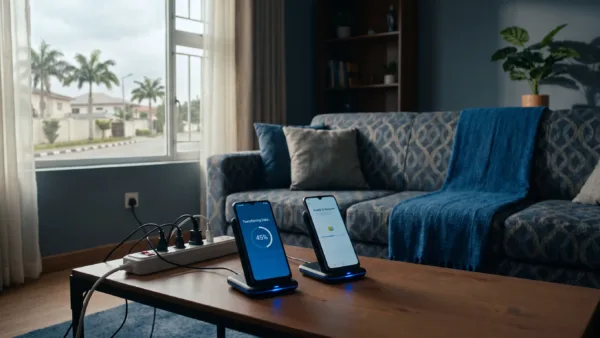
Charge your phone to at least 75%, as Google's Android update instructions recommend. A well-charged battery gives you a buffer if power goes off. Use a reliable charger if the updater asks you to keep the phone connected, and let an unusually hot phone cool before starting.
Read the update's download size and storage requirement. The downloaded package isn't the only space the installation may need, so follow the updater's storage warning rather than assuming the displayed download size is enough. Move backed-up videos or other large files if necessary, but don't delete unfamiliar system folders.
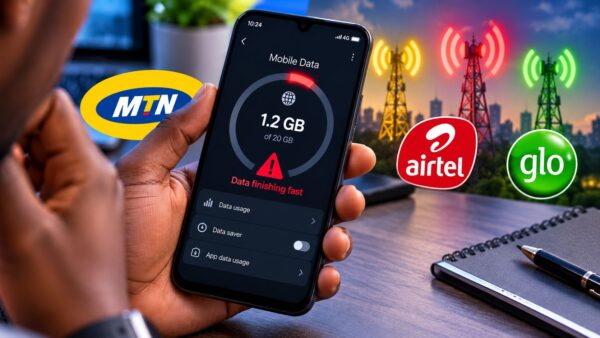
Preparing for the latest Android version also means budgeting for the download. Use a stable connection with enough data allowance. A hotspot still consumes the data of whichever phone supplies it, even though your handset shows a Wi-Fi connection. Avoid starting a large download shortly before your data allowance expires.
Find the official update, not an “android latest version” APK
On Tecno phones running HiOS, Infinix phones running XOS and itel phones running itel OS, update labels and locations can vary by model and installed software. Search within Settings for System update or Software update rather than assuming that one menu path works on every handset.
Open the built-in system update entry and check for an available release. A system update notification should lead to that updater. An advert inside a browser, cleaner app or app store isn't evidence that your phone has an Android upgrade waiting.
If you have a Tecno Spark 10 Pro still running Android 13 with HiOS 12.6, our model-specific update instructions provide a more focused walkthrough. Don't assume that its menu labels or update availability apply to another Spark model, an Infinix phone or an itel handset.
Installing an APK isn't a substitute for a manufacturer-approved operating-system update. Avoid packages that require you to disable security protections or install an unfamiliar updater just to obtain a new Android version.
Download and install without interrupting the process
Once the built-in updater offers a release, read its notes before accepting it. They may describe security fixes, feature changes or installation requirements. The safest route to the latest Android version is to follow the instructions shown for your own device, including any intermediate updates it offers first.
- Open the offered update and check its download size, requirements and release notes.
- Start the download on your chosen connection. If the updater provides a Download over Wi-Fi only option, enable it when you don't want the package using mobile data.
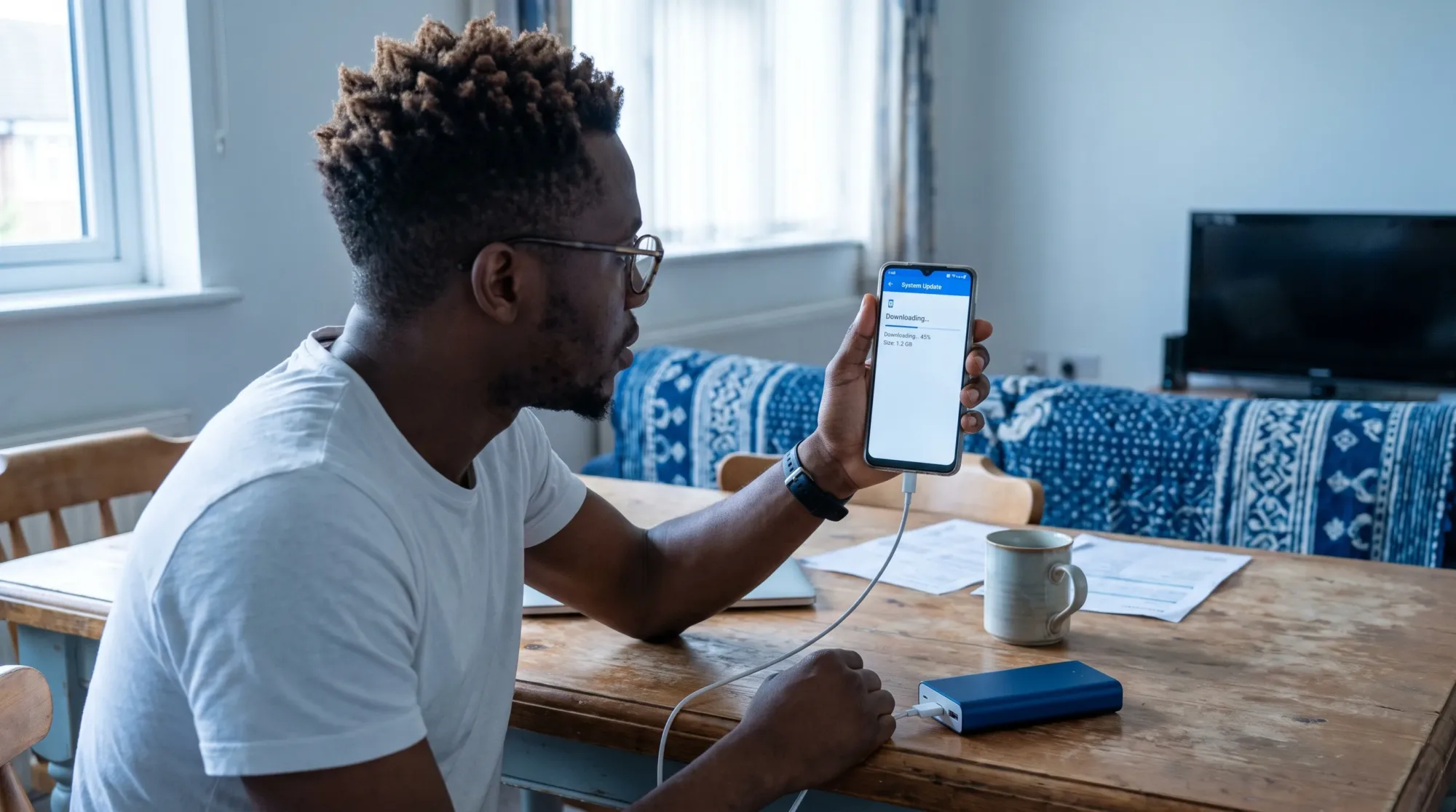
- Wait for the download and verification to finish. Resolve any storage or battery warning before continuing.
- Select the installation or restart option shown by your updater, then leave the phone to complete the process.
- When the lock screen returns, unlock the phone and allow any remaining setup or optimisation to finish.
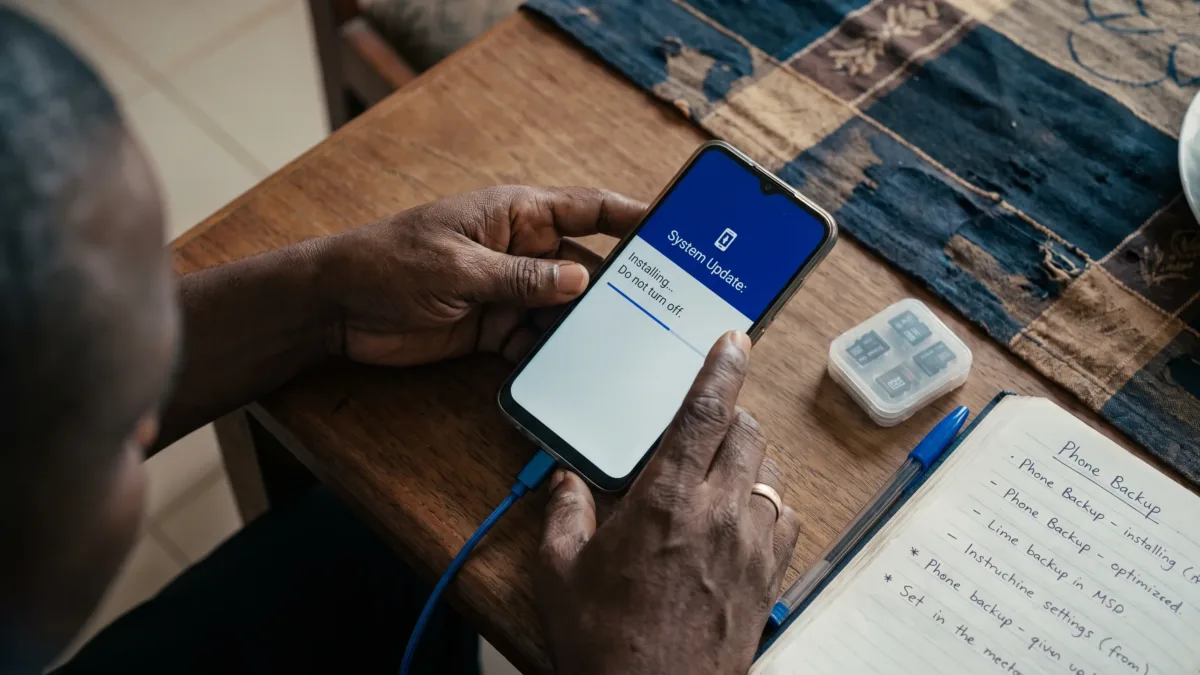
Don't force a shutdown or restart while the update is installing. A download screen and an installation screen aren't the same: a download can often be paused, but interrupting the installation can leave the phone unable to start normally. There isn't one reliable installation time for every model, so don't force a restart simply because another phone finished faster.
If no update appears, check eligibility before trying another method
An up-to-date message means the updater hasn't offered anything newer for your current device configuration. It doesn't establish that your phone runs the newest Android release available anywhere.
Check the exact model's support information and update policy. If your manufacturer has announced an eligible update, confirm that the announcement covers your model and market rather than a different handset with a similar name. A staged rollout may require waiting, while some devices receive security fixes without another major Android upgrade.
If the latest Android version isn't offered, don't change your region, unlock the bootloader or flash another model's firmware as a shortcut. Those actions aren't part of a normal update and can create data-loss, compatibility or recovery problems. A VPN doesn't establish update eligibility either.
You can also install a pending security update even when no major version upgrade is available. For help understanding the support period rather than just the Android number, check our explanation of how long phones receive security updates.
Handle a failed download differently from a phone that won't start
If the download fails before installation begins, note the exact error message. Check your connection, available storage and battery level, then retry through the same built-in updater. If it repeatedly reports a verification failure, don't replace the package with a download from an unknown website.
If the phone starts normally but an update keeps failing, record the model number, current build and failure message before contacting the manufacturer's support team. That information is more useful than reporting only that you tried to install the latest Android version.
A phone stuck in a restart loop or unable to reach the lock screen needs a different approach. Follow the manufacturer's recovery instructions for that exact model rather than trying button combinations intended for another device. If an installation is visibly progressing, leave it alone; if it reports an error or repeatedly restarts, seek model-specific support.
A factory reset erases local data, so don't select it as a routine update fix. If repair support proposes a reset or firmware reinstallation, ask whether the procedure will erase your files before agreeing.
Confirm what changed and check your essential apps
After installing the latest Android version available for your phone, return to the version information in Settings. Compare the Android version, Build number and Android security update date with the details you recorded earlier. A changed build number alone doesn't necessarily mean a major Android upgrade occurred.
Check calls, mobile data, Wi-Fi, charging and the camera, then open your essential messaging and banking apps. Update apps through their usual trusted stores if needed. If a payment or account app asks you to sign in again, use the app's normal recovery process and keep verification codes private.
Some background work can continue after a substantial update. If your handset remains noticeably slow, our guide to fixing Android slowdown after updates covers the next checks without repeating the installation process. Severe overheating, repeated crashes or rapid battery loss shouldn't be dismissed as normal optimisation.
For future updates, keep enough free storage for downloads and maintain a backup you can verify. When the built-in updater offers another release, check its requirements and use the same preparation process rather than downloading a package simply because it promises a newer Android number.