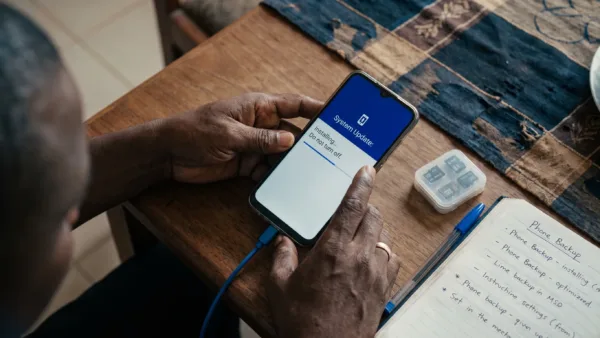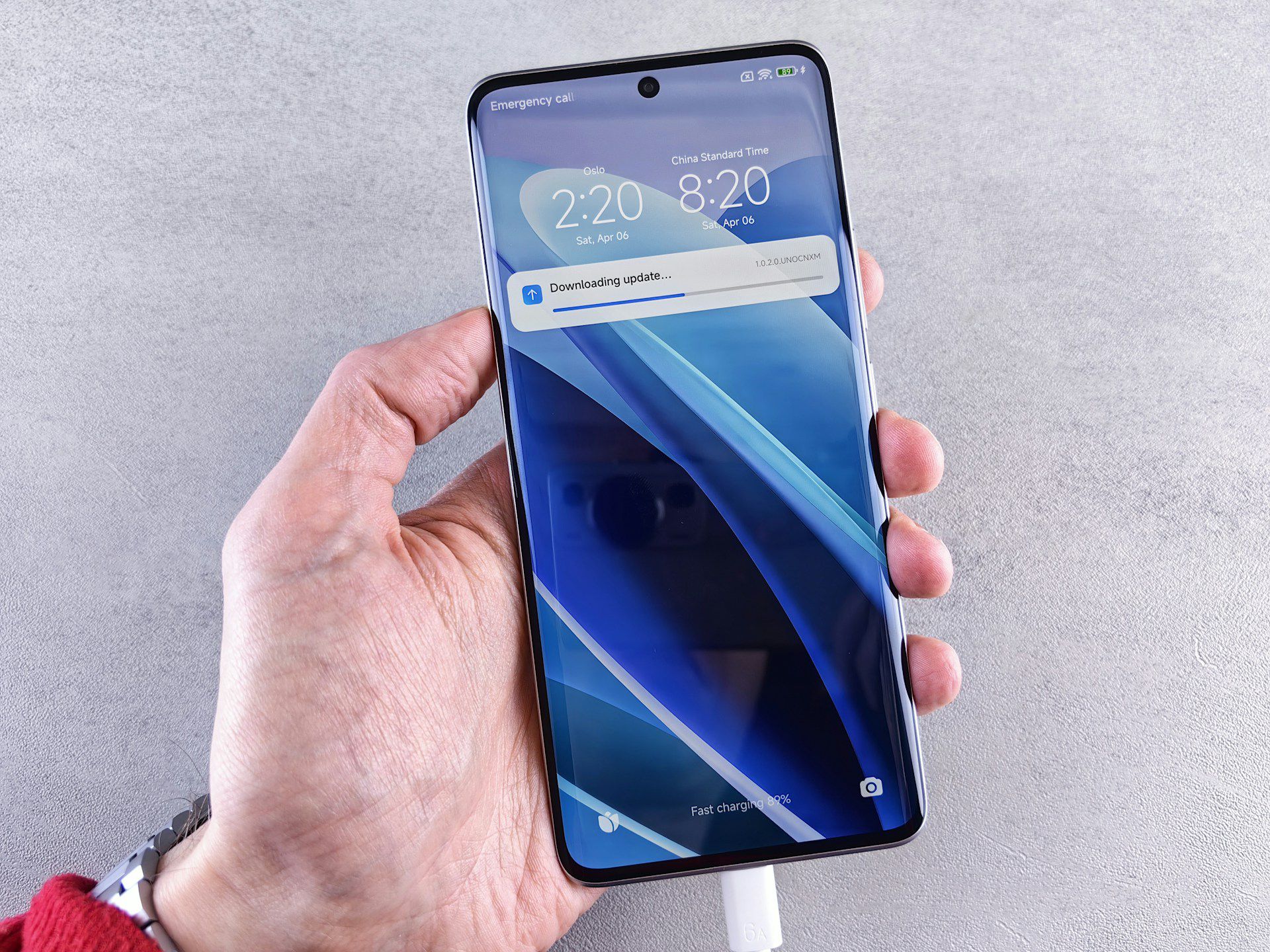
A major Android update forces your phone to recompile the code for every app you have installed, so that each one runs correctly on the new system version. Android handles this through a process called dex2oat, and on a phone carrying seventy apps it is a substantial job. The visible “optimising apps” screen you see during the first boot is only the opening portion of it, since the rest continues quietly in the background for days afterwards.
Android also schedules most of that work for moments when the phone is idle and plugged in, which is the detail that decides how long you suffer for. A phone left on charge overnight gets through it quickly. A phone that is picked up every ten minutes and rarely charged past 60 percent stretches the same workload across a week or more. Understanding that changes what you should actually do about the lag.
Four things are happening at once, and none of them are permanent
Recompiling is the largest piece, and it competes directly with whatever you are trying to open. Alongside it, your phone re-indexes storage so search and the gallery work again, and rebuilds thumbnail caches for every photo and video you own. Google Photos frequently decides to re-verify its backup at the same time, which keeps the radio busy as well as the processor.
The Play Store adds the fourth layer, because a system update usually triggers a wave of app updates, and each of those apps then needs compiling itself. So while the phone is already busy, it is also downloading and installing twenty or thirty things. All of it is one-off work rather than a permanent change to how the phone performs, which is why this resolves without you doing anything.
Manufacturer skins add their own weight on top of this on Samsung, Tecno, Infinix and Xiaomi devices, and that part is not temporary. A new One UI or HiOS version with more animation, more on-device processing and heavier system apps genuinely asks more of the hardware than the version before it. On a flagship you will not notice. On a phone with 4GB of RAM you might, permanently.
How long is reasonable before you should worry
Two to three days of noticeable lag is normal, and up to about a week is still within range on an older or heavily loaded device. Beyond two weeks, background optimisation no longer explains it and something else is going on. The pattern matters more than the absolute duration, since normal post-update slowness eases week by week while a genuine problem holds steady or worsens.
Storage is the most common reason this drags on longer than it should. Compilation needs somewhere to write its output, and a phone sitting at 95 percent full spends its time shuffling data around to find room. Aim for at least 15 percent free before you install a major update, and if yours refills faster than you can clear it, the guide to storage that keeps filling up covers where it usually goes.
What actually helps, in the order worth trying it
Leaving the phone on charge overnight with the screen off is the single most effective thing you can do, because that is precisely the condition Android waits for before running the heavy work. Two or three nights of that will get most phones through it. Beyond that:
- Restart the phone once, which clears any process that got stuck partway through the update.
- Open the Play Store, tap your profile picture, go to Manage apps and device, and update everything pending in one go rather than letting it trickle through over a week.
- Free up storage if you are anywhere near full.
- Clear the cache of any single app that is misbehaving from Settings > Apps > [app] > Storage and cache > Clear cache. Avoid Clear storage, which signs you out and wipes the app’s data.
- Reduce animation scale if the phone still feels sluggish afterwards, which is covered in the guide to speeding up an older Android.
Wiping the cache partition gets recommended constantly and no longer applies to most phones. Devices using the A/B partition layout, which covers the overwhelming majority of handsets sold in the last several years, have no wipe cache partition option in recovery at all, and Samsung removed it from its recent devices. If you go hunting for it and cannot find it, your phone is normal rather than broken.
Restricting background apps is the fix that breaks your notifications
Limiting background activity gets suggested for this and it needs a caveat, because Android’s Restricted setting cuts an app’s background jobs entirely. On anything that needs to reach you, that means notifications arriving late or in clumps whenever you open the app, which people then report as a separate fault. Banking apps and messaging apps are the worst candidates for it.
Go to Settings > Apps > [app] > Battery and set apps to Optimised rather than Restricted, which lets Android manage them intelligently without cutting them off. On Samsung, also check Settings > Battery > Background usage limits and take anything important out of the sleeping and deep sleeping lists. Apps you genuinely never open are better uninstalled than restricted, since that frees storage as well as memory.
Telling a normal settling period apart from an actual bug
Settings > Battery > Battery usage settles most of this quickly. Android System or Android OS sitting at the top of that list is exactly what post-update optimisation looks like and means the phone is doing what it should. A single third-party app dominating it means that app is your problem and can be dealt with directly, which is what we did in the guide to WhatsApp battery drain.
Checking whether other owners of your exact model reported the same thing after the same update version is the other quick test. A wave of identical complaints in the same week means a software defect, and manufacturers usually patch performance regressions quickly because they generate the loudest complaints. It also means a factory reset is pointless, since you would be wiping your phone to fix something that is not on your phone.
Slowness rarely arrives alone either, and the same background work causes faster battery drain and a warmer phone, which we covered in what to do when battery life gets worse after an update and why Android phones heat up after updates. Photos can shift too, which is the subject of why camera quality changes after a software update.
A factory reset belongs at the very bottom of the list, after a full backup, and only once you have given the phone two weeks and confirmed other owners are not reporting the same fault. For most people it never gets that far, because the phone finishes rebuilding what the update changed and quietly returns to normal. Updates are still worth installing regardless, since the security patches they carry matter considerably more than a few days of lag.