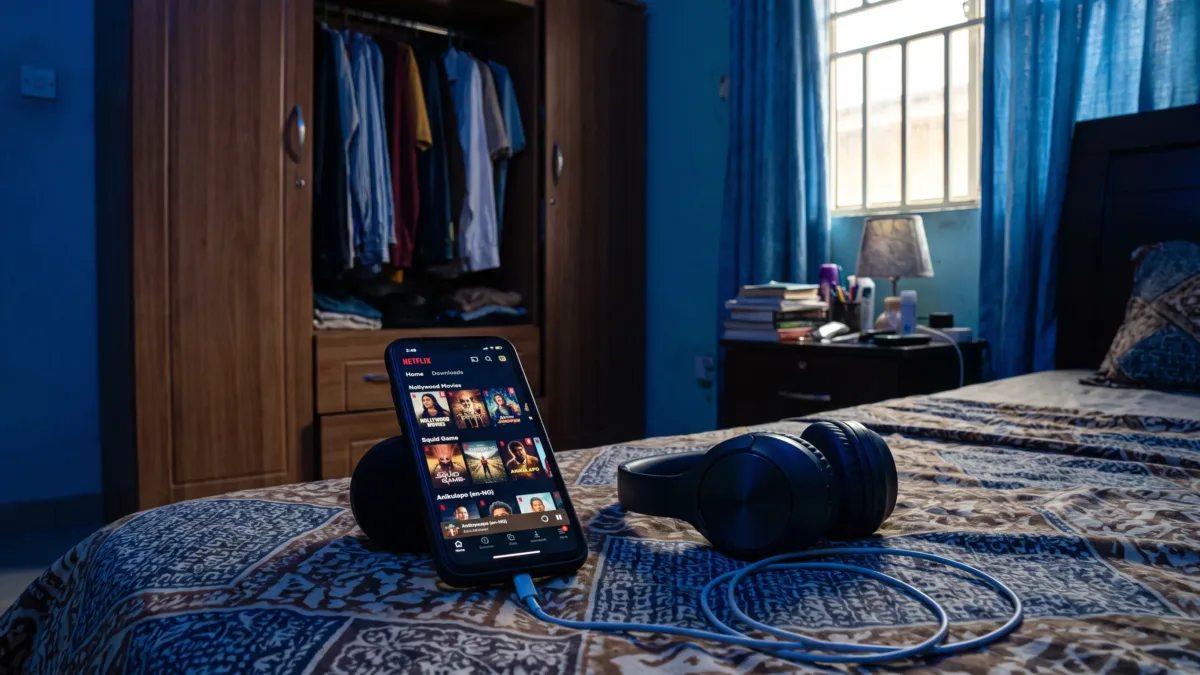
Google Play lists the official Netflix Android app under Netflix, Inc. For a safe Netflix app download, start with that listing rather than a website offering a modified APK or a “premium unlocked” version. The app is free to install, but installation doesn't give you a paid Netflix subscription.
On a Tecno, Infinix or itel phone, the useful checks are the app's publisher, your device's compatibility and whether Google Play can complete the installation. If something fails, you don't need to jump straight to downloading files from an unfamiliar site.
Install the app from the listing published by Netflix, Inc.
Use the official Netflix listing on Google Play. Opening that link on your phone avoids having to distinguish the streaming app from similarly named apps in search results.
- Open the official listing and choose Google Play if your phone asks which app should handle the link.
- Check that the publisher is Netflix, Inc. The official listing's web address contains
id=com.netflix.mediaclient. - Tap Install and wait for the download and installation to finish.
- Tap Open from the same listing to launch the installed app.
- Sign in with your Netflix account, or follow the account instructions shown by Netflix if you haven't subscribed.
The package identifier in the link helps you recognise the official store page. It isn't proof that an APK from another website is genuine, because a modified file can reuse identifying details.
If the listing shows Update, Netflix is already installed and an update is available. If it shows Open, you can launch your existing installation. Neither situation requires a separate APK download.
When your Netflix app download is unavailable or won't finish
A missing listing, a compatibility message and a stalled download need different fixes. Read the message Google Play gives you before changing settings, because freeing storage won't resolve an unsupported Android version.
Check compatibility before trying another installer
Netflix's Android phone and tablet help page explains supported Android versions and device requirements. Check those requirements against your phone rather than assuming every Android device can run the current app.
Open Settings and use its search function to find Android version. Record your exact phone model too. Tecno uses HiOS, Infinix uses XOS and itel phones may use itel OS, but those names alone don't tell you the underlying Android version or Netflix compatibility. Manufacturer settings layouts also differ, so these instructions use settings search rather than a model-specific menu path.
You can check certification through Google Play Store > profile icon > Settings > About > Play Protect certification. Google's device certification guidance explains what certification means and what to do if your device isn't certified. Certification isn't a guarantee that every app will work, but an uncertified device needs investigation before you try another installer.
If your phone doesn't meet Netflix's requirements, a random APK won't change its hardware or make its Android version supported. Avoid rooting the phone or changing its firmware just to get past an installation message.
Fix the Play Store problem without downloading a replacement APK
If Google Play says the app is compatible but the download stays pending, check that your connection works in another app. Pause other large downloads, restart the phone and try again. If you're using mobile data, confirm that you have an active bundle and that Google Play isn't waiting for Wi-Fi.
For a Netflix app download that fails because storage is full, remove files or offline content you no longer need. Installation can require more free space than the download size alone suggests. Our guide to freeing Android storage without deleting your photos explains safer places to start.
If several apps won't install, follow Google's Play Store download troubleshooting rather than treating the problem as Netflix-specific. Avoid clearing unrelated apps' data, since that can remove saved settings or sign you out.
When Google Play itself is missing, check whether it has been disabled before looking for an installer. There's a separate walkthrough for safely restoring or installing Google Play Store.
Spot the APK offers that put your account at risk
An APK is an Android installation file, not automatically a malicious app. The problem is trusting a Netflix installer whose origin and integrity you can't verify. A familiar red icon, a convincing filename or screenshots of the real app don't establish that a file is safe.
A “premium unlocked” APK cannot give you a legitimate Netflix subscription. Access is controlled through Netflix's service and your account, not simply by changing the app installed on your phone. Don't provide your login to an installer promising to bypass payment.
Treat instructions to switch off security scanning as a warning. Requests to install a separate “activation” app, grant accessibility access or make an unfamiliar app a device administrator are also reasons to stop. Those permissions can give an app control well beyond playing films and series.
A browser page asking for card details or an OTP to “complete the download” isn't part of installing Netflix from Google Play. Keep installation separate from any account or subscription process you deliberately start through Netflix.
If search results complicate your Netflix app download, return to the verified Google Play link instead of choosing a file based on its version number or promises of extra features. For this guide's installation route, you don't need to enable Install unknown apps for your browser or file manager.
If you've already installed a suspicious Netflix APK
Don't enter your Netflix password or payment details into the suspicious app. Uninstall it, then open Google Play Store > profile icon > Play Protect and tap Scan. Google Play Protect checks apps for potentially harmful behaviour, although a clean scan isn't a guarantee that every file is harmless.
If you enabled Install unknown apps, search for that setting in Settings. Turn off the permission for the browser or file manager you used. That closes the installation route you opened, but it doesn't remove an app already installed on the phone.
If you entered your Netflix password into the suspicious app, change it through Netflix's official website or a trusted installation. Change it on any other account where you reused it, and review the devices signed into your Netflix account.
Never share a banking OTP, card PIN or account password to activate a Netflix download. If you supplied payment information to a suspicious service, contact your bank through its official app or a verified contact channel. Removing the APK doesn't reverse information you've already submitted.
Keep streaming from using more data than you intended
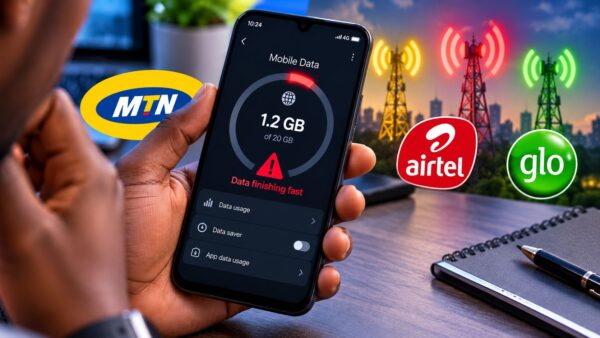
Once your Netflix app download is complete, video playback and offline downloads can use much more data than installing the app. Before starting a series on MTN, Airtel, Glo or T2, check Netflix's mobile data controls. T2 was formerly known as 9mobile.
In the Netflix Android app, open My Netflix > Menu > App Settings > Cellular Data Usage. Netflix's data usage guidance explains the available options. If Automatic is enabled, you may need to turn it off before selecting another option.
Choose Save Data if you want to reduce streaming data use, or Wi-Fi Only if you don't want Netflix to stream through your mobile bundle. The exact amount of data used depends on playback quality and other factors, so don't assume every episode will consume the same amount.
For offline viewing, keep the download setting Wi-Fi Only enabled if you want downloads to wait for Wi-Fi. Check Smart Downloads as well, since enabled automatic download features can download additional content. Netflix's offline download instructions explain which titles and devices support downloads and the limits that can apply.
Downloaded episodes still take up storage, and downloading them over mobile data still uses your bundle. Our guide to saving mobile data in Nigeria covers the wider phone settings that affect background activity beyond Netflix.
When the app opens but you can't watch
An app that installs successfully can still have an account, connection or playback problem. That doesn't mean you need a different installer. Check that you're using the correct Netflix account and that its membership is active before changing phone settings.
If sign-in fails, use Netflix's password recovery process rather than giving your login to someone offering to “activate” the app. If you see a playback error, note its exact wording or code. That is more useful for troubleshooting than repeatedly uninstalling the app.
Update Netflix through its Google Play listing, restart your phone and check whether other apps can connect. If you're using a VPN, temporarily disconnect it and test again. A VPN can affect how Netflix recognises your connection, but turning it off won't resolve every playback problem.
A Netflix app download from the official store also doesn't guarantee the highest video resolution on every phone. Device capabilities, certification, your plan and your connection can affect available quality. An APK advertised as “HD unlocked” isn't a reliable fix for a device limitation.
If you decide to reinstall the official app, remember that you'll need to sign in again and download any offline titles again. Make sure you know your account details before removing a working installation.
Keep future updates on the same trusted route
After installing Netflix, return to its Google Play listing for updates rather than following messages offering a “new premium version”. Leave Play Protect enabled and keep Install unknown apps switched off for apps that don't need it.
If the official app later stops working, start with the exact error message, your phone model and its Android version. Those details help you separate an account issue from a connection or compatibility problem without exposing your phone to another unverified installer.