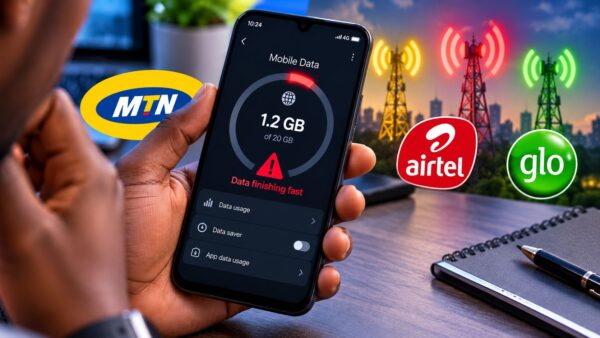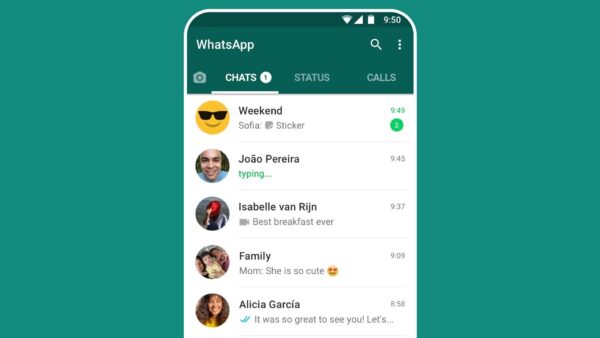
WhatsApp arrives with media auto-download switched on for both mobile data and Wi-Fi, which means every photo, video and voice note sent to every group you belong to lands on your phone whether you open it or not. In a country where a single family group can carry thirty forwarded videos before noon, that one default setting costs most people more data than their browsing does in a month. It takes about fifteen seconds to change and almost nobody has changed it.
Data disappears inside apps rather than inside a browser, so the settings buried in WhatsApp, YouTube, TikTok and Facebook matter far more than which browser you install, even though browsers are where most guides start. Choosing a lighter browser still helps and it is worth doing. We’ll cover the two Android controls that sit above everything else, the in-app settings that carry most of the saving, and the browsers actually worth using.
Start with Android’s own Data Saver, which beats every app on this list
Android has a system-wide Data Saver that stops apps using mobile data in the background, and it applies to everything at once rather than app by app. Go to Settings > Network and internet > Data Saver and switch it on, then use the Unrestricted data option in the same menu to exempt the handful of apps that genuinely need background access, which for most people means WhatsApp and their bank app. That combination cuts a lot of invisible usage without leaving you cut off from the things that matter.
A hard limit is the second control worth setting, and it works differently from a saving. Under Settings > Network and internet > SIMs > Data warning and limit, you can set a warning at a chosen figure and a limit that switches mobile data off automatically when you reach it. Setting the cycle to match the day your bundle renews turns a vague worry into a number you can actually watch. Nobody who has been surprised by a finished bundle at 9am should be without this.
App updates are among the largest silent consumers of mobile data on a phone with fifty or sixty apps installed, and the fix is free. Open the Play Store, tap your profile picture, then Settings > Network preferences > Auto-update apps and choose “Over Wi-Fi only”. Do not switch updates off altogether, because they carry security fixes and you do not want to be running an outdated banking app.
WhatsApp auto-download is the single most expensive setting on most Nigerian phones
Every photo, video and voice note sent to any group you belong to downloads automatically by default, whether you ever open it or not. In a country where group forwards run to dozens of videos a day, that is gigabytes a month spent on content you did not ask for. Open WhatsApp, tap the three dots, then Settings > Storage and data, and under Media auto-download set mobile data to No media, or to photos only if you want to keep those. Wi-Fi can stay more generous.
The same menu holds two more worth switching on, since “Use less data for calls” reduces what voice and video calls consume, and the media upload quality setting lets you send at standard rather than HD, which cuts what you spend sending as well as receiving. Nothing here stops messages arriving, and you can still tap any individual video to download it when you actually want it. These settings help with battery for the same underlying reason, which we covered in the guide to WhatsApp battery drain.
Video is where the rest of it goes, and every app has a setting for it
YouTube gives you the setting under your profile picture, at Settings > Video quality preferences > On mobile networks, where choosing Data saver caps playback at a lower resolution that looks perfectly acceptable on a phone screen. While you are there, turn off Playback in feeds so videos stop autoplaying as you scroll. Downloading anything you plan to rewatch while on Wi-Fi removes the cost entirely rather than reducing it.
The social apps deserve more attention than they usually get, because autoplaying video is their default behaviour and it is expensive. In Facebook, go to Settings and privacy > Settings > Media and set video quality to data saver along with turning off autoplay on mobile data. Instagram has a Data usage and media quality section under settings with a Use less mobile data toggle. TikTok has Data Saver under Settings and privacy > Data Saver, and given how TikTok is used it is arguably the most valuable single toggle on this whole list.
Spotify lets you set audio quality to Low or Normal for mobile data under Settings > Media quality, and downloading the playlists you play daily over Wi-Fi means they cost nothing thereafter. Google Photos is the quieter one, since it can back up every picture and video you take over mobile data without you noticing, so open Photos > profile picture > Photos settings > Backup and set mobile data usage to zero for both photos and videos, with Storage saver rather than Original quality.
Opera Mini still compresses hardest, though it breaks some sites
Opera Mini’s Extreme savings mode routes pages through Opera’s servers and packs them down aggressively before sending them to your phone, and it remains the most effective browser-based compression available on Android. Switch it on by tapping the O menu and then the data savings gauge, or through the settings cogwheel under Data savings. For reading news, blogs and text-heavy sites, the saving is substantial and the trade-off is a page that looks plainer than it should.
Extreme mode struggles with anything modern and script-heavy, which is the honest caveat, so bank dashboards, web apps and interactive sites often will not load properly or at all. The High savings mode is the sensible default for general use, since it compresses less but keeps sites working. Samsung Internet takes the middle road, loading full sites while giving you content blockers and a data saving mode, and on Samsung phones it hooks into the system data controls neatly. We compared all three directly in Chrome vs Opera Mini vs Samsung Internet if you want the detail.
Browser compression only touches what you browse, so it does nothing for WhatsApp, YouTube, Instagram or any other app. That is why the browser choice sits at the bottom of this list rather than the top, and why Chrome’s data usage is worth understanding separately if Chrome is what you use most.
Check where your data is actually going before changing anything else
All of the above is generic advice, and your phone can tell you which parts apply to you. Go to Settings > Network and internet > SIMs > App data usage and sort by usage over the current cycle, which shows you exactly which three or four apps are responsible for most of your bundle. Fixing those properly is worth more than working through every setting in this article, and it takes about a minute to find out. If one app is far ahead of the others and you rarely use it, restricting its background data individually from Settings > Apps > [app] > Mobile data and Wi-Fi is the targeted fix.
The pattern that emerges for most people is that three or four apps account for the overwhelming majority of a monthly bundle, and none of them are the browser. Set Android’s Data Saver, kill WhatsApp auto-download, cap video quality in whichever of YouTube, TikTok or Facebook you actually use, and you will have covered most of what any guide can offer. If your usage has genuinely outgrown mobile bundles, a fixed wireless connection is the other conversation, and our breakdown of what the Airtel SmartConnect 5G ODU really costs covers what that involves.