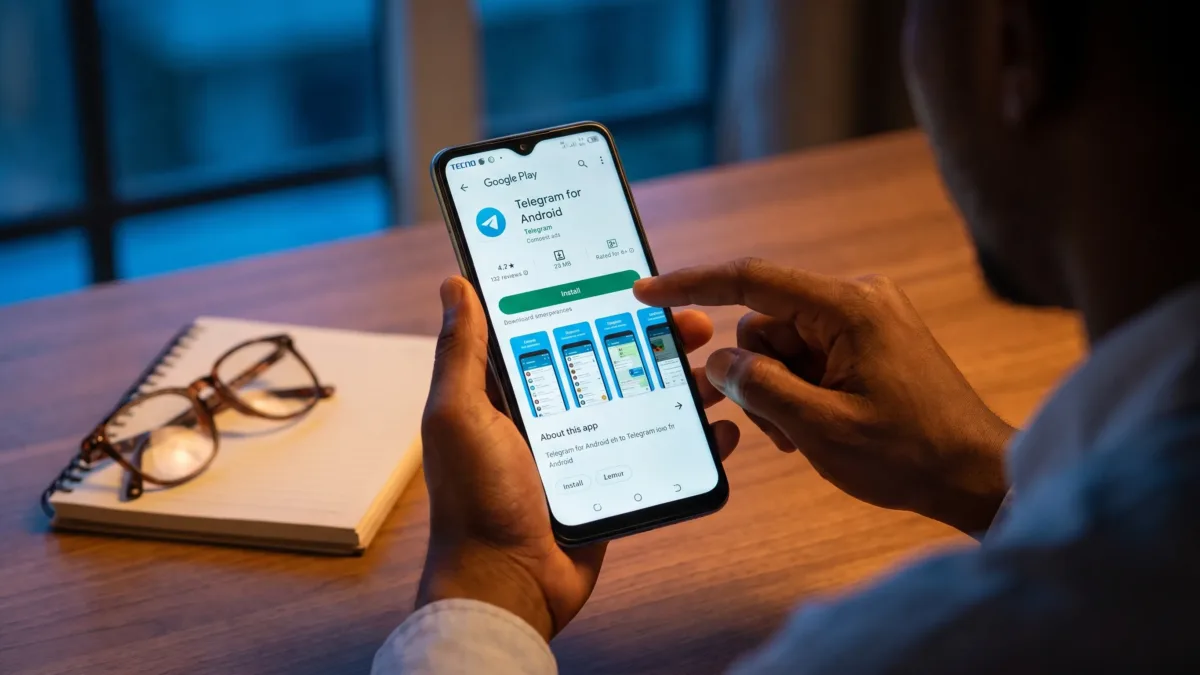
As of September 2026, Telegram’s official Android app is available through Google Play and Telegram’s own Android page, so a safe telegram download should start from one of those two places, not from a forwarded APK in a group chat. If you use a Tecno, Infinix or itel phone, you may also see other app stores and download prompts, but the safety checks are the same. You verify the source, check the developer and avoid modded versions that promise free premium features.
Fake Telegram apps can look convincing because they copy the icon, name and screenshots. The risk is not only wasting data on the wrong file. A fake or modified app can push you into entering your phone number, SMS code or cloud password outside the real Telegram app. That’s why the safest approach is to use a trusted route first, then check the app before you sign in.
How to do a safe telegram download on Android
The safest source depends on what works on your phone. If Google Play opens normally, use it. If Play Store is blocked, missing or stuck after several fixes, use Telegram’s own Android page instead of searching for APK files on random download sites.
| Safe source | Best link to use | What you should check before installing |
|---|---|---|
| Google Play Store | Official Telegram listing on Google Play | Developer name should be Telegram FZ-LLC and the page should stay inside Google Play |
| Telegram website | Telegram for Android | The page should be on telegram.org and should not ask you to disable Android security permanently |
Start with Google Play if your phone supports it
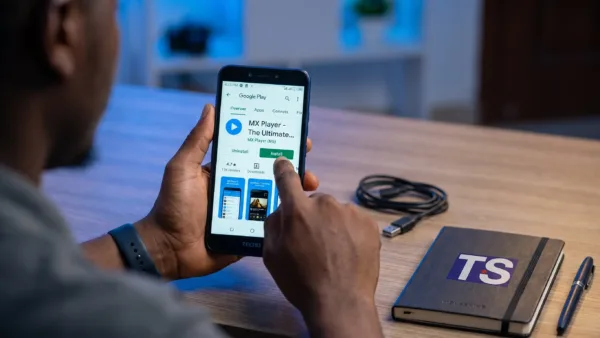
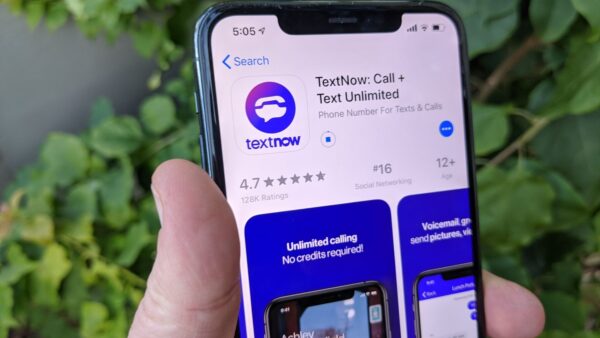
For most people, the safest telegram download is still the one from Google Play. Open Play Store, search for Telegram, then open the listing from Telegram FZ-LLC. If you want to avoid search adverts and copycat results, use the official Google Play link above and let it open in the Play Store app.
Before you tap Install, confirm that the developer is Telegram FZ-LLC. You should not need to allow Install unknown apps when installing from Google Play. On a TECNO Spark 10 Pro running HiOS 12.6 on Android 13, an Infinix Hot 30 running XOS 12.6 on Android 13 and an itel A70 running itel OS 13 on Android 13, the Play Store route works like any normal app installation, with no extra APK permission required.
If your TECNO, Infinix or itel phone opens Palm Store by default when you search for apps, that doesn’t automatically mean anything is wrong. Palm Store is common on Transsion phones, and our Palm Store review explains how it fits into those devices. For Telegram itself, still prioritise the official Play Store listing or Telegram’s own Android page.
Use Telegram’s own APK only when Play Store is not an option
If you need a telegram download outside Google Play, go directly to Telegram’s Android page in Chrome or your preferred browser. Do not search for Telegram APK and pick the first result, because many APK mirrors use confusing buttons, adverts and older app files.
When Android asks for permission to install from your browser, allow it only for that one installation. On a TECNO Spark 10 Pro with HiOS 12.6 on Android 13, an Infinix Hot 30 with XOS 12.6 on Android 13 and an itel A70 with itel OS 13 on Android 13, the usual Android permission is under Settings > Apps > Special app access > Install unknown apps. Some software builds move the menu, so use the search bar inside Settings and search for Install unknown apps if the path looks different.
After installing, return to Install unknown apps and switch the permission off for your browser. This keeps the phone from accepting future APK installs by mistake, which matters more if family members also use the device.
The fake-app signs that catch people when they are rushing
A fake Telegram install usually tries to rush you. It may promise premium access, faster downloads, hidden tracking features or a special Nigerian version of the app. Telegram does not require a separate modded app for normal chats, channels, groups, voice calls or file sharing.
Don’t install Telegram Premium unlocked, Telegram Pro or any APK that asks you to disable security checks. A legitimate installation should not ask you to turn off Play Protect, grant Accessibility access before you even sign in or enter your Telegram login code on a website. Telegram may ask for normal permissions such as Contacts, Notifications and media access when you use those features, but it should not need powerful system permissions just to open.
Watch carefully for these signs before you install anything:
- The file comes from a forwarded WhatsApp message, Telegram channel or shortened link instead of Google Play or telegram.org.
- The app name adds words like Premium, Pro, Booster, Tracker or Unlocked to Telegram.
- The install page asks you to disable Play Protect or keep Install unknown apps switched on permanently.
- The app asks for your SMS code, cloud password or recovery details before opening the normal Telegram login screen.
- The icon looks right but the developer name, website or package source does not match an official Telegram route.
Check the app on your phone before you log in
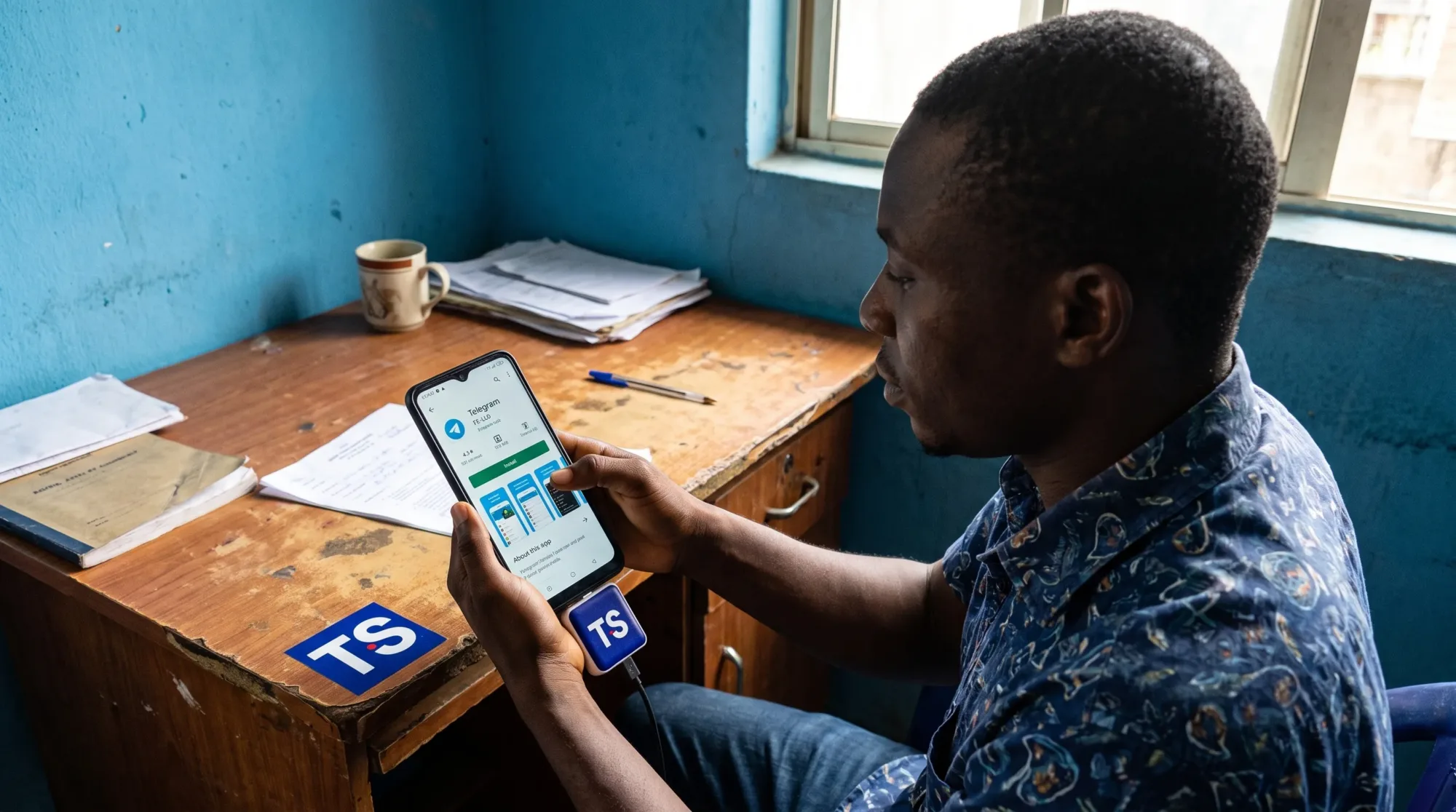
After a clean telegram download, spend one minute checking the app before entering your phone number. Open Play Store > Profile icon > Play Protect > Scan if you installed from Google Play, or scan the phone after sideloading the official APK. Google explains how Play Protect checks apps on its Google Play Help page.
You can also open Settings > Apps > Telegram > App info and review what is installed. On Android 13 and Android 14, Settings > Apps > Telegram > Permissions should show permissions such as Contacts, Notifications or Photos and videos only when you have used features that need them. If you see unusual access such as Accessibility or Notification access and you did not enable it for a clear reason, remove the app and reinstall from an official source.
Never type your Telegram SMS or in-app login code into a website or send it to anyone. Once you’re inside the real app, open Telegram > Settings > Privacy and Security > Two-Step Verification and add a password you can remember. Telegram’s own FAQ is the best place to confirm how its account security features work when the interface changes.
If Telegram refuses to install on a Tecno, Infinix or itel phone
If a telegram download still fails, don’t jump straight to an APK mirror. Installation problems are often caused by low storage, a stuck Play Store queue, weak data connection or an old Google Play Services component. Check the basics first because they are safer than installing a random file.
Open Settings > Storage and make sure you have enough free space for the app and temporary installation files. If storage is tight, delete old videos, offline downloads and duplicate files before trying again. When your whole phone feels slow or almost full, our guide on making an old Android phone fast again is a better next step than chasing different APK versions.
For a stuck Play Store download, restart the phone, then clear the Play Store cache. On HiOS and XOS builds based on Android 13, you may see Settings > App management > App list > Google Play Store > Storage usage > Clear cache. On some Android 14 builds, the same option may appear as Settings > Apps > Google Play Store > Storage & cache > Clear cache. On itel OS 13, use the search bar in Settings to find Google Play Store, open App info and clear the cache from the storage screen if the labels differ.
Save data and battery after Telegram is installed
Telegram can use plenty of mobile data if channels and groups auto-download videos, voice notes and large files. After installation, open Telegram > Settings > Data and Storage > Automatic media download and reduce what downloads under When using mobile data. This is especially useful if you’re on a small daily or weekly bundle and you belong to active groups.
If you want broader Android data controls, our guide to saving data in Nigeria walks through settings that also help WhatsApp, browsers, app updates and background syncing. For Telegram specifically, the biggest win is stopping automatic video downloads on mobile data and manually choosing which files to open.
Battery settings can affect Telegram notifications on budget and mid-range phones. If messages arrive late after a telegram download and setup, check Settings > Apps > Telegram > Battery. On Android 13 and Android 14, you may see options such as Unrestricted, Optimised or Restricted. On some HiOS, XOS and itel OS builds, you may instead see Allow background activity or a similar battery control. Use a less restrictive option only if you actually need instant message alerts, because unrestricted background activity can use more battery.
Keep the official route for future updates
A safe telegram download is not only about the first installation. Future updates should also come from the same trusted route, either Google Play if you installed from Play Store or Telegram’s built-in update flow if you installed directly from telegram.org. Avoid downloading every new APK you see online, even when the file name claims to be the latest version.
If you later notice duplicate Telegram icons, strange login prompts or unusual permissions, uninstall the suspicious copy first. Then reinstall from Google Play or Telegram’s official Android page and secure the account with Two-Step Verification. That routine is slower than tapping the first download button you see, but it protects your phone, your chats and your Nigerian mobile data from avoidable mistakes.