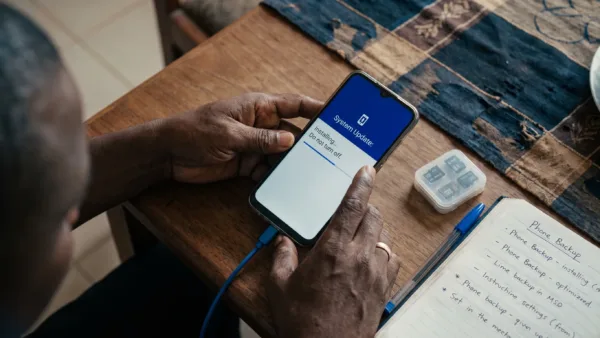
Google says Circle to Search on Android can now review a suspicious text message and point out possible scam signs before you click a link or hand over personal details. The company described the check in an October 15, 2026 post on its Safety and Security blog, and it works by circling the message on your screen, then reading the AI Overview that comes back with guidance and suggested next steps.
That puts a second opinion one gesture away for the bank-alert, account-blocked and prize-winning texts that reach Nigerian phones, and it costs nothing beyond the data for one search. Scam networks targeting this region are big business, which is why Meta said this month that it removed 3.7 million accounts in its crackdown on West African scam networks. Google’s own footnote is that results, availability and compatibility may vary, and it hasn’t published a list of countries for this check, so try it on your phone today rather than assuming it’s there.
Four steps between a strange text and a clear warning
Open the message in your SMS app, WhatsApp or wherever it arrived, but don’t tap anything inside it. Then follow the steps Google lists.
- Touch and hold the Home button or the navigation handle at the bottom of the screen to start Circle to Search.
- Draw a circle around the text message you’re unsure about.
- Read the AI Overview that appears, including the guidance and suggested next steps.
- If it shows red flags, delete the message and block the number, which is exactly what Google recommends.
Circle the whole message, including the sender’s number and any link, because the check can only weigh what you select. A text that claims to come from your bank but arrives from an ordinary 080 or 070 number is the kind of detail you want the overview to see.
Your phone needs Circle to Search switched on first
Google’s Circle to Search help page says the feature runs on select Android phones, including the Pixel 6 and later, and it doesn’t publish a full list for other brands. The quickest way to find out is to try the long-press. If nothing happens, the fixes below cover the usual reasons.
| Problem | Likely cause | Fix |
|---|---|---|
| Long-pressing the home button or handle does nothing | Google isn't your default digital assistant, or screen access is off | Go to Settings > Apps > Default apps > Digital assistant app, choose Google and turn on Use screen and app data |
| Circle to Search seems to be switched off | The feature was disabled in Settings | Open Settings, search for Circle to Search and turn it on (on a Pixel it sits under Settings > System) |
| You circle the text but get no scam guidance | An outdated Google app, or the check hasn't reached your phone or region | Update the Google app from the Play Store and try again, and judge the message yourself if the overview still doesn't appear |
| Circle to Search isn't offered on your phone at all | Your model isn't among the supported devices | Copy the message text into the Google app and search it there, or check the claim through the sender's official channels |
Keep the Google app itself up to date, too. Google’s help page says that if the Play Store shows an update for the Google app, you should install it, since Circle to Search depends on that app rather than on a separate download.
A clean result isn’t the same as a safe message
An AI Overview is a judgement call based on what it can see, and a well-crafted scam can look ordinary. Treat a red flag as a strong reason to delete and block, but don’t treat a calm overview as permission to click. If a text says your account, SIM or BVN needs urgent action, call the number printed on your debit card or listed on your bank’s or network’s official website, and never use a number or link supplied in the message itself.
Be extra careful with OTP requests. No legitimate bank or network will text you asking you to read back a one-time code, and anyone who gets that code can take over the account it protects. That risk is also why the NCC has pushed for recycled-number checks beyond banks, since a line that once belonged to someone else can still be tied to their accounts.
The most useful habit to build from this is a pause. Before you tap any link in a text you weren’t expecting, hold the home button, circle the message and read what comes back, then decide. It takes about ten seconds, and the first time it flags a fake transfer alert it will have earned its place on your phone.