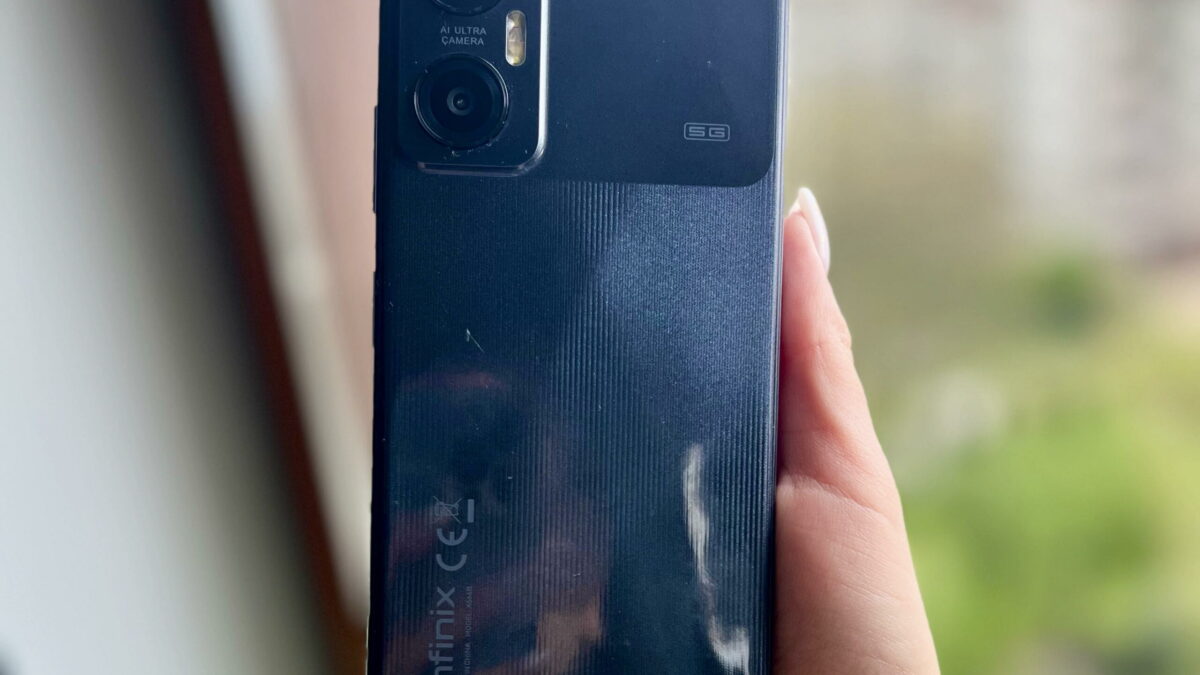
Android 12 with XOS 10.6 is the software combination the Infinix Hot 20 5G shipped with, and most network faults you can fix are hidden inside those XOS connection menus. If your phone is stuck on E, refuses to show 4G or 5G, drops calls, says Emergency calls only or uses one SIM but ignores the other, don’t rush to flash software or factory reset it. Start with the safe checks below because they separate phone settings from SIM, coverage and carrier account problems. The steps are written for this Infinix model running XOS on Android 12; if your unit has received a later XOS update, the wording may differ slightly, but the search bar inside Settings will usually take you to the same place.
Before changing anything on your Infinix Hot 20 5G, find out what is actually failing
Your first job is to know whether the problem follows the SIM or stays with the phone. Put the affected SIM in another phone for a few minutes, preferably in the same location. Then put a different active SIM in your phone. If the same SIM fails everywhere, the issue is likely your line, account status, data bundle, NIN-SIM status or the network in that area. If different SIMs fail only on your phone, you can continue with the XOS fixes below.
If the same SIM fails in another phone, check your line status or data balance in your carrier’s official app or website for MTN Nigeria, Airtel Nigeria, Glo or T2 (formerly 9mobile). Avoid changing APN values copied from random screenshots when the line itself may be restricted or out of data.
| What you see | Likely direction | First safe check |
|---|---|---|
| No bars or Emergency calls only | SIM, coverage or line restriction | Test the SIM in another phone |
| Bars show but apps don’t load | APN, data selection or app restriction | Check Mobile data and reset Access Point Names |
| Stuck on E or H+ | Network mode, weak coverage or band support | Check Preferred network type |
| 5G never appears | Coverage, SIM provisioning or phone variant | Test in a known 5G area and ask your carrier |
| Only one SIM works well | Dual SIM selection or SIM slot issue | Change Default mobile data and swap SIM slots |
If every network behaves badly only inside the Infinix Hot 20 5G, treat it as a phone-side issue first. That does not mean the hardware is bad; it often means the selected SIM, preferred network type or APN has been changed by mistake.
The XOS toggles that quietly block mobile data
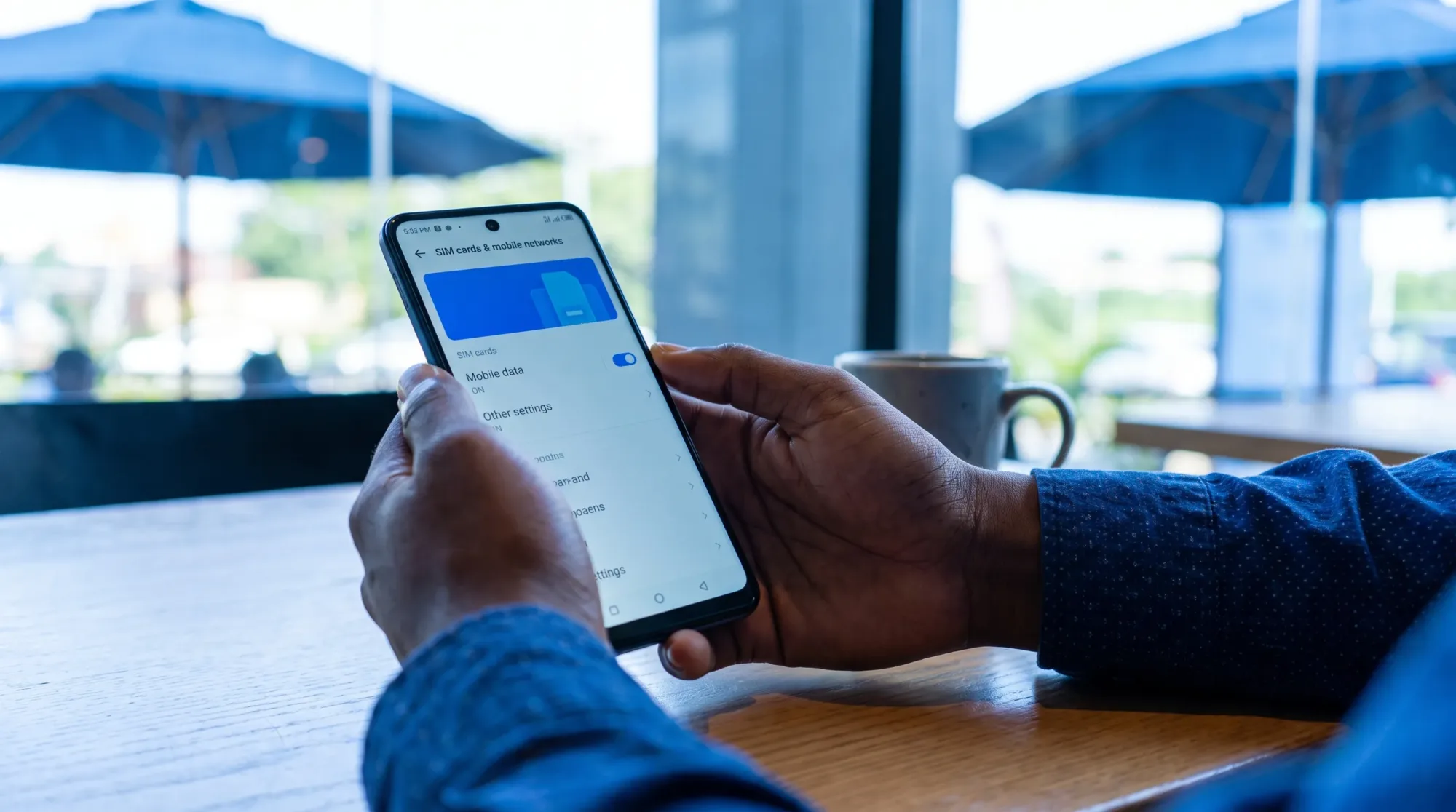
When the Infinix Hot 20 5G has signal bars but your apps keep spinning, start with the simple toggles. Open Settings > SIM & network settings and confirm that Mobile data is enabled for the SIM that has an active data bundle. If you use two SIMs, also check Default mobile data because XOS may keep browsing on SIM 1 even when your data plan is on SIM 2.
Next, turn Airplane mode on for about 10 seconds and turn it off again. This forces the phone to re-register on the network without deleting anything. After that, open Settings > SIM & network settings > SIM 1 or SIM 2 and check Preferred network type. Choose 5G/4G/3G/2G auto if the option is available. If your menu only shows 4G/3G/2G auto, choose it and test again.
Don’t force a mode that your area cannot sustain. In some places, locking the phone to a higher network mode can make it hunt for signal and drop back again. The better option for daily use is usually an automatic mode because it lets the phone move between 5G, 4G and 3G when the signal changes.
When 4G or 5G refuses to show even with good signal
The Infinix Hot 20 5G can only show 5G where three things line up. Your phone variant must support the relevant bands, your SIM must be allowed to use that network type and your carrier must have coverage in that exact area. 5G can also disappear indoors if the signal is weak, so test near a window or outside before you assume the phone is faulty.
For 4G or 5G that refuses to appear, open Settings > SIM & network settings, choose the active SIM and check Automatically select network. Leave automatic selection on unless your carrier has specifically asked you to select a network manually. Manual selection can help for a quick test, but it may leave you stuck on a weak cell when you move around.
Location matters a lot in Nigeria, even on the same carrier. If your data is fast in one street and slow in another, the phone may be fine. Our guide on why some Nigerians get faster internet than others explains how distance from towers, congestion and network choice affect real speeds.
If you bought the phone from outside Nigeria, also consider band compatibility. An imported variant can support some LTE or 5G bands but miss the ones your local network uses most in your area. There’s a separate guide on why an imported phone may not show 4G in Nigeria if you suspect that is the real cause.
Fix APN settings without guessing carrier values
APN settings tell the phone how to connect to your carrier’s mobile data network. When APN entries are missing, duplicated or wrongly edited, calls may work while WhatsApp, browsers and banking apps refuse to load on mobile data.
On the Infinix Hot 20 5G, reset the APN before typing anything manually. Open Settings > SIM & network settings, choose the affected SIM, open Access Point Names and tap Reset to default if that option appears. Restart the phone after the reset and test with Wi-Fi turned off so you know mobile data is actually being used.
If the APN list stays empty after a reset, use your carrier’s official app, website or service centre to request the current internet settings. Avoid using old APN values from social media posts because carrier settings can change and some values may work for one line type but not another. If your carrier gives you manual settings, enter them under New APN exactly as provided, then save and select the new APN.
Also check whether a data-saving feature is blocking background access. Open Settings > SIM & network settings > Data usage and review Data Saver, Data warning and limit and any app-level restrictions. If only one app cannot connect, the phone’s network may be fine and the app may be blocked from using mobile data.
Calls drop, SMS delays or only one SIM behaves well
On the Infinix Hot 20 5G, dual SIM issues can look like a general network problem when the wrong SIM is selected for calls, SMS or data. Open Settings > SIM & network settings and confirm which SIM is set under Default mobile data, Calls and SMS messages. If SIM 1 has the data bundle but SIM 2 is selected for data, apps may not browse even though the phone has signal.
If one SIM slot behaves worse than the other, power the phone off, remove both SIMs and inspect the SIM tray. A slightly bent SIM, dusty tray or badly cut SIM can cause random drops. Put the stronger line in the other slot and test again. If the same SIM fails in both slots but another SIM works, the issue is likely the SIM or the line.
For call problems, test with Preferred network type set to 4G/3G/2G auto for a while. If a VoLTE or 4G calling toggle appears for your SIM, switch it off, make a test call, then switch it back on and test again. Carrier support for voice features varies by SIM, location and phone provisioning, so the goal is to find the mode that works reliably on your line.
Reset the radio settings before you think about factory reset
For the Infinix Hot 20 5G, a network reset is safer than a full factory reset because it clears mobile, Wi-Fi and Bluetooth connection settings without deleting your photos, apps or files. Use it after you’ve checked SIM selection, APN and preferred network type.
Open Settings and search for Reset Wi-Fi, mobile and Bluetooth. On many XOS 10.6 builds, you can also try Settings > System > Reset phone > Reset Wi-Fi, mobile and Bluetooth. Confirm the reset, restart the phone and reconnect your Wi-Fi passwords afterward.
Warning A network reset removes saved Wi-Fi networks, paired Bluetooth devices and mobile network preferences. It should not erase your files, but you’ll need to reconnect accessories and Wi-Fi networks manually.
After the reset, check for system updates. Open Settings > System > System update and install only official updates delivered through the phone’s updater. Network bugs can sometimes be fixed by modem or system updates, but avoid unofficial flashing tools unless a qualified technician is handling the phone.
Some “phone problems” are really coverage, congestion or account issues
If the Infinix Hot 20 5G works well in one area but slows down badly in another, don’t keep resetting it. That pattern usually points to signal strength, congestion or coverage. Test at different times of day, try near a window and compare with another phone on the same carrier in the same spot.
If calls and data both fail on every phone, the line may be barred, not fully registered, out of data or affected by a carrier-side fault. In that case, your carrier’s app, website or service centre is the right place to check the account. For NIN-SIM or SIM replacement issues, carry the same identity details you used for registration when visiting a service centre.
Roaming settings can also confuse troubleshooting. Keep Data roaming off inside Nigeria unless your carrier specifically tells you to turn it on for a roaming arrangement. If it is on by mistake, turning it off will not fix weak signal, but it helps avoid unexpected behaviour when the phone sees partner networks near borders or special roaming zones.
Know when to stop and let Carlcare test the hardware
The Infinix Hot 20 5G should detect a valid SIM, show an IMEI in Settings > My phone > Status and register on at least 2G or 3G where your carrier has basic coverage. If the phone says no SIM with several working SIM cards, loses IMEI information, shows an unknown Baseband version or started failing after water damage or a hard fall, software settings may not be enough.
At that point, avoid repeated factory resets. Back up your files and take the phone to Carlcare Nigeria or a trusted repair technician who can test the SIM reader, antenna path and modem-related hardware. A factory reset can be useful after backup if XOS is badly corrupted, but it should come after the safer network checks, not before them.