
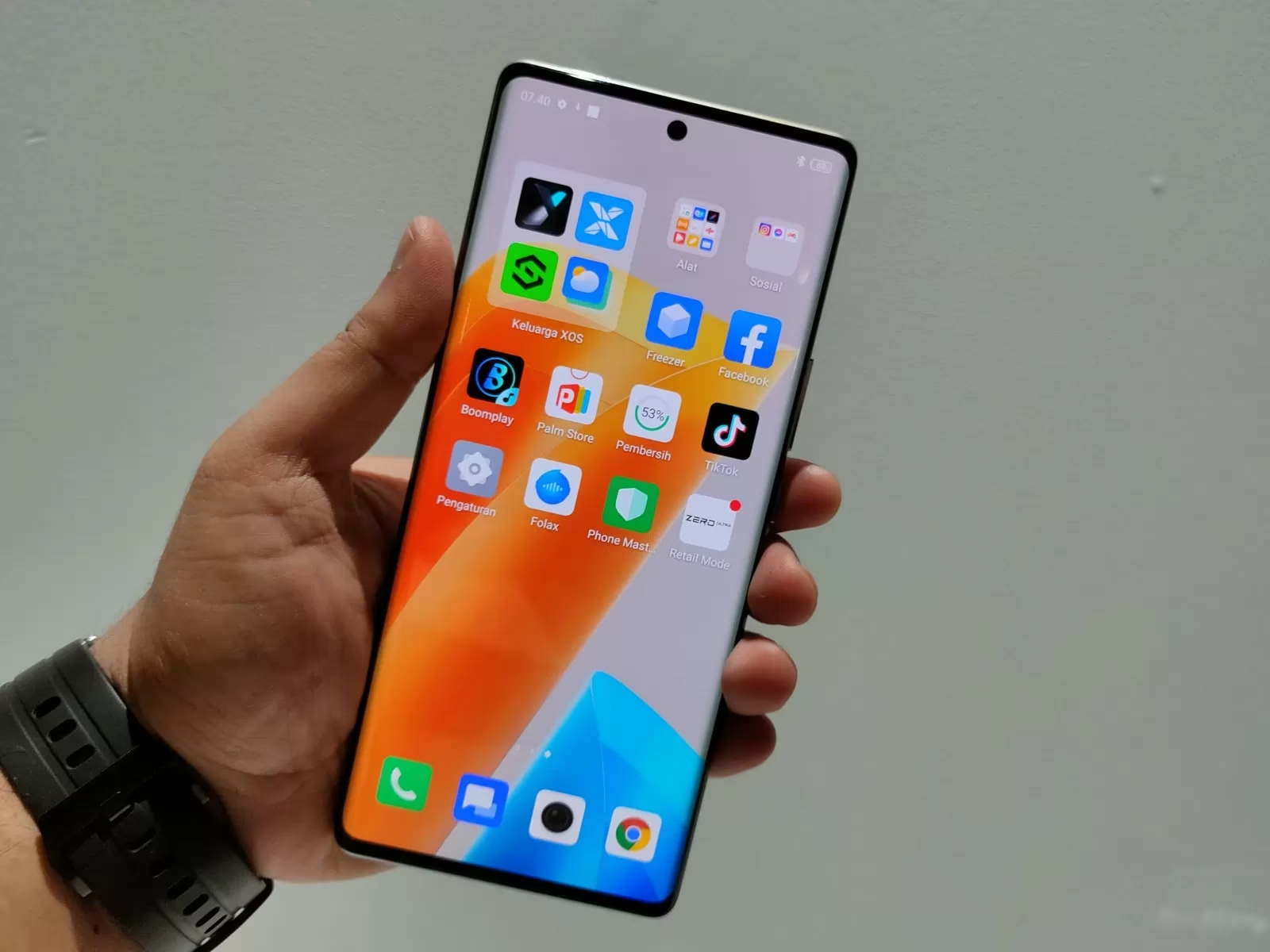
You just got your Infinix Zero Ultra, and you’re probably amazed by that 180W Thunder Charge that fills up your battery in minutes. But here’s what most people don’t know. Your phone has several hidden battery settings that can make that 4500mAh battery last way longer than you think. These aren’t just basic power saving tips. These are actual features built into XOS that many Zero Ultra owners never discover.
The Infinix Zero Ultra is already impressive on paper. According to GSM Arena, it packs a MediaTek Dimensity 920 chipset, a gorgeous 6.8-inch AMOLED display with 120Hz refresh rate, and that insane 180W charging capability. But all that power means nothing if your battery dies halfway through the day. The good news? Infinix packed XOS with battery optimization features that most people never touch. Let’s dig into the seven hidden settings that can seriously extend your battery life.
1. Furious Mode: The Fast Charging Secret Everyone Misses
Most Infinix Zero Ultra owners know their phone charges fast. But many don’t realize they’re not getting the absolute fastest charging speed possible. That’s because Furious Mode is turned off by default.
According to Infinix’s official information, to achieve the advertised 12-minute full charge from 0% to 100%, you need to manually enable Furious Mode. Without it, your phone charges at around 100W, which is still fast, but nowhere near the maximum 180W capability.
Here’s how to enable it. Go to Settings, then tap on Battery or look for Power Marathon (depending on your XOS version). You’ll see an option for Furious Mode. Enable it, and your charging speed will max out.
But here’s the catch. TechPoint Africa reports that for Furious Mode to work at maximum speed, you need to follow some rules. Don’t use your phone while it’s charging. If the screen stays on for more than 60 seconds while charging, the current gets limited and speed slows down. The room temperature should be around 25°C or lower, because the phone will reduce charge speed if it overheats. And obviously, you must use the original 180W charger and cable that came with the phone.
According to Unbox.ph’s analysis, Furious Mode isn’t just about speed. It’s a software toggle that helps manage charging speeds while utilizing all the security protection mechanisms of Infinix’s Thunder Charge solution. When enabled, it lets you top up at maximum 180W speeds at a higher temperature. When disabled, you still charge quickly at around 100W but at a lower temperature, which helps preserve battery life long-term.
The smart move? Use Furious Mode when you’re in a hurry and need a quick charge. Use normal charging mode overnight or when you have time, to keep temperatures down and extend your battery’s lifespan.
2. Power Marathon: XOS’s Hidden Battery Optimization System
Power Marathon is probably the most underused feature on the Infinix Zero Ultra. It’s Infinix’s comprehensive battery management system built into XOS, and most people never even open it.
You’ll find Power Marathon in your Settings under Battery. Once you’re in there, you’ll see it’s not just one feature. It’s an entire suite of battery optimization tools. According to Carlcare Kenya’s optimization guide, Power Marathon includes AI smart power saving that learns from your usage patterns and can result in significant battery improvements.
Inside Power Marathon, you’ll find several options. There’s Power Boost, which is your standard battery saver mode. There’s Ultra Power Saving Mode for when you really need to stretch your battery. And there’s the aforementioned Furious Mode for charging. But what many people miss are the AI-powered features that automatically optimize your phone’s power consumption based on how you actually use it.
The system learns which apps you use most, when you use them, and how much power they consume. Over time, it gets smarter about managing background processes and limiting power-hungry apps that you rarely use. You don’t have to manually configure much. Just enable the AI optimization features and let the phone learn your patterns.
One user reported on Carlcare’s site that they extended their battery life from 7 hours to 11 hours of active use by properly configuring Power Marathon and implementing a custom power plan optimized for their usage patterns. That’s a massive improvement just from using features that were already on the phone.
3. Ultra Power Saving Mode: More Than Just Turning Things Off
Most phones have a basic battery saver mode. Infinix’s Ultra Power Saving Mode takes it to another level. When you’re running critically low on battery, this mode can stretch that last 10% or 15% for hours.
According to InfinixMob’s guide, you can find Ultra Power Saving Mode in Settings, then Battery Lab, then Power Boost. When enabled, it dramatically restricts what your phone can do, but in a smart way.
Ultra Power Saving Mode doesn’t just dim your screen and turn off features randomly. It switches your phone to a simplified interface that only shows essential apps. It limits background data. It restricts app usage to only the most critical functions. It can even switch your display to grayscale to save power on that AMOLED screen.
A user testimonial from Kenya mentioned that during frequent power outages, they activated Ultra Power Saving on their device and stretched the final 15% battery for an entire evening of essential communication. That’s the kind of emergency battery extension this mode provides.
The key is knowing when to use it. Don’t wait until you’re at 2% battery. Enable it when you hit around 15% to 20% if you know you won’t be able to charge for a while. You’ll be surprised how long you can keep your phone running for calls, messages, and basic functions.
4. Adaptive Battery and Smart Scenes: Let AI Do the Work
Hidden in your display and battery settings are adaptive features that most people never enable. These use AI to optimize battery usage without you having to think about it.
First, there’s Adaptive Battery. Go to Settings, then Battery, then look for Adaptive Battery and enable it. This feature learns which apps you use regularly and which ones you rarely touch. It then limits battery usage for apps you don’t use often while making sure your frequently used apps run smoothly.
Then there’s Smart Scenes, which might be listed under different names depending on your XOS version. This feature automatically adjusts your phone’s settings based on what you’re doing. If it detects you’re gaming, it prioritizes performance. If it sees you’re just browsing or reading, it optimizes for battery life. If you’re watching a video, it adjusts accordingly.
The beauty of these AI features is that they work in the background. You don’t have to manually switch between modes or remember to enable different settings for different tasks. The phone figures it out and makes adjustments automatically.
For these features to work well, you need to give them time to learn. Don’t expect immediate results. Use your phone normally for about a week after enabling Adaptive Battery and Smart Scenes. The AI needs to collect data about your usage patterns. After that learning period, you should notice better battery management without any effort on your part.
5. App-Specific Battery Restrictions: Stop Power Vampires
Here’s something most Zero Ultra owners don’t know. You can control exactly how much battery each individual app is allowed to use. This is huge for stopping apps that drain your battery in the background without you realizing it.
Go to Settings, then Apps, then select any app you want to control. You’ll see Battery or Battery Usage options. Tap that, and you’ll find optimization settings specific to that app. You can choose to Restrict, Optimize, or allow Unrestricted battery usage.
If you identify apps consuming high amounts of power, you should tap on those apps and choose Restrict or Optimize. This prevents them from running wild in the background and draining your battery.
Social media apps are the worst offenders. Facebook, according to Carlcare’s analysis of 1,500+ devices, consumes 22% more battery on Infinix phones compared to other brands. Instagram, TikTok, and Twitter also tend to be battery vampires because they’re constantly refreshing in the background, downloading content, sending notifications, and tracking your location.
Here’s what you should do. Go through your most-used apps and set battery restrictions appropriately. For apps you need notifications from immediately, like messaging apps or work email, set them to Unrestricted or Optimized. For apps like games, social media you check manually anyway, or apps you rarely use, set them to Restricted. This stops them from waking up your phone and consuming battery when you’re not actively using them.
The Phone Master app that comes pre-installed on your Zero Ultra also has a one-tap optimization feature. According to Carlcare Nairobi experts, many users don’t realize that this app can extend battery life by up to 25% by intelligently managing background processes.
6. Display Settings That Secretly Drain Your Battery
Your gorgeous 6.8-inch AMOLED display is one of the biggest battery drains on your Zero Ultra. But there are hidden settings that can help you manage that power consumption without sacrificing too much visual quality.
First, there’s the refresh rate. Your Zero Ultra supports 120Hz, which makes everything smooth and buttery. But it also uses more power. Go to Settings, then Display, then Screen Refresh Rate. You’ll probably see it set to Auto or 120Hz. You can switch this to 60Hz when you don’t need that extra smoothness, especially if you’re just browsing text-heavy websites or reading. The difference in battery life can be noticeable.
Then there’s screen brightness. Set it to Auto if it isn’t already. The phone will adjust brightness based on ambient light, which prevents you from using unnecessarily high brightness indoors and wasting battery. You’ll find this in Display settings as well.
There’s also something called Adaptive features in your display settings. Enable these. They work similarly to Adaptive Battery but specifically for your display, adjusting things like brightness, color temperature, and refresh rate based on what’s on your screen and your environment.
One more hidden setting: Dark Mode. On AMOLED screens like the Zero Ultra’s, dark mode actually saves significant battery because AMOLED pixels turn off completely when displaying true black. Go to Settings, Display, and enable Dark Mode or choose a dark theme. This can extend battery life by 30% or more depending on how you use your phone, especially if you spend a lot of time reading or using apps with dark interfaces.
7. Battery Health Management: Protect Your Battery Long-Term
This is probably the most overlooked aspect of battery management. It’s not just about making your battery last through the day. It’s about making sure your battery stays healthy for years.
One huge mistake people make with the Zero Ultra is charging it to 100% every single time. A user comment on GSM Arena noted that after charging fully to 100% for around 30 times, they decided to only charge to about 90%. They said this approach wouldn’t affect the 180W fast charging capability and would help the battery last for at least around a decade.
Lithium batteries, which is what your Zero Ultra uses, degrade faster when constantly charged to 100% and discharged to 0%. The sweet spot for battery longevity is keeping your charge between 20% and 80% most of the time. Obviously, this isn’t always practical, but being mindful of it helps.
The 180W charging, while impressive, generates heat. And heat is one of the biggest enemies of battery health. This is why NoypiGeeks found that using Furious Mode greatly increases the temperature of the device, so it’s best to only use it in air-conditioned rooms or well-ventilated areas. If you’re charging overnight or when you’re not in a hurry, turn off Furious Mode and let the phone charge at the slower 100W speed. It’s still very fast, and it generates less heat, which is better for long-term battery health.
Also, avoid using your phone while it’s fast charging, especially with Furious Mode on. Sulit Tech Reviews tested this by gaming while charging with Furious Mode enabled. The phone reached 40°C and started lagging due to heat. They explicitly said they don’t advise doing this because the heat generated can damage your battery if done regularly.
If you care about keeping your Zero Ultra’s battery healthy for the long haul, be strategic about charging. Use Furious Mode sparingly, avoid extreme temperatures while charging, and try not to constantly push your battery to the extremes of 0% or 100%.
Putting It All Together: Your Battery Optimization Strategy
Now that you know these seven hidden settings, here’s how to use them effectively.
For daily use, enable Adaptive Battery and Smart Scenes and let the AI do its work. Set your refresh rate to Auto so it adjusts based on what you’re doing. Use Dark Mode to save power on that AMOLED display. Go through your apps and restrict the battery usage of power-hungry apps you don’t need running in the background constantly.
When you need to charge quickly, enable Furious Mode, but only when necessary. Most of the time, normal charging mode is fine and better for your battery’s long-term health. Make sure you’re in a cool environment when fast charging, and avoid using your phone during the charge.
When your battery is running low and you can’t charge immediately, activate Ultra Power Saving Mode at around 15% to 20% battery. This will stretch that remaining power for hours of essential use.
For long-term battery health, avoid charging to 100% every time if you can help it. Aim for around 80% to 90% most of the time. Use Furious Mode only when you really need that 12-minute full charge. Otherwise, let it charge at the slower speed to reduce heat and battery stress.
Why These Settings Matter
The Infinix Zero Ultra is an impressive phone with flagship features at a mid-range price. That 4500mAh battery and 180W Thunder Charge are standout features that set it apart. But to really get the most out of this phone, you need to understand and use these hidden battery settings.
Most people just charge their phone when it dies and never think about battery optimization. They miss out on hours of additional use every day simply because they don’t know these features exist. The difference between someone who uses these settings and someone who doesn’t can be 3 to 4 hours of extra battery life daily. Over a year, that adds up to hundreds of hours of additional phone use.
Even better, using these settings properly means your battery will stay healthier longer. Instead of noticing significant battery degradation after a year, you’ll still have a battery that performs close to new even after two or three years. That’s the difference between needing to replace your phone after 18 months versus keeping it running strong for 3 years or more.
The Bottom Line
The Infinix Zero Ultra gives you incredible tools to manage battery life, but only if you know where to find them and how to use them. Furious Mode for lightning-fast charging when you need it. Power Marathon for comprehensive AI-powered optimization. Ultra Power Saving Mode for emergency battery extension. Adaptive features that learn your habits. App-specific controls to stop battery vampires. Display settings to reduce power consumption. And battery health management practices to keep your battery strong for years.
These aren’t complicated features that require technical knowledge. They’re built right into XOS, waiting for you to discover and use them. Take 15 minutes to go through your settings and enable these features. Adjust them to match how you actually use your phone. Give the AI features a week to learn your patterns. After that, just let them work in the background while you enjoy significantly better battery life.
Your Infinix Zero Ultra is capable of way more than you probably realized. Now you know how to unlock that potential.