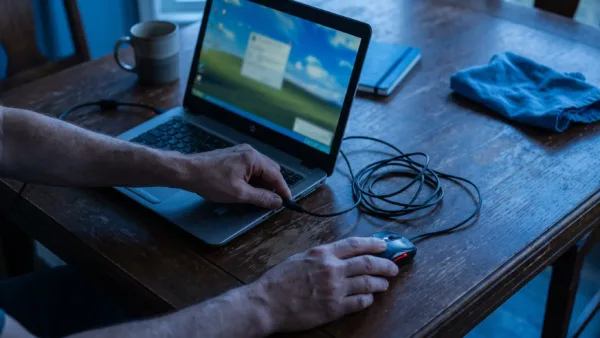
If your laptop is plugged in but not charging, and Windows shows Plugged in, not charging when you hover over the battery icon, power is reaching the machine but the battery isn’t accepting it. In most cases the cause is a charge-limit setting, a charger that’s too weak or not recognised, a confused battery driver or a battery that has simply worn out, and only rarely a faulty charging board.
That matters in Nigeria because so many of the laptops in use here are UK-used or US-used units running on replacement chargers bought after the original went missing, and they’re often powered from inverters, generators and shared extension boxes. Before you buy a new battery or open the laptop, work through the checks below in order, because the early ones cost nothing and solve a surprising number of cases.
| Problem | Likely cause | Fix |
|---|---|---|
| Battery stops at about 80% and won't go higher | A battery conservation or charge-limit mode is switched on | Check the maker's app (such as Lenovo Vantage) or the BIOS and turn the limit off if you need a full charge |
| Plug icon shows, but the percentage never moves | Charger wattage too low, or the laptop doesn't recognise the adapter | Check the adapter type in the BIOS and use a charger that matches the wattage on your laptop's original adapter |
| Charges on one power source but not another | The outlet, extension box or power source, not the laptop | Plug the charger straight into a working wall socket and test again |
| Stopped charging after an update or a crash | The Windows battery driver needs to reload | Uninstall Microsoft ACPI-Compliant Control Method Battery in Device Manager, then restart |
| Charges only a little and drains fast | The battery has lost much of its original capacity | Run a battery report and compare full charge capacity with design capacity |
Start the laptop not charging fix by reading what Windows is telling you
Hover over the battery icon on the taskbar and read the message carefully, because it splits the problem in two. Plugged in, not charging means Windows can see the charger, so your attention should go to settings, the driver and the battery itself. If the icon shows no plug at all, the laptop isn’t detecting the adapter, which points to the charger, the cable, the socket or the charging port.
Dell’s support guide on troubleshooting AC adapter issues also uses the charging light near the power port as a clue, and many other brands behave similarly. A steady white or green light means the battery is charging, a blinking amber light usually signals a battery or charging error, and no light at all means power isn’t reaching the laptop or the port has a fault. Your manual will tell you exactly where that light sits and what each colour means on your model.
A charge limit can make a healthy laptop stop at 80%
Many laptops now ship with a battery-care mode that deliberately stops charging early, and it’s one of the most common reasons a perfectly good battery appears stuck. Lenovo’s own user guide says that “in conservation mode, the battery will not be fully charged. Instead, the battery’s charge will be kept within 75%–80%”, and that you can switch the charging mode in Lenovo Vantage, Lenovo PC Manager or Lenovo Smart Engine. The same guide notes that once a battery is fully charged, it has to drop to 94% or lower before it starts charging again, so a laptop sitting at 97% on the charger isn’t necessarily faulty either.
Other brands put similar controls in their own apps or in the BIOS, and some Dell models even have a keyboard shortcut that switches charging off, according to Dell’s guide to the plugged in, not charging message. If your laptop stays on a desk connected to power most of the day, it’s worth leaving the limit on, because it helps the battery last longer. Turn it off only on days you need every percent, such as before a long power cut or a day away from your desk.
The charger you bought as a replacement may not be strong enough
A charger that fits the port isn’t always a charger that can do the job. Dell points out that “many high-end computers require higher capacity AC adapters such as 150 W, 180 W, 210 W AC adapters”, and a lower-rated adapter may keep the laptop running without having enough left over to charge the battery. The same applies to USB-C laptops, since a phone charger rated at 18W or 33W can show the plug icon on a laptop that expects 65W and still leave the percentage frozen.
Check the wattage printed on the label of your original adapter or in your laptop’s manual, and compare it with what you’re using now. On Dell laptops, you can press F2 at startup to open the BIOS and look at the AC Adapter Type entry, where “Unknown” suggests a faulty or incompatible charger and “None” means it isn’t detected at all. Cheap unbranded replacements are also a safety risk, which we explain in our piece on why cheap chargers are more dangerous than you think.
Your inverter, generator or extension box could be the real culprit
Before you blame the laptop, rule out the power source. Plug the charger straight into a wall socket you know works, without an extension box in between, and see whether charging starts. If the laptop charges on one source and refuses on another, for example on grid power but not on the inverter, the battery and the laptop are fine and it’s the supply you need to look at.
Look closely at the charger cable too, especially where it bends at the plug and at the laptop end, because a cable that has been wound tightly for months can break inside without any visible damage. If a friend has the same laptop or an identical charger, borrowing it for five minutes is the quickest way to tell whether the adapter is the problem.
Reload the battery driver when charging stops after an update
If charging stopped suddenly after a Windows update, a crash or the laptop running completely flat, the battery driver may simply need to reload. Open Device Manager, expand Batteries, right-click Microsoft ACPI-Compliant Control Method Battery and choose Uninstall device, then restart the laptop. Windows reinstalls the driver on its own during startup, so you aren’t removing anything you’ll need to download.
It also helps to keep Windows and your laptop’s firmware current, and our guide to getting the Windows 11 26H2 update walks through the safe way to do the first part. Be careful with BIOS updates, though, because Dell advises keeping the battery installed and the charger connected during the process, and warns that forcing an update on a low battery can damage the system board. Only download BIOS files from your laptop maker’s official support site.
Charge it switched off to see whether Windows is in the way
You can also try charging the laptop while it’s completely shut down. Turn it off, connect the charger for 20 to 30 minutes, then switch it on and check whether the percentage went up. Dell recommends a similar test, either with the laptop off or sitting in the BIOS screen, because it takes Windows power settings and drivers out of the picture.
If the battery charges while the laptop is off but not while Windows is running, the hardware is working and the fix lies in software, settings or the driver steps above. If it doesn’t charge in either state, the problem is in the charger, the port or the battery, and you can move on to checking the battery’s health.
Check battery health before you pay for a new one
Windows can produce a detailed battery report without any extra app. Open Command Prompt, type powercfg /batteryreport and press Enter, and Windows saves an HTML report in the folder shown in the prompt, usually your user folder. Open it in your browser and compare Design Capacity with Full Charge Capacity. A battery that now holds well under half of its design capacity is worn out, and on a UK-used laptop that has seen years of daily use, that’s often the honest answer.
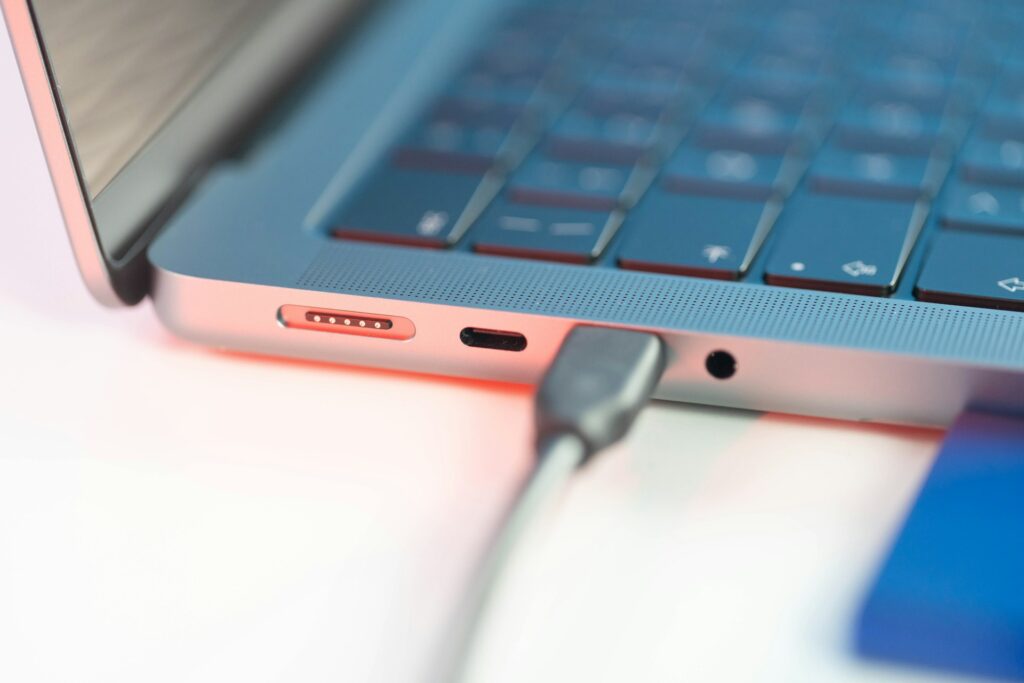
Many brands also have built-in diagnostics, such as Dell’s SupportAssist and its pre-boot test from the F12 menu, which can confirm a failing battery before you spend money. If the laptop’s case is lifting, the touchpad is pushed up or the bottom panel bulges, stop charging it and take it to an authorised service centre, because a swollen battery is a fire risk.
What to try first if you want the safest order
Start with the free checks, which means reading the battery message, looking for a charge limit in your maker’s app or BIOS and plugging straight into a working wall socket. Then confirm your charger’s wattage matches the original, reload the battery driver and try charging with the laptop switched off. Only after all of that should you run the battery report and consider a replacement.
Rather than rushing into buying parts, use these checks to work out whether you’re dealing with a setting, a charger or a genuinely tired battery, because each one has a very different cost and the first two can usually be sorted out at home.