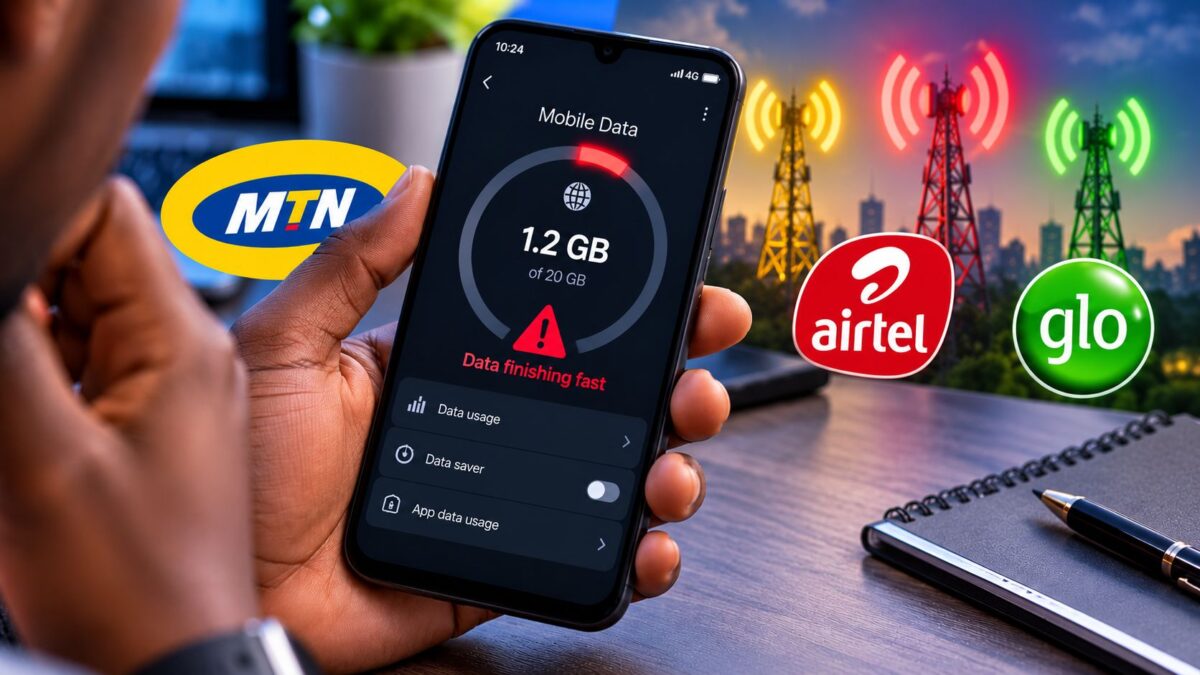
If your data is finishing fast on MTN, Airtel, Glo or T2, the cause is usually something on the phone using more than you think rather than the network quietly cutting your bundle. Complaints about bundles running out in half the time have picked up again this week, and the Nigerian Communications Commission’s own guidance points to video streaming, social media, automatic updates and background app activity as the biggest drains.
Billing errors do happen too, and the NCC has a process for escalating them when they do. Your phone’s own data counter and the network’s balance code can show you which one you’re dealing with in about ten minutes. Start with the numbers below, because they make it much easier to tell normal use from something that looks wrong.
How much data your daily apps really burn through, by NCC’s estimates
The NCC publishes rough figures for common activities in its FAQ on internet data consumption and depletion. They’re approximations, and your apps may use more or less depending on settings, but they explain a lot of the “my data just vanished” moments.
| Social media, 1 hour | About 200MB |
|---|---|
| Web browsing, 1 hour | About 60MB |
| Video streaming (non-HD), 1 hour | About 350MB |
| Video streaming (HD), 1 hour | About 1GB |
| Messaging with video calls, 1 hour | About 140MB |
| Online gaming, 1 minute | About 60MB |
On a typical day, two hours of TikTok, Instagram and Facebook is roughly 400MB, and an hour of YouTube in HD is about another 1GB, so a 10GB monthly plan can be gone in under a week without you doing anything unusual. Short-form video is the main culprit for most people, because it plays automatically and loads the next clip before you’ve even swiped.
Check your data balance first, then find the app that’s eating it
Every Nigerian network now uses the same harmonised codes, which the NCC lists on its consumer portal. Dial *323# to see your data plan balance before and after a few hours of normal use, and write both figures down. That gives you a real number to work with instead of a feeling.
- MTNData plan balance
*323# - AirtelData plan balance
*323# - GloData plan balance
*323# - 9mobileData plan balance
*323#Now T2
- MTNData plans menu
*312#Same code on Airtel, Glo and T2
- MTNAirtime balance
*310#Same code on Airtel, Glo and T2
Last checked: 3 October 2026
Next, open your phone’s data counter. On most Android phones it’s under Settings > Network and internet > SIMs > App data usage, while Tecno, Infinix and itel phones usually show it under Settings > SIM and Network or a Data Usage entry in the Phone Master app. If your menu is different, search for “data usage” inside Settings. On an iPhone, go to Settings > Mobile Service and scroll down to see each app’s usage.
Look at the top five apps. A video app at the top after an evening of streaming is normal. Google Play services, a cloud backup app or an app you barely opened sitting near the top deserves attention, because that’s background activity you can switch off. Also compare the phone’s total with what *323# says you’ve used. The phone’s counter won’t match the network to the megabyte, but a huge gap between the two is worth noting before you complain.
The settings that stop your data finishing fast without giving up your apps
| Problem | Likely cause | Fix |
|---|---|---|
| Bundle drops even when the phone sits in your pocket | Apps syncing, backing up or updating in the background | Turn on Data Saver and restrict background data for the worst apps |
| Big drop overnight | Automatic app or system updates over mobile data | Set Play Store and system updates to download over Wi-Fi only |
| Social media eats most of the plan | Autoplay and high-quality video loading in feeds | Turn on each app's data saver or low-data mode |
| WhatsApp uses more than expected | Photos, videos and voice notes downloading automatically | Limit media auto-download on mobile data |
| Gallery or photos app near the top | Cloud photo backup uploading over mobile data | Set backup to Wi-Fi only |
| Balance falls far faster than the phone's own counter shows | Possible billing or plan error | Complain to your network first, then escalate to the NCC |
Data Saver is the single biggest switch. On stock Android it sits under Settings > Network and internet > Data Saver, and once it’s on, apps you haven’t opened can’t use mobile data in the background. Don’t worry about missing messages, because you can exempt WhatsApp or your banking app so notifications keep arriving. If you’re curious how much a browser can save on top of that, our guide to getting the real Opera Mini on Android covers a data-light option for everyday browsing.
Inside the apps themselves, the settings change name often, but they’re easy to find. In WhatsApp, open Settings > Storage and data and set media auto-download on mobile data to nothing or photos only. Instagram, TikTok and YouTube each have a data saver or video quality option in their settings, and switching YouTube away from automatic quality on mobile data makes a noticeable difference by itself. Be careful with “unlimited” VPN and booster apps that promise to stretch your bundle, because many of them run constantly in the background and end up using more data, not less.
When it really is the network, here’s how to escalate
If you’ve made the changes above, your phone’s counter shows modest use, and *323# still shows your bundle disappearing, take screenshots of both and contact your network first. The harmonised call centre number is 300 on every network. Ask for a complaint ticket number, because you’ll need it if the matter goes further.
The NCC says operators should resolve complaints within set timelines and that it sanctions those that don’t. If your network doesn’t sort it out, you can escalate to the Commission on its toll-free line 622 or by email at [email protected], quoting your ticket number. Our step-by-step guide on how to complain to the NCC walks through each channel, and if money or data was taken for something you didn’t subscribe to, see how to get a wrong deduction reversed.
What to change first if you want your next bundle to last
Start with the cheapest fixes, which are turning on Data Saver, moving updates and photo backups to Wi-Fi only, and cutting autoplay in the two or three apps you use most. Then check *323# at the start and end of a normal day for a week, so you know what your real usage looks like. If you’re a student, it’s also worth checking whether you qualify for the free 100MB daily data for education sites that started on October 1.
You can keep using the apps you enjoy and still make sure your data goes on the things you chose to do, not on updates, backups and videos you never watched, with the numbers ready if you do need to take it up with your network.