
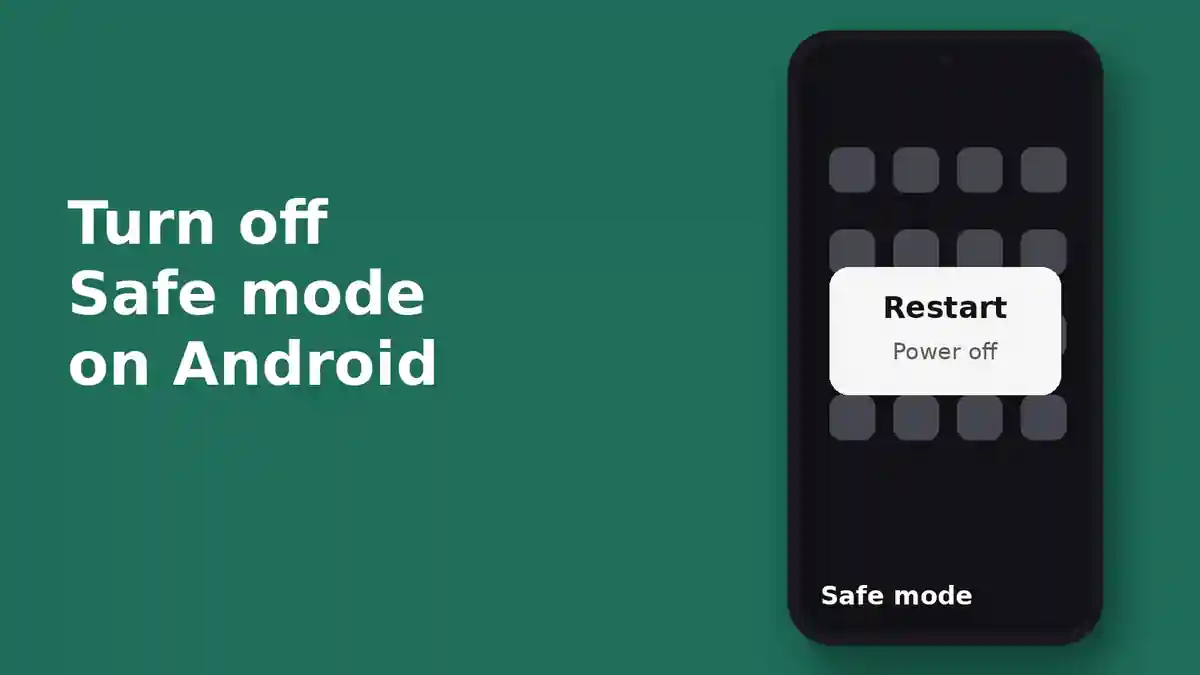
To remove your phone from safe mode, restart it normally. On most Android phones a plain restart brings back regular mode with all your apps. Google’s Android help page on safe mode says this usually works, though the exact steps can vary from one phone maker to another.
How to tell your phone is in safe mode
- You see the words Safe mode at the bottom corner of the screen.
- Your downloaded apps look greyed out or are missing.
- Some home screen widgets have disappeared.
Your apps and files haven’t been deleted. Safe mode only stops downloaded apps from running so you can tell whether one of them is causing trouble.
Method 1: Restart the phone
This fixes most cases, so try it first.
- Press and hold the Power button until the power menu shows up.
- Tap Restart.
- Let the phone come back on by itself. Don’t press any other button while it starts.
- Check the bottom corner of the screen. The Safe mode label should be gone.
- Add back any missing widgets from your home screen, since Google says safe mode removes some of them.
Method 2: Force a restart on Samsung phones
Use this when the screen is frozen or the power menu won’t open. Samsung’s guide to exiting safe mode gives these steps for Galaxy phones.
- Press and hold Volume Down and the Side key together.
- Keep holding for 7 seconds.
- Let go of both buttons when the screen goes dark.
- Wait for the phone to restart on its own.
A forced restart doesn’t erase anything on your phone.
Method 3: Check for a stuck Volume Down button
Samsung says that if a phone keeps booting into safe mode no matter how often you restart it, something may be physically wrong with the Volume Down button. Run through this checklist.
- Take off your phone case. A tight or bent case can press the button without you noticing.
- Press Volume Down a few times. It should click and spring back.
- Restart the phone with the case off.
- If the button feels stuck or doesn’t click, take the phone to an official service centre for repair.
Method 4: Find the app causing the problem
Phones sometimes start in safe mode by themselves after an app keeps crashing. Google suggests these steps.
- Use the phone in safe mode for a while. If the freezing or restarting stops, a downloaded app is probably to blame.
- Remove the app you installed most recently.
- Restart the phone normally and check whether the problem has stopped.
- If it hasn’t, remove the next most recent app and restart again.
- Once you find the culprit, reinstall the other apps you removed.
Keep a short list as you go so you remember which apps you’ve already tested.
Quick fix table
| What you see | Likely cause | What to try first |
|---|---|---|
| Safe mode label after pressing buttons by mistake | Safe mode was turned on during start-up | Method 1, restart normally |
| Power menu won’t open or screen is frozen | Phone isn’t responding | Method 2, hold Volume Down and Side key for 7 seconds |
| Safe mode comes back on every restart | Volume Down button stuck or pressed by a case | Method 3, remove the case and check the button |
| Phone keeps crashing, then starts in safe mode | A downloaded app is misbehaving | Method 4, remove recent apps one at a time |
If you see Android Recovery instead
A black screen with small text saying Android Recovery is a different mode. Samsung advises against using it. If you must leave it:
- Use the volume keys to highlight Reboot system now.
- Press the Power button to confirm.
Don’t select anything that says wipe or factory reset, because those options erase your phone. If none of these methods gets you out of safe mode, take the phone to an authorised service centre for your brand.