
The quickest way to stop seeing adult content on your phone is to set Google SafeSearch to Filter, which Google says blocks all explicit results in search. For stronger protection, add a family-safe Private DNS on Android, or use Google Family Link or Apple’s Screen Time on a child’s phone. Each setting covers a different gap, so combining two or three works best.
Which method to use
| Method | What it blocks | Phone | Best for |
|---|---|---|---|
| SafeSearch Filter | Explicit results in Google search | Android and iPhone | Everyone, start here |
| Family Private DNS | Adult websites in every browser and app | Android | Your own phone or a shared phone |
| Family Link | Explicit sites in Chrome, plus site approval | Child’s Android phone | Parents |
| Screen Time | Adult websites in Safari | Child’s iPhone | Parents |
Method 1: Turn on SafeSearch Filter
These steps come from Google’s SafeSearch help page.
In the Google app
- Open the Google app.
- Tap your profile picture or initial at the top right.
- Go to Settings > SafeSearch.
- Select Filter.
In Chrome or another browser
- Go to google.com/safesearch.
- Select Filter.
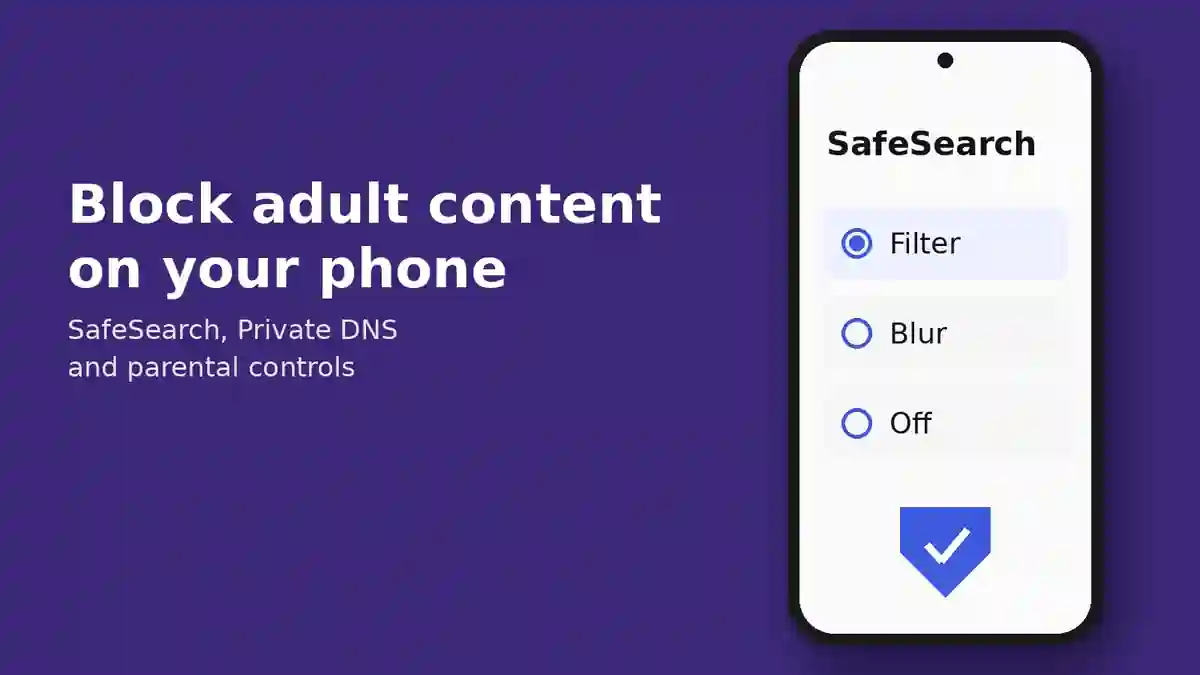
Google offers three settings. Pick Filter, not Blur, if you want to stop seeing this content altogether.
| SafeSearch setting | What it does |
|---|---|
| Filter | Blocks all explicit results |
| Blur | Blurs explicit images, but explicit text and links can still appear |
| Off | Shows all results, including explicit content |
If you see a lock icon on the SafeSearch page, someone else manages the setting, such as a parent, school or network, and you can’t change it yourself.
Method 2: Block adult websites with Private DNS (Android)
SafeSearch only works inside Google search. Cloudflare’s free 1.1.1.1 for Families service blocks adult websites in every browser and app. These steps follow Cloudflare’s Android setup guide.
- Open Settings > Network & internet > Advanced > Private DNS.
- Select the option to enter a Private DNS provider hostname.
- Type family.cloudflare-dns.com exactly as shown.
- Tap Save.
Cloudflare says this hostname blocks malware and adult content. Keep these tips in mind:
- On Tecno, Infinix and other phones the menu names can differ. Search for Private DNS inside Settings if you can’t find it.
- A typo in the hostname can stop websites from loading.
- If pages stop opening, check the spelling or switch Private DNS back to Automatic.
Method 3: Use Family Link on a child’s Android phone
These steps come from Google’s Family Link help page.
- Open the Family Link app.
- Select your child.
- Tap Controls, then Google Chrome and Web.
- Choose how strict you want it to be.
- Optional: open Manage sites to approve or block individual websites.
| Family Link option | What it does |
|---|---|
| Try to block explicit sites | Filters out sexually explicit websites |
| Only allow approved sites | Your child can visit only the sites you choose |
Google says no filter is perfect, so talk to your child about what to do if something inappropriate slips through.
Method 4: Use Screen Time on a child’s iPhone
- Screen Time includes a Limit Adult Websites setting for Safari.
- Apple says it’s on by default for children under 18.
- You can also block specific websites.
- Menu names depend on your iOS version, so follow the steps in Apple’s parental controls guide for your version.
Recommended setup
- Your own phone: SafeSearch Filter plus family Private DNS on Android.
- A child’s phone: add Family Link or Screen Time too, because those settings can be locked so the child can’t switch them off.