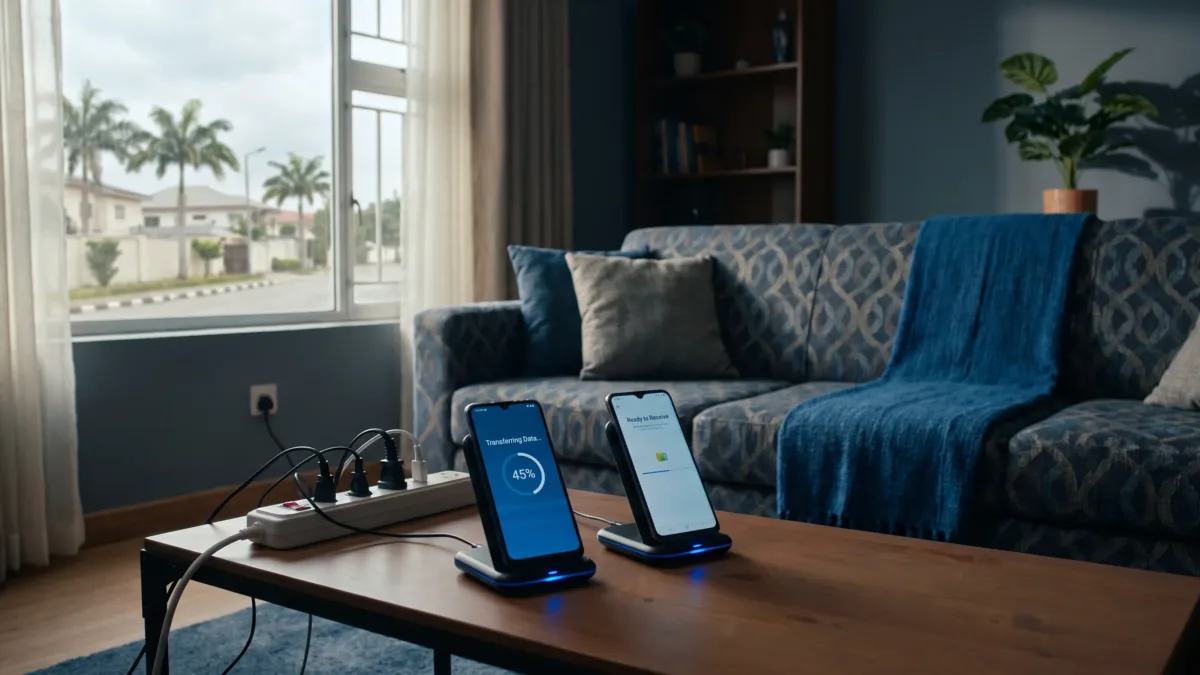
A phone clone app copies selected data from your old handset to a new one, but it doesn't create an identical copy of everything on the device. Your photos, contacts and documents may transfer directly, while WhatsApp chats, banking access and authentication codes often need separate steps.
If you're moving to a new Tecno, Infinix or itel phone, start by checking which transfer method the receiving phone supports. Android's setup process may already cover what you need, without another download. The main job is choosing the right method, keeping both phones available and checking the results before you erase anything.
You'll also want to separate local copying from online restoration. Moving files between nearby phones isn't the same as downloading your Google backup or reinstalling apps, which can use your internet connection.
Choose a phone clone app that works with your destination
For a new Android phone that hasn't been set up, try Android's built-in data-copy process first. It offers cable or wireless transfer options on supported devices and guides you through selecting the data to bring across.
Manufacturer tools are another option, but they aren't interchangeable. Samsung Smart Switch is intended for transferring to supported Samsung Galaxy devices. Huawei Phone Clone is Huawei's migration tool, not a universal destination app for every Android brand.
On Tecno, Infinix and itel phones, the available migration tool can differ by model, HiOS, XOS or itel OS release and Android version. Use the transfer option supplied or documented for your receiving handset rather than assuming an app with a familiar name will work.
Before installing a phone clone app, check the developer's identity and whether your new phone is a supported destination. If you can't establish that, use Android's setup transfer or copy your files through a computer instead.
An app installed on both phones still won't necessarily transfer protected app data. Banking credentials, encrypted folders and work-profile content can have restrictions that ordinary copying tools can't bypass.
Prepare both phones without risking your only copy
Charge both handsets sufficiently and keep a charger nearby. A large photo or video collection can take time to move, so avoid starting when either battery is nearly empty. You'll also need your old phone's screen-lock PIN or password and access to the Google account you plan to use.
Check the space available on the new phone against the amount you're selecting. A phone advertised with a particular storage capacity won't have all of that space available because Android and preinstalled software already occupy some of it.
If the old handset is nearly full, free up storage without deleting your photos before attempting a large transfer. Remove downloads you can replace, but keep important files until you've verified another copy.
A phone clone app should be one part of your migration plan, not your only backup. Where available, use the old phone's Settings search to find Backup and check the latest successful backup. Google's Android backup guidance explains what's included and why some apps won't restore all their data.
Give permissions only to a tool you trust
A migration tool may request access to contacts, photos, videos or nearby devices because it needs those permissions to copy the selected content. Review each request rather than approving everything automatically.
For a third-party download, use the manufacturer's official download route or its verified Play Store listing. A contact-transfer feature shouldn't require your bank PIN, and copying photos doesn't require you to tell another person your Google password.
Never share your banking PIN, account password or one-time password with someone helping you transfer the phone. Enter credentials yourself and keep the devices within your control, especially if you're getting help at a shop.
Use Android's copy option before finishing setup
If you're still on the new phone's welcome screens, Android's setup transfer is usually the most straightforward place to begin. The wording and screen order vary, so follow the prompts on your handset rather than looking for an identical menu layout.
These steps describe Android's setup flow, not a fixed menu path for a particular HiOS, XOS or itel OS version.
- Start the new phone's setup and connect to a trusted Wi-Fi network when prompted.
- Choose Copy apps & data, or the equivalent copying option shown on your device.
- Select a cable or wireless transfer if the phone offers that choice. For a cable transfer, use a compatible data-capable cable and any required adapter.
- Unlock the old phone and approve the connection. Sign in to the Google account you want to use when requested.
- Review the categories offered, select what you need and leave both phones connected until the copying stage finishes.
You may find that this process makes a separate phone clone app unnecessary. However, completing the setup transfer doesn't mean every application is ready: some apps still need to download, restore their own backup or ask you to sign in again.
If you've already finished setting up the new phone
Look for a supported migration option on the receiving device. Some phones provide transfer options after initial setup, but availability varies by model and software version.
Don't factory-reset a phone you've already started using just to reproduce somebody else's setup screens. First back up any new photos, messages or files you've created on it. If there's no supported post-setup copying option, you can still sync contacts, copy media and reinstall apps separately.
Also avoid restoring a backup made on a newer Android version onto an older version without checking compatibility. Google's backup guidance notes that this can result in an incomplete transfer or restoration.
Follow the receiving phone's QR-code transfer instructions
If your new handset supports a manufacturer migration app, use the receiving phone to begin the process. Its instructions should tell you which companion app, if any, belongs on the old device.
The following is a common workflow, not a promise that every phone clone app uses the same buttons or connection method.
- Open the supported migration tool on the new handset and choose the receiving role, sometimes labelled New phone.
- Open the specified companion tool on the old handset and choose the sending role, sometimes labelled Old phone.
- Follow the app's instructions to scan the displayed QR code or establish the local connection.
- Approve the requested permissions that relate to the data you're transferring.
- Select the available categories and review the estimated transfer size before starting.
- Keep both devices nearby and avoid switching apps or breaking the connection until the transfer finishes.
Some tools create a temporary local Wi-Fi connection. Your phone may report that this connection has no internet access, which doesn't necessarily mean the transfer has failed. Follow the migration tool's instructions rather than switching away automatically.
Local file copying doesn't normally consume your mobile data bundle for the copied files themselves. App downloads, cloud restores and online updates can still use internet data, so review those separately if you're relying on MTN, Airtel, Glo or T2 mobile data.
Check what actually moves, not just the completion message
A successful transfer screen confirms that the selected copying task finished. It doesn't establish that every file, account or app feature on the old phone is present on the new one.
The categories offered by a phone clone app depend on both devices, Android restrictions and the app's capabilities. Use this table as a checking guide rather than a guarantee of support.
| Data or access | What to expect | What you should check |
|---|---|---|
| Photos and videos | Locally stored media may copy if selected | Open several items, including older videos |
| Contacts | May copy directly or appear through account sync | Check important names and phone numbers |
| Downloads and documents | Only supported, selected files may transfer | Look for PDFs, receipts and other essential documents |
| Apps | May reinstall, copy or require a fresh download | Open each important app and check whether its data is present |
| SMS and call history | Support varies by transfer method and device | Check important conversations and recent records |
| WhatsApp chats | Need WhatsApp's supported transfer or backup process | Confirm old messages and media inside WhatsApp |
| Banking and authentication access | Often requires separate activation or migration | Test access before wiping the old device |
Files on a memory card, in a private folder or inside a work profile deserve a separate check. Don't assume selecting Photos includes content hidden behind another app's security controls.
Move WhatsApp through its own transfer process
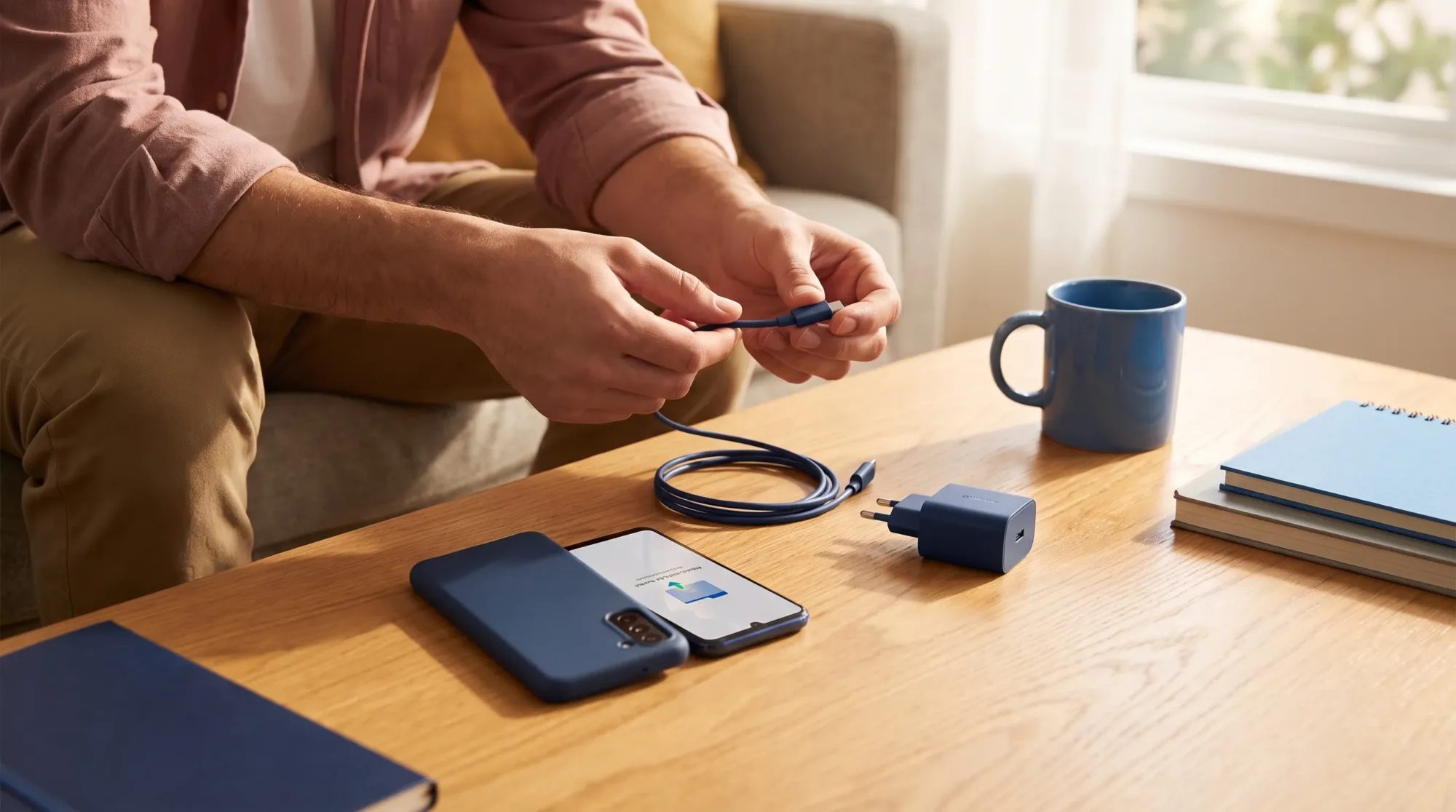
WhatsApp chat history needs more attention than an ordinary folder of images. Copying an application or its media folder isn't enough to guarantee that your conversations will appear correctly.
Use WhatsApp's supported chat-transfer instructions. For the Android-to-Android QR transfer route, the old phone's option is under Settings > Chats > Transfer chats. Follow the prompts on both handsets, including the requirements for the phone number and connection.
If you choose Google-account backup restoration instead, you'll need the same phone number and Google account used for the backup. An end-to-end encrypted backup also requires the relevant password or key.
Even when a phone clone app reports that WhatsApp was copied, open WhatsApp on the new phone and check conversations from different dates. Open a few photos, play a voice note and check an important group chat before considering the migration complete.
Avoid creating a fresh, empty backup from the new installation before you've restored and checked the history you want to keep. Leave the old phone's WhatsApp data intact while you're working through the transfer.
Keep banking access and login codes working
Banking apps may treat the new handset as a new device, even if the application itself was copied. You may need to sign in again, register the device or complete your bank's activation procedure. Use the bank's official app and support channels if activation fails.
Keep your registered mobile number active so you can receive verification messages. A transfer tool doesn't move your physical SIM, duplicate your phone number or automatically transfer an eSIM profile. Handle the SIM or eSIM separately through the supported device and network process.
Transfer your authenticator before deleting the old one
Two-factor authentication codes can be more important than the apps you're copying. Check your authenticator's migration or backup process before you lose access to the old handset.
For Google Authenticator, Google's official instructions explain account syncing and manual transfer. Other authenticator apps have their own processes, so don't assume their codes move in the same way.
A phone clone app isn't proof that your authentication codes or banking activation have transferred. Test a sign-in on the new phone, retain your recovery codes securely and only remove the old authenticator after you've confirmed access.
If you're giving the old phone to someone else, keeping it temporarily doesn't mean leaving it unlocked. Retain its screen lock while you finish these checks.
Fix a stalled transfer without starting over blindly
If progress stops, first check whether both phones still show an active connection. A sleeping device, rejected permission or interrupted local Wi-Fi link can prevent the next batch of files from moving.
Keep the transfer apps open and follow any instruction to leave the screens awake. If either handset becomes unusually hot, stop the task, let it cool in a shaded place and avoid charging it under bedding or in direct sunlight.
When the phones won't connect
Confirm that you've assigned the sending and receiving roles correctly. If the app asks for Wi-Fi, Bluetooth, nearby-device access or location permission, review and grant the permissions needed for that connection.
A VPN or automatic switch from a no-internet Wi-Fi connection to mobile data can interfere with some local transfers. Temporarily turn off the VPN or the relevant automatic switching setting if it keeps breaking the connection, then restore your normal preferences afterwards.
If your phone clone app repeatedly disconnects, try a smaller selection rather than sending everything again. Moving contacts and documents first, then media, can help you identify the category causing trouble without duplicating the whole transfer.
When apps or files are missing
Check whether an absent app is available for the new phone in the Play Store. Copying can't make an incompatible app work, and an installed app may still require a fresh sign-in or its own restore process.
For missing documents or a large media folder, a computer provides another route. Our guide to transferring Android files to a PC explains the cable and File transfer checks. Copy the files into an organised folder on the computer, then move them to the new handset.
Be careful with repeated imports. Contacts may appear twice if you import them manually and also sync the same account. Likewise, rerunning a media transfer may create duplicates depending on how the tool handles existing files.
Keep the old phone until your checks are complete
Open the new phone's gallery, contacts, messaging app and file manager rather than relying on a reported file count. Check older content as well as recent items, because a partial transfer can look complete if you only inspect the latest photos.
Test WhatsApp, banking access and an account protected by two-factor authentication. Make a call, receive a message and confirm that the new phone is using the Google account you intended.
Don't erase the old phone until you've checked your important data and confirmed that you can access your accounts on the new one. A phone clone app can finish successfully while individual apps still need attention.
If you're selling or giving away the old handset, remove your personal accounts through its settings and complete the supported factory-reset process only after these checks. Remove the SIM and memory card too, unless you're deliberately transferring the card for your own use.
Once your new phone is ready, set up Android's available theft-protection features and check its backup settings. You'll then have both a working migration and a recovery route for the data you add next.