In March 2026, Google shipped something in Android 17 Beta 3 called vendor-defined camera extensions, which was aimed squarely at one of Android’s oldest complaints amongst users that photos taken inside Instagram, TikTok or WhatsApp look worse than photos from the same phone’s own camera app. That gap exists because the stock camera app gets full access to the manufacturer’s image processing pipeline while other apps mostly do not. It is worth knowing about, because a good share of the “my camera got worse after the update” complaints are really about which app took the picture rather than the camera itself.
The rest of the time, something genuine did change. Modern phone photography is mostly software, so a system update can legitimately alter how your pictures come out without a single component being touched. Sometimes that is deliberate retuning, sometimes it is a setting quietly resetting itself, and occasionally it is a bug. We’ll work through what actually changes during an update, how to tell which of those you are dealing with, and what to do about each one.
Your photos are mostly software, which is why an update can change them
Every time you press the shutter, your phone captures several frames in quick succession and merges them, then applies noise reduction, sharpening, colour mapping, tone curves, skin tone adjustment and background separation before saving a single image. That whole chain is code, and manufacturers rewrite parts of it in updates to fix focusing complaints, cut noise in low light or make colours more accurate. The lens and sensor have not moved, but the recipe applied to what they capture has, and the output changes accordingly.
The awkward part is that retuning is subjective in a way that hardware is not. A manufacturer might reduce sharpening to make images look more natural and less processed, which reviewers will call an improvement while a user who liked the crisp, punchy look now finds their photos flat and dull. Nigerian users often notice this most in skin tones, since brands have been adjusting how they handle darker complexions and the results are not always better for everyone. Neither reaction is wrong, and the phone is not broken in either case. It just means “worse” and “different” get reported the same way.
Check your camera settings before you blame the camera
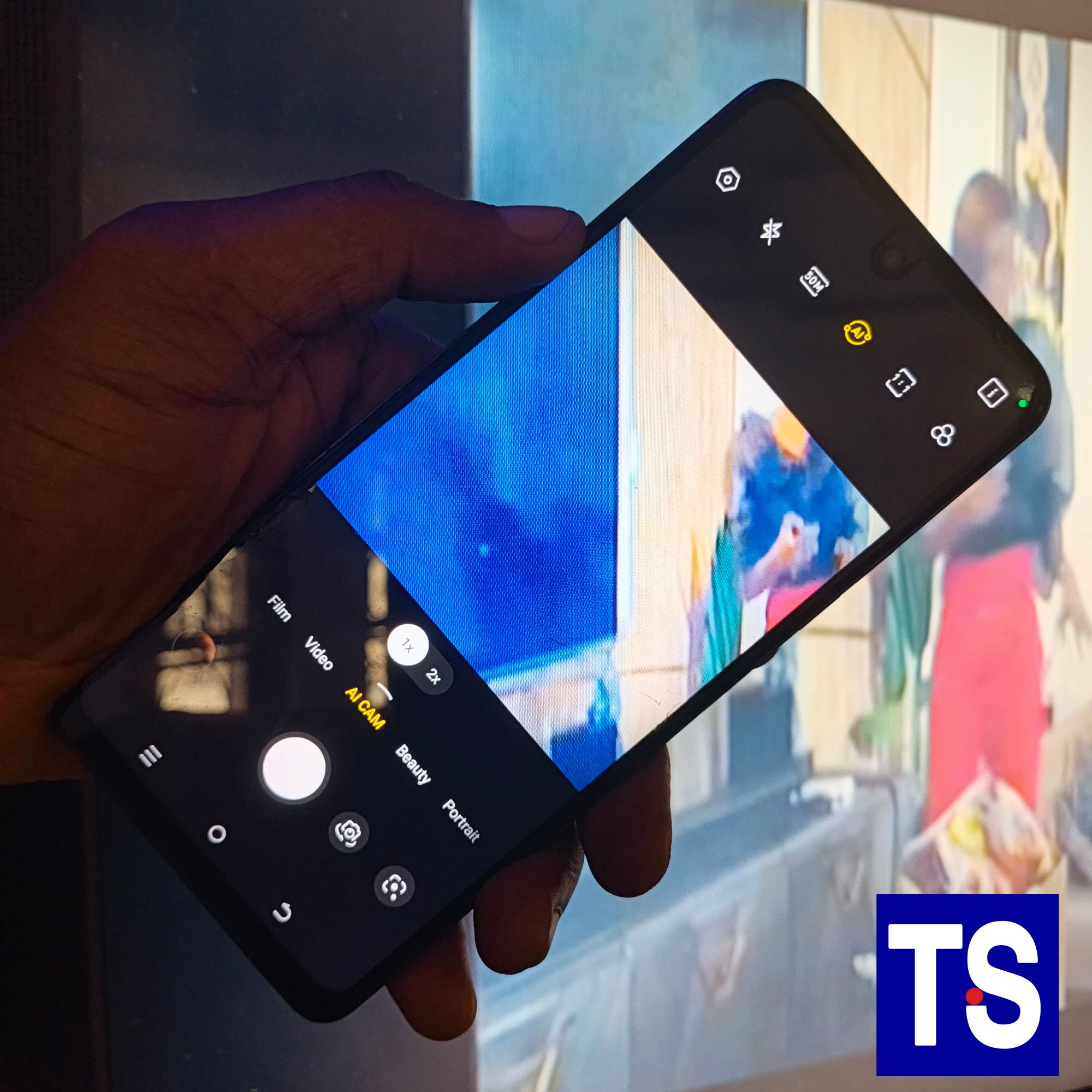
Updates reset things, and camera apps are among the worst offenders because manufacturers keep adding features that default to on. Beauty mode and face retouch coming back by themselves is the classic one, and it is the reason so many people say their selfies suddenly look smoothed and plastic after an update. Scene optimisation, AI enhancement, HDR behaviour and the resolution setting all sit in the same category, and a phone that was shooting at 50MP can quietly return to a binned 12MP default without telling you.
So the first thing to do is open your camera app, go into its settings, and walk through them properly rather than glancing. Check the photo resolution, check whether any beauty or retouch slider is above zero, check whether scene optimisation or AI camera has switched itself on, and check that video resolution and frame rate are where you left them. If your camera app has a Reset settings option, using it and then reconfiguring from scratch is faster than hunting for whichever one flipped. This is the fix for a surprising share of complaints, and it costs two minutes.
If it only looks bad inside Instagram, your camera is fine
This is the single most common false alarm, and it has a specific technical cause. Apps like Instagram, TikTok, Snapchat and the WhatsApp in-app camera generally use Android’s standard camera interfaces rather than your manufacturer’s full processing pipeline, so they never had access to the good version of your camera in the first place. Support for the extensions that would close that gap has always been optional for manufacturers, and coverage has been patchy. The practical test takes ten seconds: shoot the same scene with your normal camera app and then inside Instagram, and if only the second one looks poor, nothing is wrong with your phone.
An update can make this worse temporarily, because a new Android version changes what those apps are working with and they need their own updates to adapt. That usually resolves itself within a few weeks as the apps push releases. The Android 17 vendor extensions mentioned earlier are the long-term answer, though they currently cover stills rather than video recording, and they only help where the phone manufacturer actually implements them. Until that spreads, the reliable workaround is unchanged: shoot with your normal camera app and upload from the gallery instead of shooting inside the social app.
The signs that point to a genuine bug rather than a change in taste
Bugs do ship, and they look different from retuning. Retuning produces photos that are consistently different but consistently usable, while a bug produces failures: the camera app crashing or hanging on launch, autofocus hunting endlessly or refusing to lock, a green or purple cast on images, one specific lens producing black frames, or the viewfinder freezing when you switch modes. Intermittent and unpredictable behaviour is bug territory. A uniform shift in colour or sharpness across every photo is almost never a bug.
The other giveaway is other people. Search your exact phone model plus the update version on Reddit, X or your manufacturer’s community forum, and if a wave of owners reported the same fault in the same week, it is a software defect and a patch is likely coming. Manufacturers tend to move quickly on camera regressions because they generate the loudest complaints. Widespread reports also mean there is no point in factory resetting, since you would be wiping your phone to fix something that is not on your phone.
A struggling phone produces struggling photos
Computational photography is genuinely demanding work, and it needs both processing headroom and somewhere to write to. A phone sitting at 98% full has to shuffle data around before it can save a multi-frame HDR shot, which shows up as a shutter that lags, frames that get dropped from the merge, and night mode results that look noticeably rougher than they used to. Post-update indexing makes this worse for the first few days, since the phone is rebuilding caches and re-optimising apps in the background while you are trying to take pictures.
Heat does the same thing through a different route. A phone that is thermally throttling will cut back on exactly the kind of sustained processing that night mode and video stabilisation depend on, which is why photos taken after a long session outdoors often look worse than the first few. Both problems are worth ruling out before concluding anything about the camera, and we’ve covered them in why phone storage keeps filling up even after you delete files and why Android phones start heating up after updates. If the whole device feels sluggish since the update rather than just the camera, the post-update slowdown guide is the better starting point.
What to actually do, in the order worth doing it
Work through these before concluding anything, because the cheap fixes resolve most cases:
- Restart the phone. Camera services get into bad states after an update and a reboot clears them.
- Shoot the same scene in your stock camera app and in the app where it looks bad, so you know which one you are actually diagnosing.
- Go through camera settings and check resolution, beauty and retouch, scene optimisation and HDR.
- Clear the camera app cache from Settings > Apps > Camera > Storage and cache > Clear cache. Do not tap Clear storage, which wipes your settings.
- Update everything in the Play Store, including the social apps, since they often need their own fix after a system update.
- Free up storage if you are near full, and give the phone two or three days to finish its post-update background work.
- Clean the lens with a soft cloth. It sounds too simple to matter and it explains more “sudden” quality drops than anything else on this list.
A factory reset belongs at the very bottom, after a backup, and only when the fault is yours alone rather than widely reported. Rolling back an update is not realistic advice for most Nigerian users either, since it requires unlocking the bootloader on most phones and will wipe the device anyway.
Most of the time the honest answer is that your camera changed rather than declined, and a week or two of shooting with the new processing is usually enough to stop noticing. Where it genuinely is a defect, the pattern is obvious: crashes, failures and a lot of other owners saying the same thing in the same week. What almost never happens is an update physically damaging a camera, so if the photos are merely different rather than broken, the hardware you paid for is still there.