Purdue University researchers measuring OLED power consumption found that dropping screen brightness from full to about half cuts display power draw by roughly a factor of ten, which makes it comfortably the largest single lever available to anyone trying to get through the day on one charge. Almost everything else you can change is worth a fraction of that. Yet brightness is the setting people are least likely to touch, partly because a bright screen looks better and partly because nobody tells you how lopsided the maths is.
You do not need to install anything for any of this, and you should be suspicious of anyone telling you that you do. Booster and cleaner apps make battery life worse rather than better, for reasons we’ll get to at the end. What follows are the five changes that actually move the needle on an Android phone, roughly in order of how much they are worth, followed by three popular tips that are either useless or actively counterproductive.
1. Fix your screen settings, because nothing else comes close
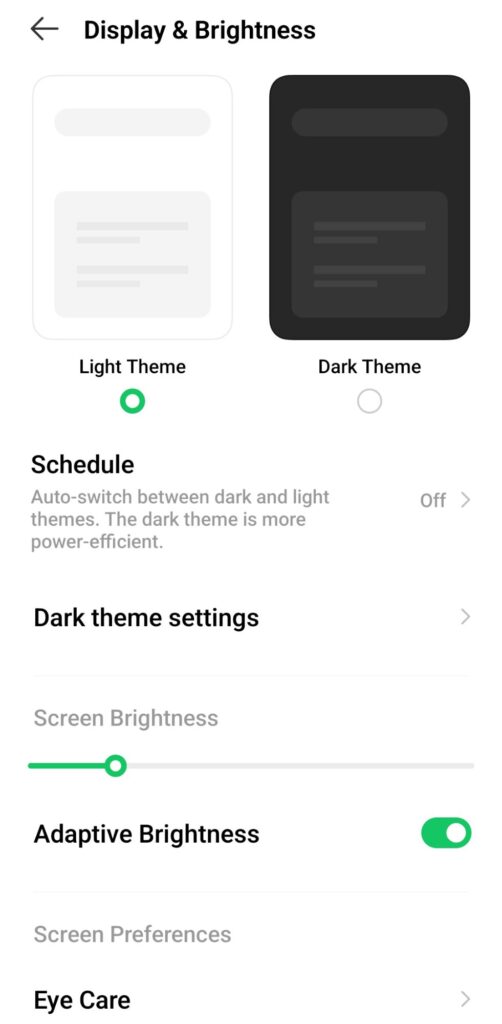
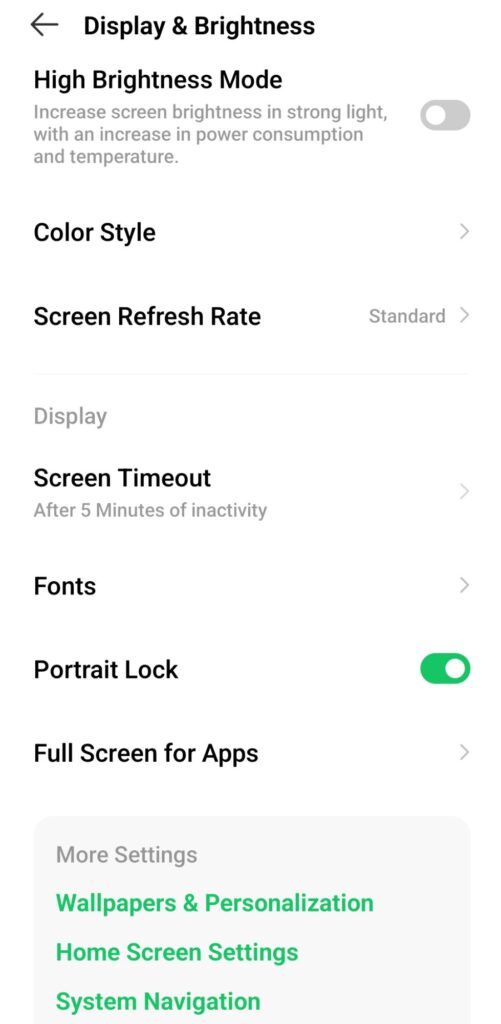
Three settings sit under display and all three matter. Turn on adaptive brightness under Settings > Display > Adaptive brightness so the phone stops running at full power indoors, and drag the slider down manually for a week or two so the phone learns that you prefer a dimmer screen than it assumes. Then look for refresh rate in the same menu, because a 120Hz panel redraws twice as often as a 60Hz one and costs meaningfully more power for a smoothness most people stop noticing within a day. Standard or adaptive refresh rate is the setting you want unless you game seriously.
Screen timeout is the third and the one nobody thinks about. A phone set to two minutes sits there lighting up an empty room every time you put it down, and dropping that to thirty seconds costs you nothing except occasionally tapping the screen again. Always-on display belongs in the same conversation, since it runs continuously for sixteen or more hours a day, and switching it to show only on tap is a small permanent saving. Dark mode helps here too, though only on AMOLED screens rather than the LCD panels fitted to most entry-level phones, which we went through in the guide to YouTube dark mode.
2. Weak signal drains more than most apps ever will
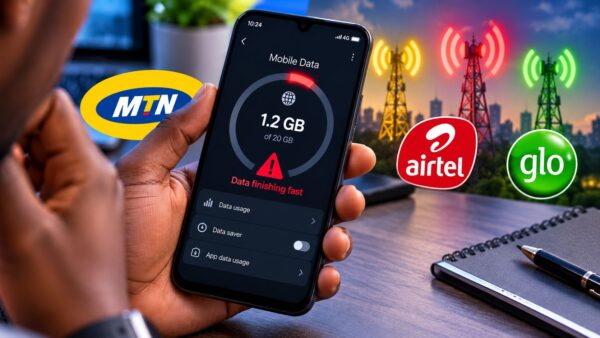
This is the one that gets left out of guides written elsewhere, and in Nigeria it is often the difference between a phone that lasts the day and one that does not. When your phone shows one or two bars, the cellular radio raises its transmit power to hold the connection and keeps scanning for something better, and that runs continuously whether or not you touch the phone. Anyone who has spent a day somewhere with patchy MTN or Airtel coverage has watched the battery fall without using it at all.
The 5G version is worse, because a phone at the edge of 5G coverage flips back and forth between 5G and 4G and pays for every transition. If 5G where you live is inconsistent rather than solid, go to Settings > Network and internet > SIMs > Preferred network type and set it to 4G, which on most Nigerian networks costs you nothing you will notice. In a place with genuinely no coverage, aeroplane mode is the right answer rather than a drastic one, since a phone hunting for a network it cannot find will flatten itself in a few hours.
3. Target the one app that is misbehaving instead of restricting everything
Open Settings > Battery > Battery usage and read it properly before changing anything, because the list on its own is misleading. An app you stared at for two hours will always be near the top and that means nothing, so tap into the entry and look at how the usage splits between foreground and background. What you are hunting for is an app with heavy background usage that you barely opened, which is the actual problem. Everything else on the list is just you using your phone.
When you find one, go to Settings > Apps > [app] > Battery and set it to Optimised. Avoid Restricted for anything that needs to reach you, because that setting cuts the app’s background jobs entirely and is the reason people end up with WhatsApp messages arriving in clumps whenever they open the app, which we covered in the guide to WhatsApp battery drain. Samsung users should also check Settings > Battery > Background usage limits and take anything important out of the sleeping and deep sleeping lists. Apps you never open at all are better uninstalled than restricted.
4. Adaptive Battery and Battery Saver do different jobs, and both are worth using
Adaptive Battery lives under Settings > Battery and learns which apps you actually use, then quietly limits the ones you do not. It takes a few days to settle and then works permanently in the background without you thinking about it, which makes it the closest thing to free battery life on the phone. Leave it on. It does a better job of what booster apps claim to do, and it does it without killing anything you need.
Battery Saver is the manual version and works best used deliberately rather than only as a rescue at 15%. Most phones let you schedule it, so setting it to switch on automatically at 30% means the phone starts conserving well before you are in trouble. It reduces background activity, dims the display, cuts back animations and on many phones drops the refresh rate, so expect the phone to feel slightly less snappy while it is on. For a full day out with no charging in sight, switching it on from the start rather than waiting is what actually gets you home.
5. Every notification wakes the phone, so prune what reaches you
Each notification pulls the processor out of its low power state, lights the screen, and sometimes vibrates, and none of that is free. A person in six busy WhatsApp groups plus the usual shopping, banking and news apps can easily take a couple of hundred of these a day, which means the phone never gets a decent stretch of genuine idle time. Muting the groups you do not read is the fastest fix, since a muted chat still receives messages without waking the phone for each one.
Beyond that, go to Settings > Notifications > App notifications and switch off everything that is not a person contacting you. Shopping apps, games and news apps are the usual offenders and none of them need to interrupt you. In the same spirit, check Settings > Location > App location permissions and move anything set to Allow all the time down to While using the app, because a handful of apps tracking your position continuously is a real cost. There are a few more settings in this territory worth knowing about in our roundup of hidden Android settings every Nigerian should activate.
Three popular tips that do nothing, or make it worse
Force closing apps by swiping them out of recents is the biggest one, and it is counterproductive rather than merely useless. Android keeps recently used apps in a cached state precisely so they can resume cheaply, and killing them means the phone reloads each one from scratch next time, which costs more processor work than leaving them alone. Booster and cleaner apps do this repeatedly and permanently while also running themselves and serving ads, so they cost you battery twice over.
Turning off Wi-Fi to save power is backwards, because Wi-Fi uses less energy than mobile data for the same amount of work, so a phone on Wi-Fi is generally the more efficient phone. Bluetooth and NFC are worth switching off when unused, though the saving is small enough that it is not where your battery is going. The third is the habit of letting the phone die completely before charging, which is a holdover from nickel batteries decades ago and does nothing useful for the lithium cell in your phone.
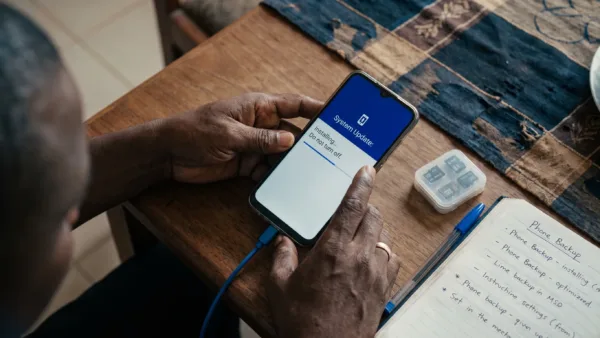
One honest caveat about system updates, which get recommended for battery life everywhere. They do carry genuine power management improvements and are worth installing, mostly for the security fixes, but expect the phone to run warm and drain faster for several days afterwards while it recompiles apps and rebuilds caches in the background. That is normal and it passes, and we explained the mechanism in why Android phones heat up after updates along with what to do when battery life gets worse after one.
If you work through all five and the phone still cannot hold a charge, the battery itself has probably aged past what settings can compensate for, and the guide to phones that charge fast but drain quickly covers how to check its health and what a replacement involves. For a healthy phone though, the screen and the signal between them account for most of what you are losing, and both are fixed in about two minutes without installing a single thing.